Omega Data Logger
IndySoft can interface with Omega Data Loggers as well. This can automatically import multiple devices' current temperature and humidity readings into the IndySoft database. Note that only one instance of OmegaiServer.exe needs to be running at any one time to sync multiple devices - meaning the physical devices can be at various locations. Still, only one OmegaiServer.exe must port all the cloud data into the IndySoft database.
Installation
To begin, launch the IndySoft Omega Installer (IndySoftOmegaInstaller.exe):
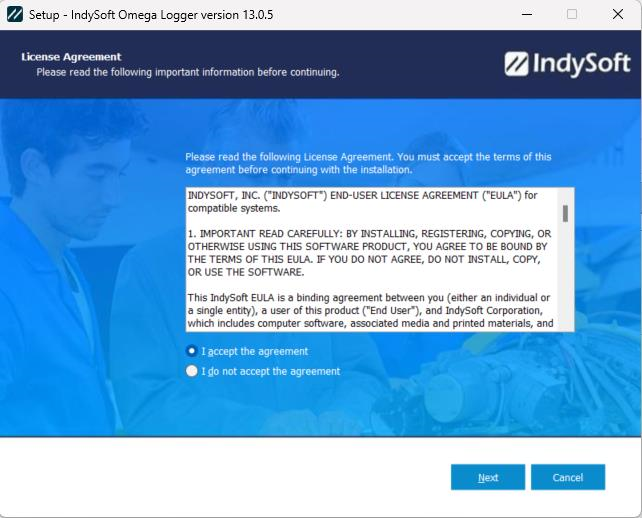
IndySoft Omega Installer - Step 1 - License Agreement
Accept the user agreement in step 1, then click 'Next.'
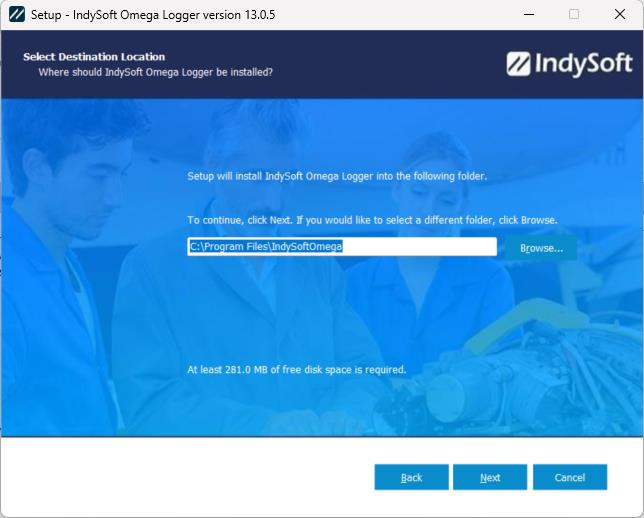
IndySoft Omega Installer - Step 2 - Select Destination Location
Select the destination location in step 2. The default program directory that the IndySoft Omega Logger utility will install to is: C:\Program Files\IndysoftOmega
At least 281 MB of free disk space is required for the installation.
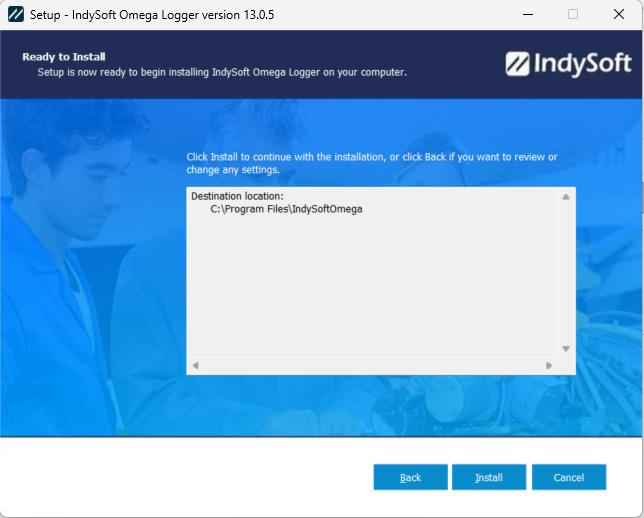
IndySoft Omega Installer - Step 3 - Ready to Install
Confirm the destination location in step 3 and click "Install" once ready.
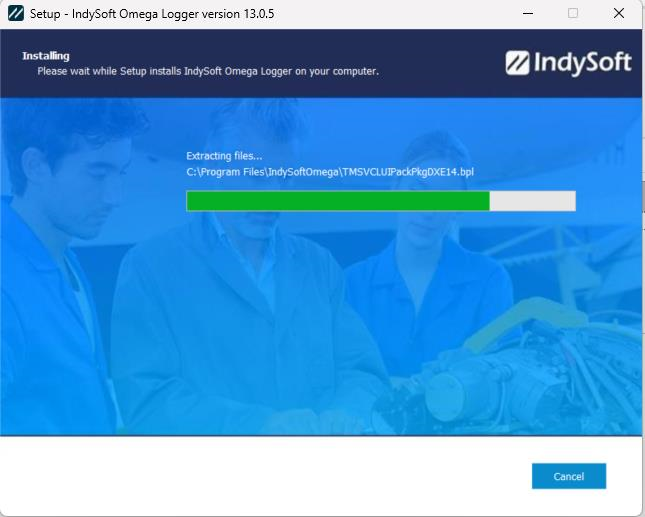
IndySoft Omega Installer - Step 4 - Installing
Please wait while the installation of IndySoft Omega Logger completes on your computer.
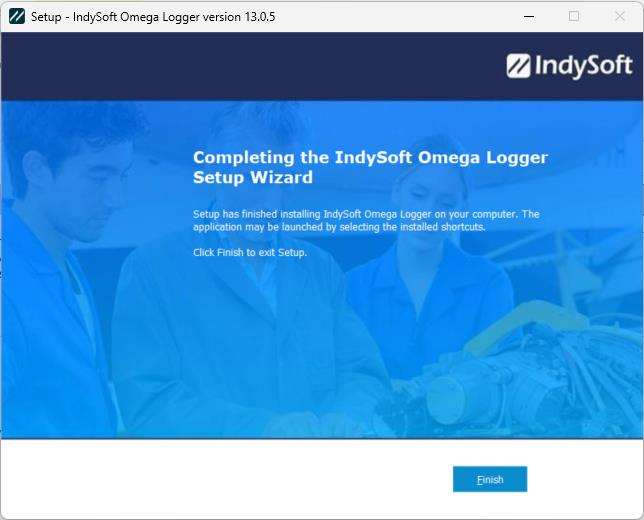
IndySoft Omega Installer - Step 5 - Install Complete
Once installation is complete, click "Finish."
Initial Setup/Options Tab
To begin, launch DatabaseSettings.exe from your IndySoftOmega program directory and confirm a successful connection to the Multi-User database.
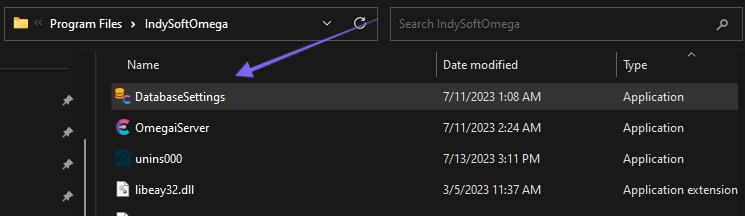
IndySoftOmega Program Directory - Locate Database Settings
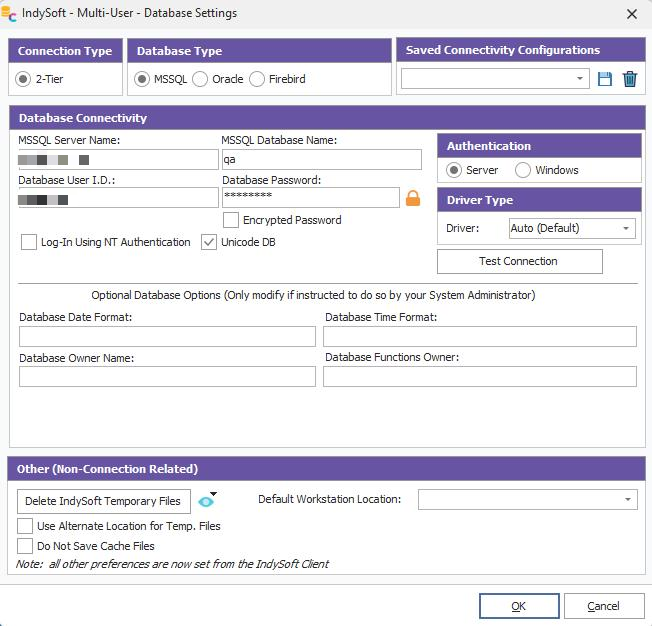
Confirm Database Settings
Once confirmed, launch the OmegaiServer.exe utility from the program directory. The utility runs in the Windows system tray.
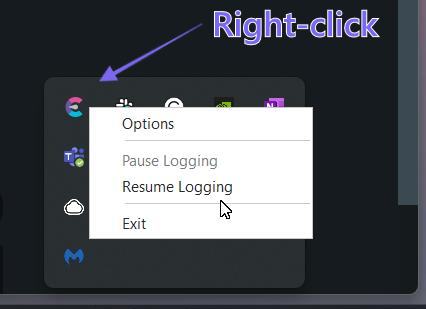
Omega Cloud Data Logger - Windows Tray Right-Click Options
Right-mouse click on the tray icon and select 'Options' to open the main screen, or double-click on the tray icon:
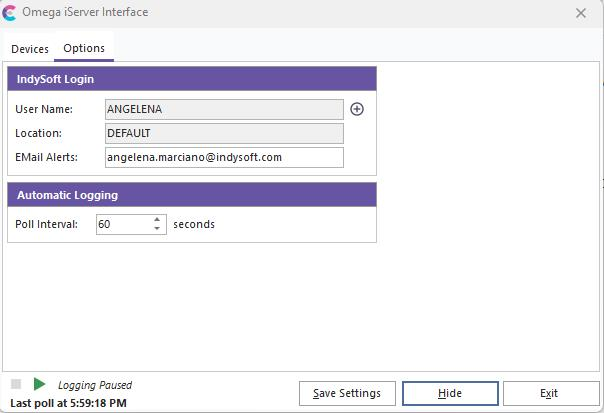
Options Tab - Omega Cloud Data Logger
First, go to the Options tab and click the plus sign icon to add an IndySoft user/location association for email alerts.

IndySoft User Name / Location - Omega Data Logger
Use this dialog to select from IndySoft user names (logins) and related locations. This user/location combination is required so the IndySoft Omega Server utility can send alert emails if needed. The email settings specified in the User/Location Settings dialog...The email tab will be used. Use the globe icon next to the location field to 'View/Edit User/Location Settings' for the selected user.
Note: it is also important that this related login is associated with an employee in IndySoft that has a valid email address specified in the Add/Edit Employees wizard. If this email does not exist in the database, you will be prompted to auto-add the email. This related email address is then populated into the 'EMail Alerts' input box on the main Options page of the utility. If required, this email address can be manually edited from the main Options dialog (if you want the emails sent to a different location than the default email associated with the related IndySoft login).
Next, from the Options tab main screen, confirm/set the Poll Interval for how often the temperature/humidity readings will be read from the Omega data loggers and populated into the IndySoft database. The default interval is once every 60 seconds.
Press 'Save Settings' to confirm your selection.
Devices Tab
Once your Options have been confirmed, navigate to the Devices tab and press the 'Add New Logger' button  (plus sign icon):
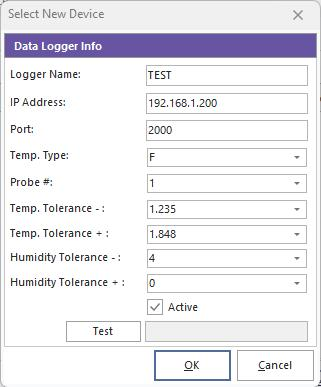
Select New Device - Omega Data Logger
Enter a unique name for the device in the 'Logger Name' field. Select the 'Active' check to enable readings (any devices not set to Active will be ignored, and no values will be saved to the IndySoft database). Press the 'Test' button to sample the current data at the selected device if desired.

Test Device - Sample
For a more detailed description of each field in the 'Select New Device' dialog, expand the section below:
[+] Show Data Logger Info Fields
[-] Hide Data Logger Info Fields
| Data Logger Info Field | Description
| Logger Name | The unique identifier for the logger deviceIP Address | The IP address to connect back to the Omega server. Default is 192.168.1.200Port | The port to connect to the Omega serverTemp. Type | Specify temperature units: Fahrenheit or CelsiusProbe # | 1 or 2 (depending on the device)Temp. Tolerance - | Temperature lower bound tolerance. If the temperature reading exceeds this, the value will not be stored in the database as it is considered out of tolerance.Temp. Tolerance + | Temperature upper bound tolerance. If the temperature reading exceeds this, the value will not be stored in the database as it is considered out of tolerance.Humidity Tolerance - | Humidity is lower bound tolerance. If the humidity reading is less than this, the value will not be stored in the database as it is considered out of tolerance.Humidity Tolerance + | Humidity upper bound tolerance. If the humidity reading exceeds this, the value will not be stored in the database as it is considered out of tolerance.Active | Toggle the logger device as active or inactiveTest | Run a test and sample the current data from the selected logger device |
Press OK to confirm your selection.
You can add multiple logger devices to this list through this utility. To start the logging process, press the green 'play' button in the bottom left-hand corner of the dialog:
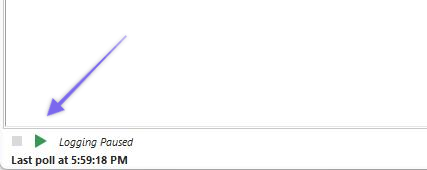
Start/Resume Logging
The utility can run in the background and be accessed directly through the Windows tray.
To set up the data logger for usage within IndySoft, enter the unique logger name into the User/Location Settings External Devices tab.
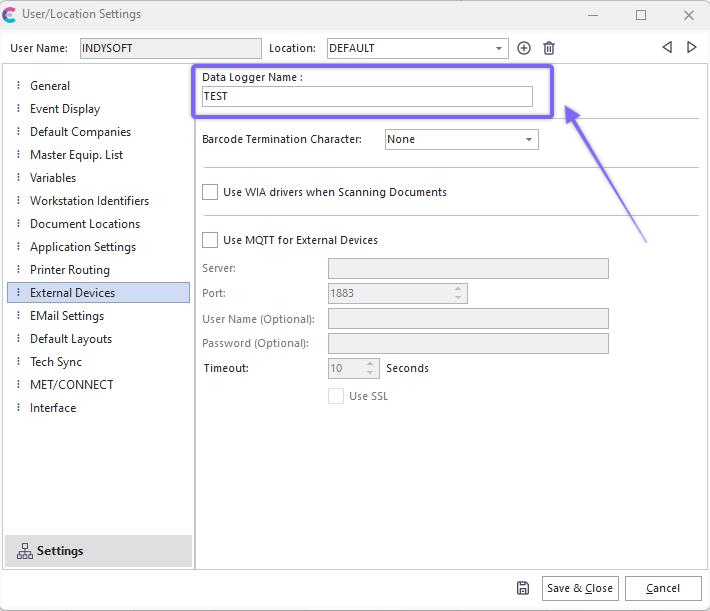
User/Location Settings - External Devices - Data Logger Name
For more details, see the Client Computer Setup/Usage section.
Email Notifications
Email notifications will be sent to the designated user (on the 'Options' tab) once every 24 hours (per session). If you close the utility and launch a new session, this timer will be reset.
For example, if a tolerance reading is found to be out of tolerance (based on the specifications of the device within the 'Devices' tab), then the following email will be sent:
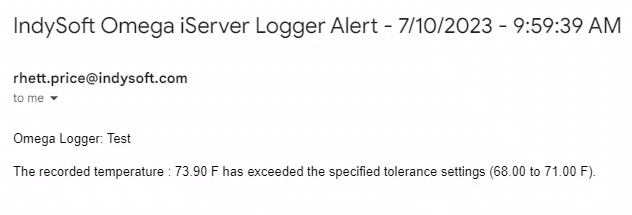
Email Notification Example - Temp. Out of Tolerance
If there is a connection timeout error while trying to connect to the logger device, the following email will be sent:
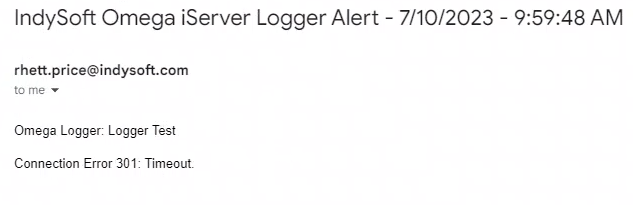
Email Notification Example - Connection Timeout |