Custom Config. & Language Dictionary
The Custom Config. & Language Dictionary tab allows for automatic logging of all text from IndySoft custom configuration. These text items can then be translated and saved to the IndySoft database for language-specific display.
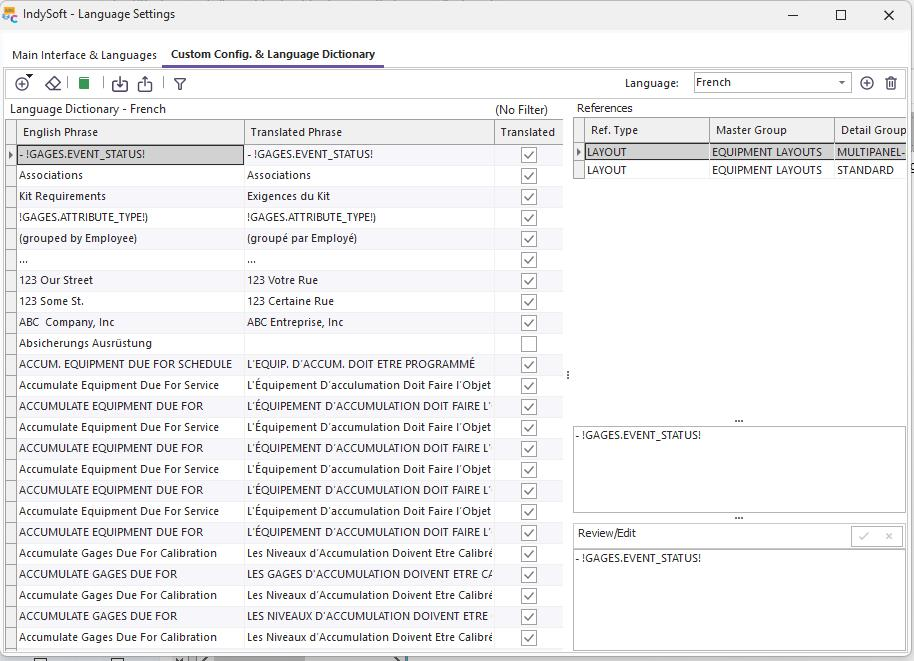
Custom Config. & Language Dictionary Tab
Only one language is displayed at a time, selected in the upper right. Use the Insert and Delete buttons to the right of the Language drop-down to add or remove a language to the Language Dictionary. Remember, these languages differ from the 'Available Languages' on the first tab. These languages correspond to the Language Dictionary, which is stored in the IndySoft database (rather than languages files stored in the 'IndySoft Languages Folder') and is dedicated to translating custom IndySoft configurations. However, it is typically best practice to keep the languages in sync between these two tabs/sections.
The 'English Phrase' is the original phrase within the grid, as found in the IndySoft configuration. This 'English Phrase' field is not editable. This same phrase might occur within multiple instances in the IndySoft configuration. Check the 'References grid to the right for a review of the usage of each phrase.
Update the 'Translated Phrase' column with translated text. Use the 'Translated' and 'Untranslated' checkboxes to help track when your work is complete. The grid can be filtered through options in the header field labels.
To begin, populate items into the Dictionary using the options described below (available above the 'Language Dictionary' grid):
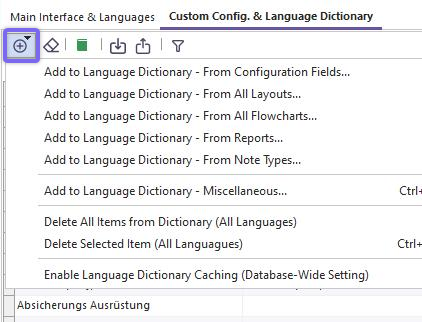
Add to Dictionary - Menu
IMPORTANT: All the 'Add' operations described below log items for translation across all languages. These operations typically only need to be run once (unless you have modified the system configuration and would like to re-populate).
Add to Language Dictionary - From All Layouts: Use this option to automatically populate the Language Dictionary with any hardcoded text within layouts in LayoutBuilder. IndySoft will loop through all layouts, load each, and review any text NOT linked to a merge item (like the data display). This text will be logged into the dictionary for translation. For example, if you had the text below in an Equipment layout:
Department: !GAGES.DEPARTMENT!
Model #: !GAGES.MODEL_NUM!
Then 'Department' and 'Model #' would be logged for translation, but the '!...!' merge items would be skipped - since they are replaced with actual data upon display. Automatically logging layout text allows IndySoft to use the same layout, designed in English, across multiple languages. A progress bar will display the layout names as they are processed.
Add to Language Dictionary - From All Flowcharts: Use this option to automatically populate the Language Dictionary with any hardcoded text within Flowcharts in LayoutBuilder. IndySoft will loop through all flowcharts, load each, and review any text in each object/label. This text will be logged into the dictionary for translation. These items will be logged through the 'Configuration Fields' scan below. You will note the various references in the 'References' grid on the right of the 'Custom Config & Language Dictionary' tab. A progress bar will display the flowchart names as they are processed.
Add to Language Dictionary - From Configuration Fields: Use this option to automatically populate the Language Dictionary with translatable text within the configuration. This option is very thorough - it attempts to locate all the places in the software where you have customized the interface with your text:
·System-Wide Captions
·Company Field Captions
·Tracking Status Captions
·Event Types (Workflow Config.) - including event name, menu name, full event name, menu group, field Labels
·Attribute Types
·Schedule Types
·Detail Dialog/Tab Captions (within layouts - like 'History,' 'Default Masters,' etc.)
·Custom report/search menu items (including equipment searches, reports, Estimates, Invoices, and Work Orders)
A progress bar will display the configuration sections as they are processed.
Add to Language Dictionary - From Reports: Use this option to automatically populate the Language Dictionary with any hardcoded text within reports in PrintBuilder. Note that the data displayed in the report is never translated, only text explicitly saved into the report, like a caption name, title name, etc.
Add to Language Dictionary - Miscellaneous: Use this option to manually add a text item to the Language Dictionary for translation. This option is helpful if you want to log an English word/phrase you know will be used in a custom script within the software. Use the ReturnDBTranslation function within the script (pass it the English phrase input here) to return the translated phrase. If the phrase has not yet been translated, then the original phrase is returned.
Delete All Items from Dictionary (All Languages): Use this option only when you would like to clear all items from the Language Dictionary across ALL languages. So, regarding the language dictionary (used for translating custom configuration), you will start over completely.
Delete Selected Item (All Languages): Use this option to delete the currently selected item for ALL languages. This is helpful if you are sure the item is no longer used in configuration and can be cleared to simplify the dictionary.
Clear Translations: Use this option to clear only the translated text for the current language.
Auto-Translate Selected Language: Use this option to auto-translate all untranslated (and all items not flagged as untranslatable) in the selected language. This operation resembles the 'Auto-Translate' options on the 'Main Interface & Languages' tab. However, these translations apply only to the Language Dictionary, which is stored in the IndySoft database, and targets custom configuration. A Google API key will be required before proceeding. The 'Source' language is always 'English' (the original language for IndySoft), and the 'Destination' language is currently selected on this tab. Note: If translating only to the fake 'Pig Latin' language, then no Google API key is required. |