Setup Labels
To access work order information, double-click on it in the grid (see Grid View). Use this configuration dialog to modify the labels available for each calendar item's 'Label' field, as shown below:
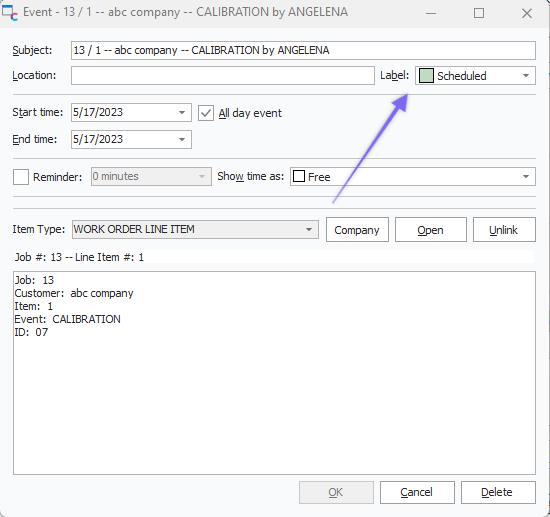
Work Scheduling - Label Field

Drop-Down Labels
Lab configuration depends on security item in Profile Manager: IndySoft Calendar...Block Setup Labels. You can also access this dialog from the Work Scheduling module  Options Icon.
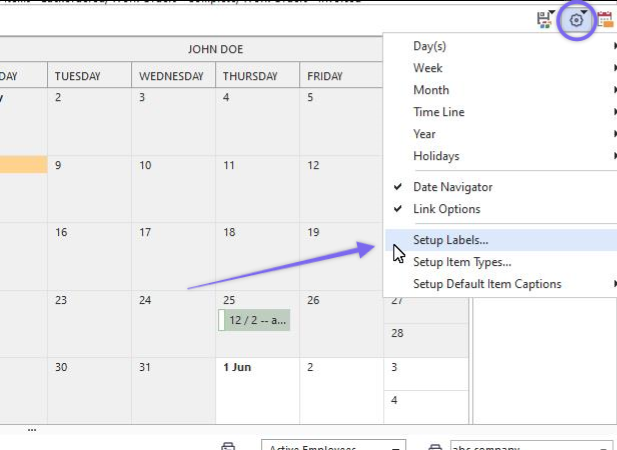
Work Scheduling Module - Options
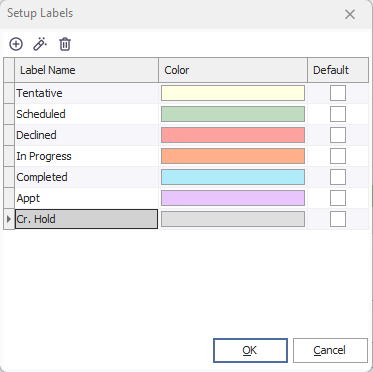
Setup Labels dialog
To modify the items, use the 'Add New Label,' 'Edit Label,' and 'Delete Label' buttons above the grid. If a previously input status is modified, then older calendar items with the older color will be modified to reflect the new color. If an older status is deleted, a replacement status will be prompted - for any existing items with the older status.

Add/Edit Status Dialog
One status can be selected as 'Default.' This means this status will be pre-selected for any ad-hoc items created (work order-related items always default to scheduled when placed on the schedule). |