Test Points - Excel, Word, and VisualCal Integration
Microsoft Excel, Word, and VisualCal Integration Using the Test Point Type Drop Down
 Test Point Type
The Test Point type drop-down button allows you to specify six different types of Test Points to use when calibrating a piece of equipment in IndySoft: Standard, Excel Document, Excel Range, Excel Cells, Word Document, and VisualCal programs.
Standard
This is the default selection for new gages and allows you to use the standard IndySoft grid for setting up and recording Calibration results.
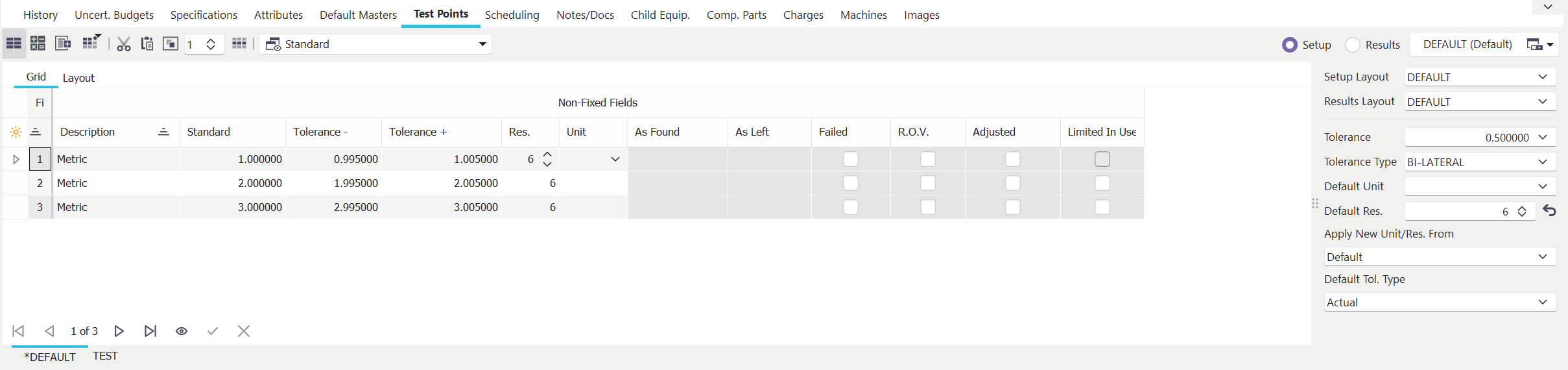
Standard Test Points
Excel Document
The Excel Document type of test points allows you to use an embedded Excel document for your calibration results. To use this method, select Excel Document and choose a document from the Document list. Note: The Excel Document must have already been added using Add/Edit documents and be checked as an 'Embedded Calibration Document.' Clicking the  view document button will perform the action specified when the file was added to the Add/Edit Documents list.
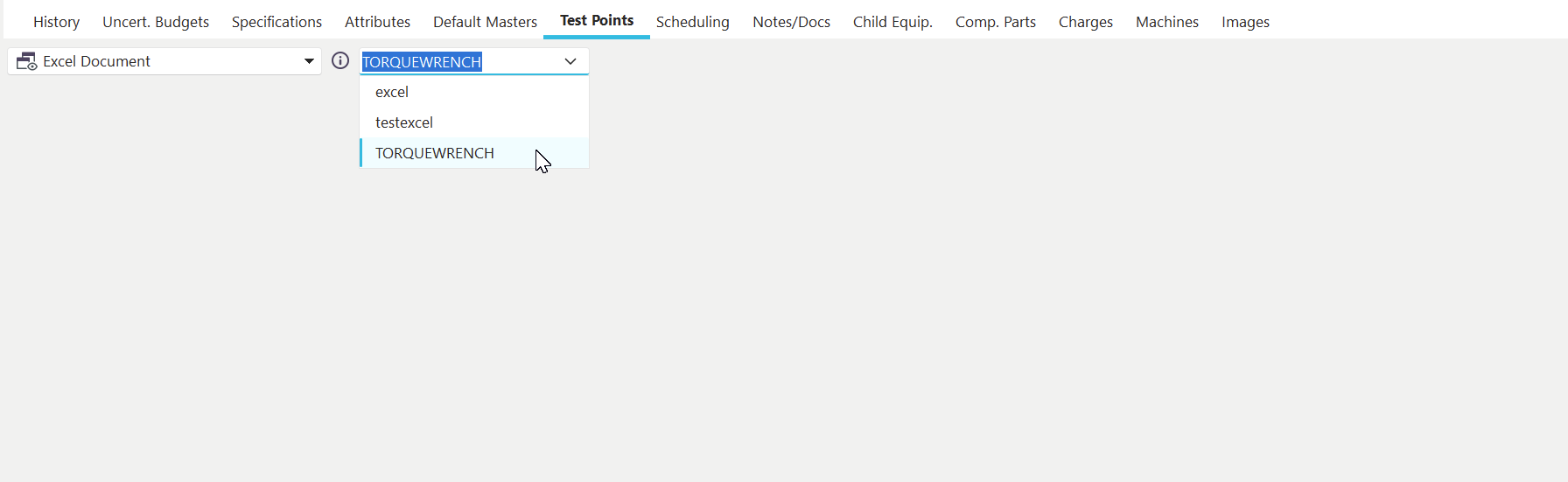
Excel Document-Based Test Points
When calibration-style events are performed on assets that use any Excel-based test point types, the 'Calibration Results' step will display a copy of this Excel document in its own window. Note: Having a tab named "IndySoft Defaults" will automatically populate the Excel document with related Equipment/Event data. This data can be referenced from other worksheet tabs to create a certificate look or other types of documents. The Excel document can then be edited and saved. Upon returning to the event window, the Excel document will be imported automatically into the event.
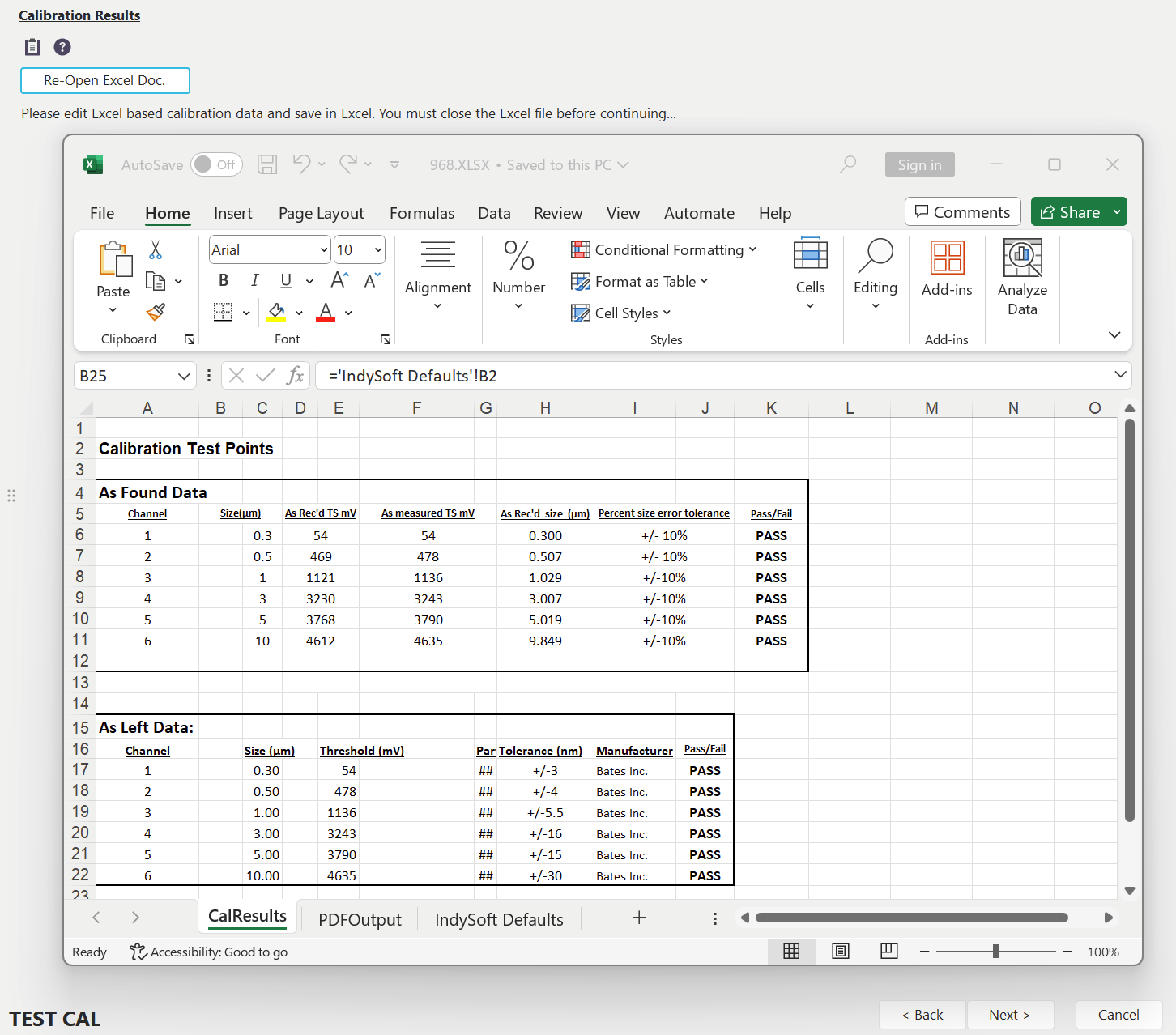
Example - Event with Excel-based Calibration Results
Excel Document w/Cert Creation
This option works just like 'Excel Document' above, but a certificate will be generated after the event completes, just as in a normal calibration event. The Excel document modified in the event will also be available as an event document for review.
Excel Document w/PDF Export
This option works much like 'Excel Document' and 'Excel Document w/Cert Creation above, but the Excel Document itself can be directly output to pdf and used as the certificate for the event or merged in with specified starting/trailing pages in the normally generated certificate created by PrintBuilder. This exported/merged Excel document will also be available as an event document for review. There are many options to be decided when using this advanced functionality. These options are set within the Excel document on a tab specifically named 'PDFOutput.'
Settings are always specified in the first column, in the format of setting=value (both setting and value within column 1, separated by '='). Settings can be placed in any order. There are over 40 settings that can potentially be set, but one setting is most important (but still optional):
OutputSheet=MySheetNameHere
If this value is set to the name of another worksheet, then only this worksheet will be output to pdf. If this value is blank, then all worksheets will be output. The default value for this property is empty.
The second important concept is to disable/hide any page # display that might already be set up in your Excel file before it is used in this automatic pdf output. Otherwise, the page #'s will likely be incorrect when only one worksheet is exported and/or the pdf is merged with pages from the PrintBuilder template. Instead, use the ReplacePageNums variable (set to '1'), along with PageNumberAlign, PageNumberFontSize, PageNumberFormat, PageNumberX, and PageNumberY properties to instruct IndySoft how to automatically draw page numbers onto the pdf after the export/merge is complete.
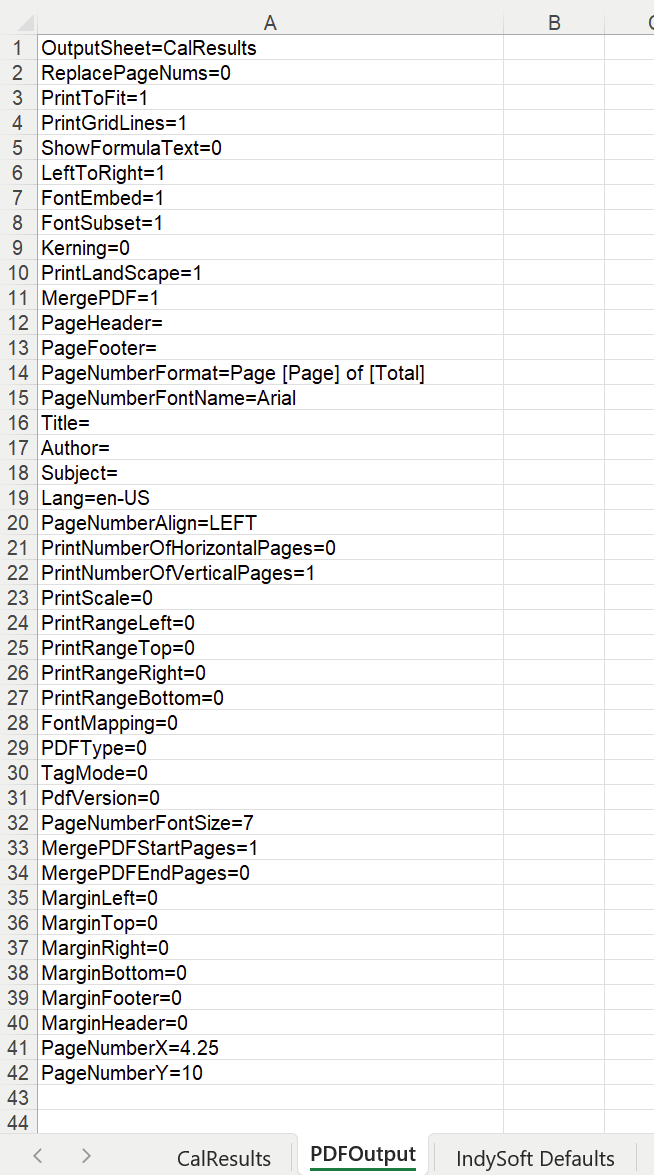
Example - PDFOutput Excel Tab w/ Settings
Below is a listing of all settings, their usage, and default values:
Variable Name | Variable Type | Description | Default Value
| PrintGridLines | Boolean (1 or 0) | True if the gray grid lines are printed when printing the spreadsheet. | FalseShowFormulaText | Boolean (1 or 0) | When true, the formula text will be displayed instead of the formula value. | FalsePrintToFit | Boolean (1 or 0) | If true, sheet will be configured to fit on PrintNumberOfHorizontalPages x PrintNumberOfVerticalPages. | FalseLeftToRight | Boolean (1 or 0) | Print over, then down | TrueFontEmbed | Boolean (1 or 0) | Determines what fonts will be embedded on the generated pdf. Note that when using UNICODE fonts WILL BE EMBEDDED no matter the value of this property. Also if creating PDF/A files. | TrueFontSubset | Boolean (1 or 0) | When FontEmbed is set to embed the fonts, this setting determines if the full font will be embedded, or only the characters used in the document. If the full font is embedded the resulting file will be larger, but it will be possible to edit it with a third party tool once it has been generated. | TrueKerning | Boolean (1 or 0) | By default, pdf does not do any kerning with the fonts. This is, on the string "AVANT", it won't compensate the spaces between "A" and "V". (they should be smaller) If you turn this property on, IndySoft will calculate the kerning and add it to the generated file. The result file will be a little bigger because of the kerning info on all strings, but it will also look a little better. | FalsePrintLandscape | Boolean (1 or 0) | Determines if the Excel document should be output to pdf in landscape orientation. | FalseReplacePageNums | Boolean (1 or 0) | Determines if IndySoft should automatically draw page numbers after the pdf has been exported/merged. Use the PageNumberFormat, PageNumberFontName, PageNumberFontSize, PageNumberAlign, PageNumberX, and PageNumberY settings to specify additional settings. | FalseMergePDF | Boolean (1 or 0) | Determines if the pdf that is output from this Excel file should be merged with the pdf created from PrintBuilder for the current event. If this value is set to '1' then the MergePDFStartPages and MergePDFEndPages variables will be used to determine the pages for merge. | FalseOutputSheet | Text | If this value is set to the name of another worksheet then only this worksheet will be output to pdf. If this value is blank then all worksheets will be output. Note: if you are exporting all worksheet pages to pdf, don't forget to Hide the PDFOutput tab in Excel, or it will also be sent to pdf. |PageHeader | Text | Page header on the active sheet |PageFooter | Text | Page footer on the active sheet |PageNumberFormat | Text | If ReplacePageNums=1 then this format text will be used to draw page numbers. Any text can be input. 2 aliases can be used - that are automatically replaced before text is drawn:
[Page] = current page #
[Total] = total # of pages in the pdf |PageNumberFontName | Text | If ReplacePageNums=1 then this font will be used to draw page numbers. | ArialTitle | Text | Document Title |Author | Text | Document Author |Subject | Text | Document Subject |Lang | Text | Language identifier specifying the natural language for the document. This should be a standard specifier like "en-US". The language will be used by text-to-speech engines to read text out loud. You can see a list of languages here: http://msdn.microsoft.com/en-us/library/ee825488(v=cs.20).aspx | en-USPageNumberAlign | Text | If ReplacePageNums=1, set this to either 'LEFT', 'RIGHT', or 'CENTER' depending on how the page # text should be aligned based upon the fixed point specified by PageNumberX and PageNumberY properties. | CENTERPrintNumberOfHorizontalPages | Integer | If set, the sheet will be printed on at most this number of horizontal pages. Use 0 to have unlimited horizontal pages while still limiting the vertical pages with PrintNumberOfVerticalPages. | 0PrintNumberOfVerticalPages | Integer | If set, the sheet will be printed on at most this number of vertical pages. Use 0 to have unlimited vertical pages while still limiting the horizontal pages with PrintNumberOfHorizontalPages. | 0PrintScale | Integer | Percent to grow/shrink the sheet. | 0PrintRangeLeft | Integer | First column to print (1 based). if this or any other PrintRange property is 0, the range will be automatically calculated. | 0PrintRangeTop | Integer | First row to print (1 based). if this or any other PrintRange property is 0, the range will be automatically calculated. | 0PrintRangeRight | Integer | Last column to print (1 based). if this or any other PrintRange property is 0, the range will be automatically calculated. | 0PrintRangeBottom | Integer | Last row to print (1 based). if this or any other PrintRange property is 0, the range will be automatically calculated. | 0FontMapping | Integer | Determines how fonts will be replaced on the generated pdf. Pdf comes with 4 standard font families, Serif, Sans-Serif, Monospace and Symbol. You can use for example the standard Helvetica instead of Arial and do not worry about embedding the font. Possible values are 0 for Replace All Fonts, 1 for Replace Standard Fonts, and 2 for Don't Replace Fonts. | 0PDFType | Integer | Defines the type of pdf being created. Note that if you set this property to other value than standard, other properties might be ignored. For example, when creating a PDF/A file all fonts must be embedded so the value of the FontEmbed property will be ignored. See the TagMode property to detemine if the file will be PDF/A-na or PDF/A-nb. If tagging is true (the default) the generated files will be "a". If not, they will be "b", since b doesn't require tagging. Possible values:
0 = Standard
1 = PDFA1
2 = PDFA2
3 = PDFA3 | 0TagMode | Integer | If TagMode is full (the default), the generated file will be tagged. Tagged pdfs provide better accesibility support, but the files can be significantly bigger and take a little longer to create. If you prefer smaller files even if not accessible, turn this option off. Note that when creating PDF/A files with PdfType this property defines if the file is PDF/A-na or PDF/A-nb. This is because PDF/A-1a and PDF/A-2a require tagged files, so if this option is true the geneated files will be "a". If this option is false, then the generated files will be "b" which is a less strict standard and doesn't require tagging. Possible values are either 0 for Full or 1 for None. | 0PdfVersion | Integer | Defines the version of pdf being created. For maximum compatibility you can choose PDF 1.4. (Acrobat 5.0, but can be opened by any version of Acrobat, even if version less than 1.4 won't have all the features). Choosing PDF 1.6 (Acrobat 7) allows for more compression and smaller files, but you'll need Acrobat 7 or newer to see the files. Older versions won't be able to open it at all. Note that this value might be ignored if you are creating PDFA-1 (as it requires PDF1-4). Possible values are 0 for 1.4 or 1 for 1.6. | 0PageNumberFontSize | Integer | If ReplacePageNums=1 then this font size will be used to draw page numbers. | 8MergePDFStartPages | Integer | Only applicable if MergePDF=1. Set this to the # of pages that should be merged from the beginning of the PrintBuilder certificate - added to the pdf created from this Excel. | 0MergePDFEndPages | Integer | Only applicable if MergePDF=1. Set this to the # of pages that should be merged from the end of the PrintBuilder certificate - added to the pdf created from this Excel. | 0MarginLeft | Float | Left Margin | 0.0MarginTop | Float | Top Margin | 0.0MarginRight | Float | Right Margin | 0.0MarginBottom | Float | Bottom Margin | 0.0MarginFooter | Float | Footer Margin | 0.0MarginHeader | Float | Header Margin | 0.0PageNumberX | Float | If ReplacePageNums=1 then PageNumberX and PageNumberY properties are used to specify a point where the Page # will be drawn using the alignment of PageNumberAlign, etc. This X position should be specified in inches, fixed from the lower-left of the page. | 4.25PageNumberY | Float | If ReplacePageNums=1 then PageNumberX and PageNumberY properties are used to specify a point where the Page # will be drawn using the alignment of PageNumberAlign, etc. This Y position should be specified in inches, fixed from the lower-left of the page. | 10 |
Excel Range
The Excel Range type of test points allows you to use an embedded Excel document for your calibration results, but instead of using the Excel document as its own cert, the Excel Range will enable you to pick out ranges of data from the Excel spreadsheet and throw the result into a PDF based certificate. To use this method, select Excel Range and choose a document from the Document list. Note: The Excel Document must have already been added using Add/Edit documents and be checked as an 'Embedded Calibration Document.' Clicking the view document button will perform the action specified when the file was added to the Add/Edit Documents list.
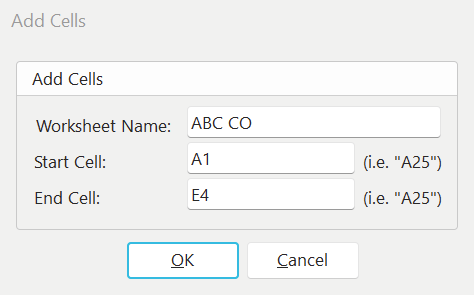
Add Excel Cells (Range)
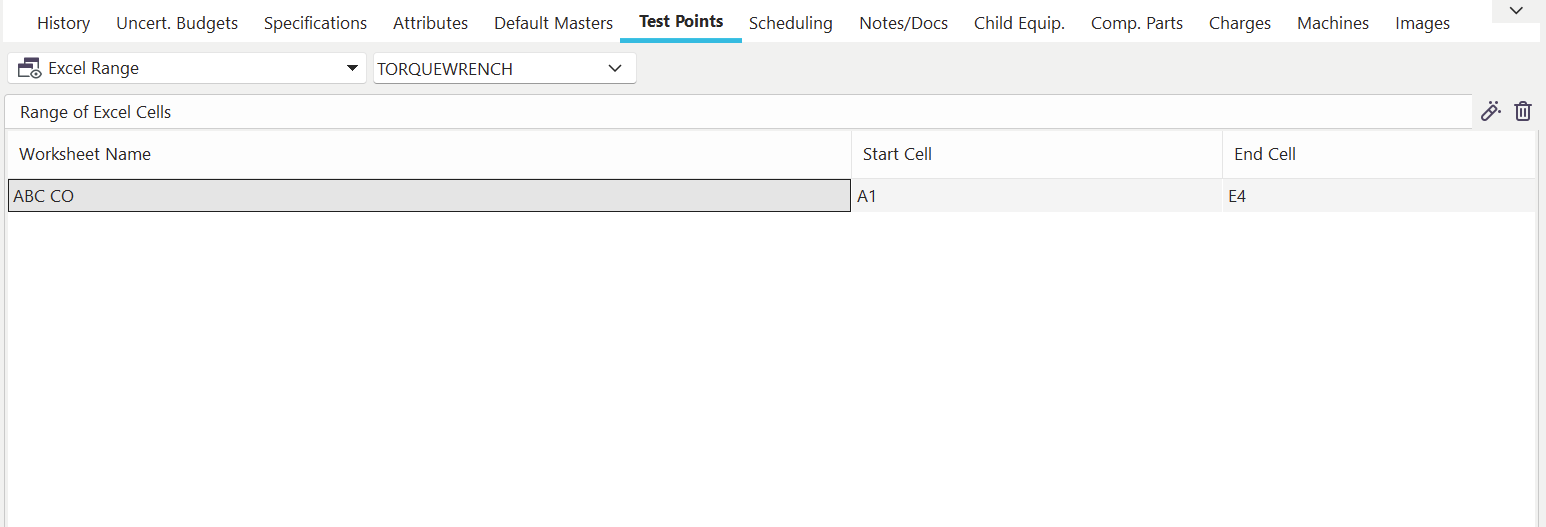
Excel Range-Based Test Points
Excel Cells
The Excel Cells type of test points allow you to use an embedded Excel document for your calibration results, but instead of using the Excel document as its own cert, the Excel Cells will enable you to pick out specific cell data from the Excel spreadsheet and throw the result into a PDF based certificate. To use this method, select Excel Cells and choose a document from the Document list. Note: The Excel Document must have already been added using Add/Edit documents and be checked as an 'Embedded Calibration Document.' Clicking the view document button will perform the action specified when the file was added to the Add/Edit Documents list.
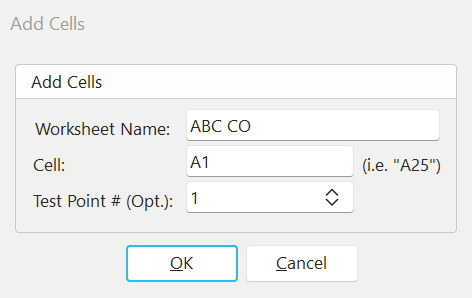
Add Excel Cells (Cells)
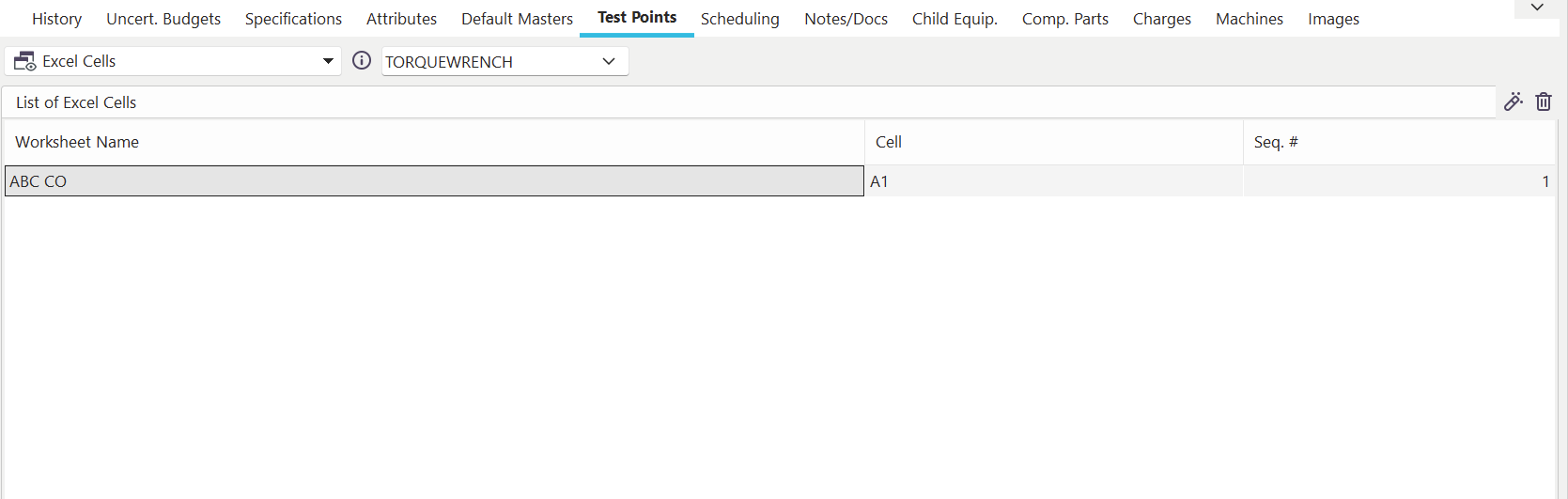
Excel Cell-Based Test Points
Word Document
The Word Document type of test points allows you to use an embedded Word document for your calibration results. To use this method, select Word Document and choose a document from the Document list. Note: The Word Document must have already been added using Add/Edit documents and be checked as an 'Embedded Calibration Document.' Clicking the view document button will perform the action specified when the file was added to the Add/Edit Documents list.
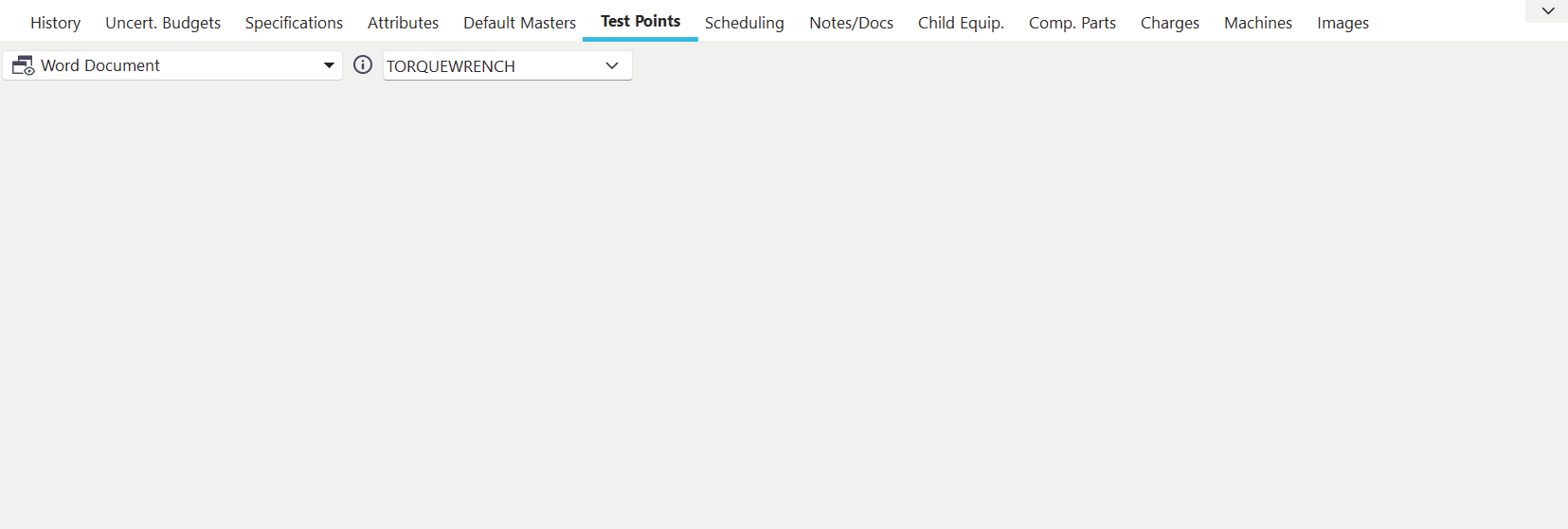
Word Document-Based Test Points
VisualCal Program
IndySoft allows you to integrate with a pre-setup VisualCal program. By choosing a VisualCal program, you can call the VisualCal runtime during calibration. After completing the VisualCal program, the result data will be sent back into the IndySoft calibration screen.
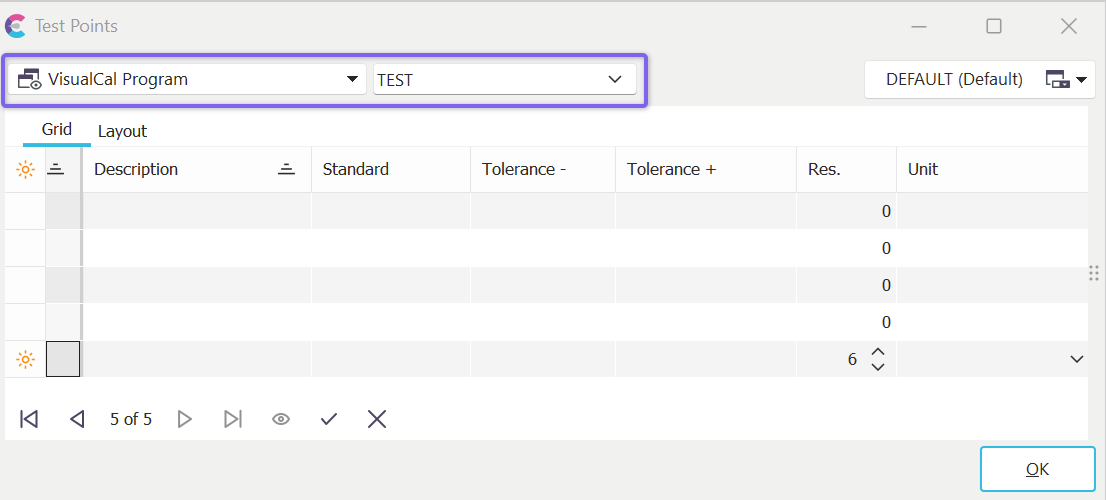
Test Points Using VisualCal Program
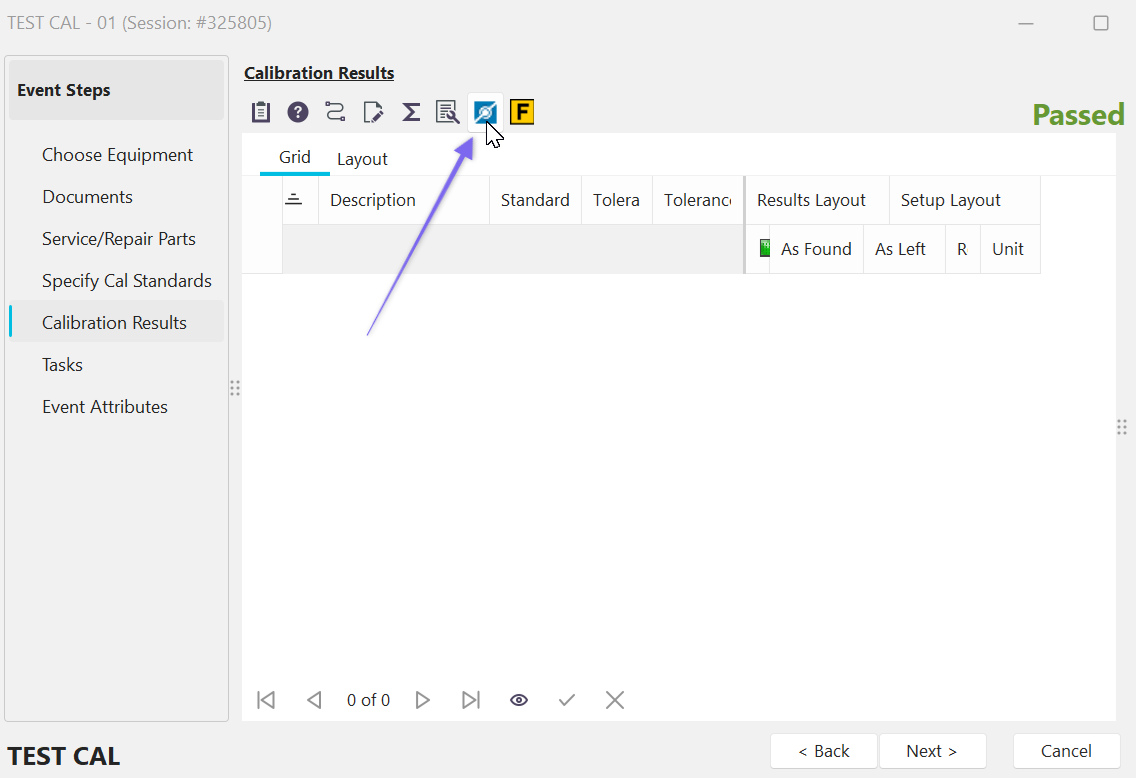
Within IndySoft calibration-style events run on assets with 'VisualCal Program' test points; upon entry into the 'Calibration Results' event step, IndySoft will automatically launch the VisualCal Player and execute the selected procedure. The VisualCal Player can be recalled from the 'Call VisualCAL Program' button above the calibration results grid:
../Storage/indysoft-help-publication/hm_clip0628.png
Calibration Results Grid in Events - 'Call VisualCAL Program' button
Fluke MET/CAL Procedure
IndySoft allows you to interface with Fluke MetCAL data through IndySoft's Fluke MetCAL Import Module. This module is installed with the core product but requires purchase and registration for use. For purchasing information, please get in touch with IndySoft Sales. When this test point type is selected, you can still select a 'Results Grid' interface, but the test points are synced from within the event through the IndySoft Fluke MetCAL Import Module. This module can be launched from within the event through the 'Call Fluke MetCAL Program' button above the 'Calibration Results' grid:
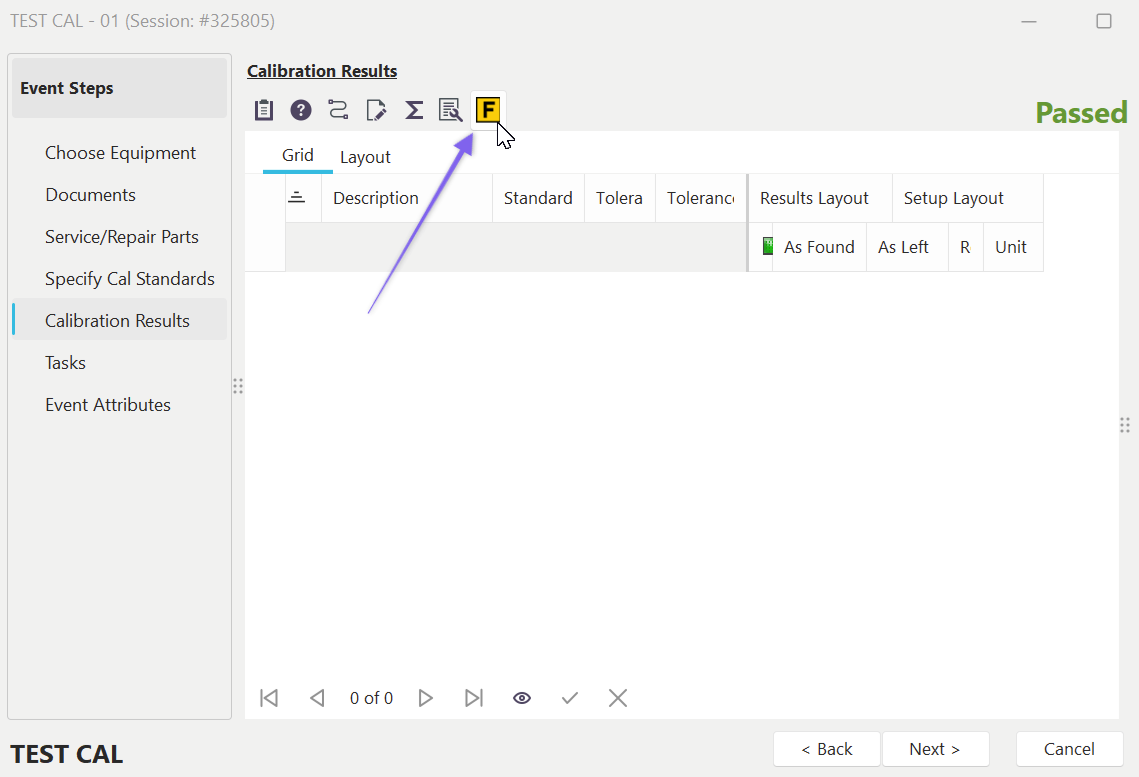
Calibration Results Grid in Events - 'Call Fluke MetCAL Program' button
Fluke 5500/CAL Procedure
This option works just like the 'Fluke MET/CAL Procedure' described above but is specific to the 5500 version of MetCAL.
Custom Prog.
IndySoft allows the import of test point results through an external program. Please contact IndySoft Sales for more details if you have customized data collection utilities to integrate into the calibration event. When this test point type is selected, you can still select a 'Results Grid' interface, but the test points are synced from within the event through the custom program. This custom program will be automatically launched when the 'Calibration Results' event step is first entered and can be recalled from within the event through the 'Call External Program' button above the 'Calibration Results' grid:
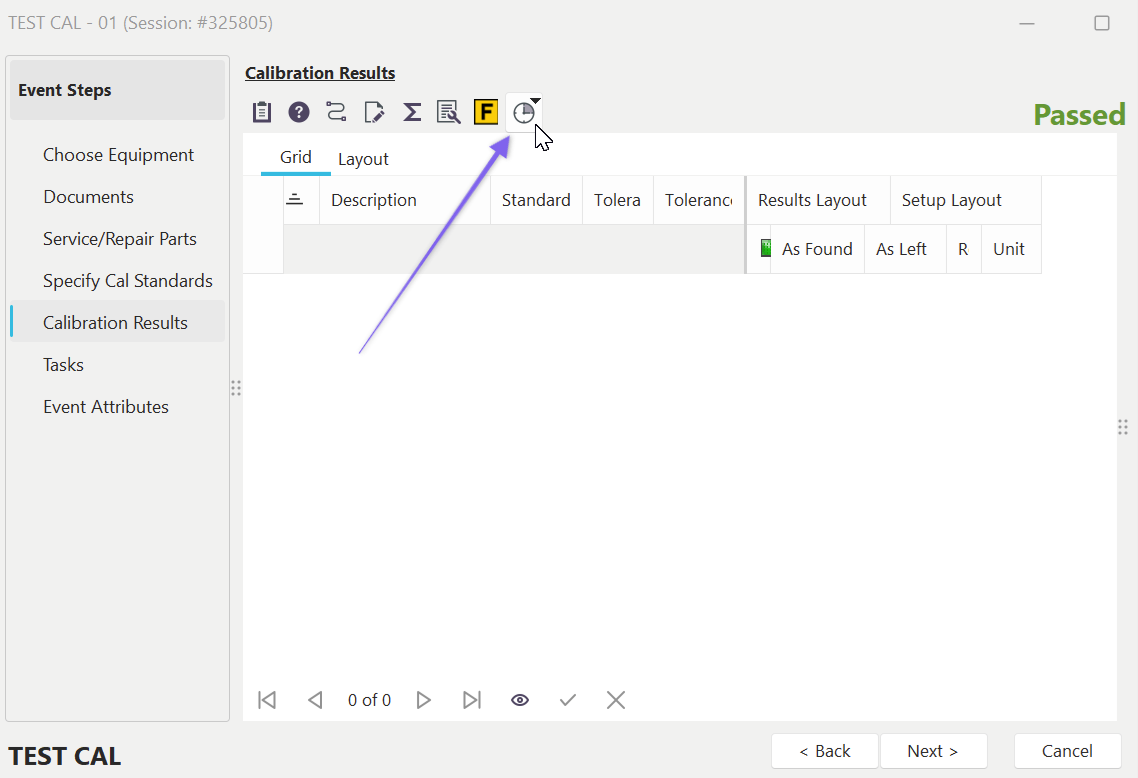
Calibration Results Grid in Events - 'Call External Program' button |