Master Rules
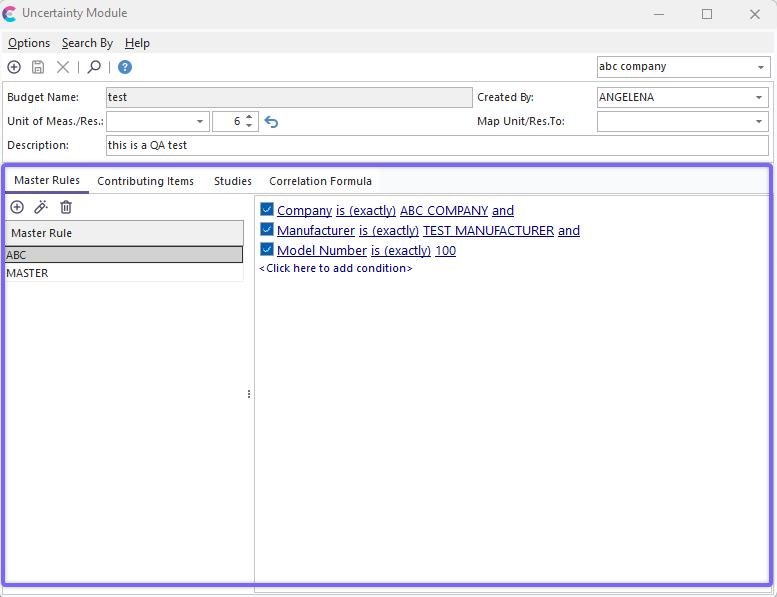
Master Rules Tab
The Master Rules tab is used for selecting general requirements for the masters or standards necessary for calculating uncertainty with this budget. Multiple requirements can be input per uncertainty budget. These requirements do not have to point towards a specific master gage. In the above example, the 'ABC' master rule states that a gage must be selected as a master when calculating uncertainty for this budget that belongs to 'ABC COMPANY,' is manufactured by 'TEST MANUFACTURER,' and has a Model Number equal to '100'.
To add a new Master Rule, press the  button on the upper left of the tab.
To edit an existing master rule, select the rule in the grid on the left, then press the  button on the upper left of the tab.
When a master rule is being inserted or edited, you will see the dialog below:
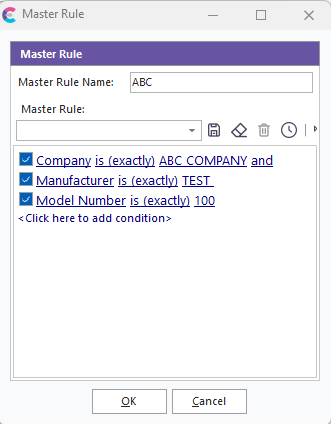
Add/Edit Master Rule
Using this dialog, type/edit the name of the master rule, and use the filter box to select your rule. This filter box works identically to the EquipmentFinder filter box available on the IndySoft main screen's 'Search By' menu. Press "OK" to save your master rule.
Once a master rule is set up, it will be enforced each time this uncertainty budget is used within a calibration event in IndySoft. As each test point is posted in the event, the related uncertainty budget is loaded, and any Master Rules are read. Each master rule is compared against the masters that have been previously selected in the calibration event's 'Specify Standards that Will Be Used To Calibration This Equipment' step. If a master rule does not pass, the user will be alerted within the calibration event. See the Selecting/Verifying Masters topic for more details.
To delete a Master Rule, select the rule in the grid on the left, then press the  button on the upper left of the tab. The deletion must be confirmed before completing. |