REST Scripts
PLEASE NOTE
The following topic may include references to the custom scripting aspects of the IndySoft product line. Some aspects of the discussed features may not be accessible to end customers. For reference, the affected features will use the word 'script' or 'custom script.' Refer to the Custom Scripting Overview topic for more information about custom scripting and how it is implemented and supported within the product.
Also - note that using REST Scripts for Web access to the IndySoft database will require the registration of the 'IndySoft REST Scripting' product in the IndySoft Registration Module. Contact IndySoft Sales for more details.If 'IndySoft REST Scripting' has been registered as a product (using IndySoft Registration Utility), then the 'REST Scripts' tab can be used to modify scripts and set up the related IndySoft REST Service. REST Scripts can allow scripted web access to the IndySoft database. The functionality is entirely driven by the scripts created/maintained on this tab. REST is simply an architectural style for HTTP requests/responses. If the IndySoft REST Server is running, and one or more REST scripts have been created, then IndySoft can listen for specific HTTP requests and respond accordingly through this service.
Here's a very basic example. Say you own the myurl.com domain and want to allow a specific web request to return the calibration due date for a specific asset. (This is a very simple example!). First, you would set up a REST script that would trigger based on specific HTTP requests. This script would read the required parameters in each request and then make an HTTP response. The script's name would correspond to the final portion of the URL in the request. You would then install/run the IndySoft REST service (pointing to your myurl.com domain running on a specific port, etc. The REST scripting in IndySoft allows access to all HTTP request properties (URL, port, IP, etc.), request type ('GET,' 'POST,' 'PUT,' DELETE'), all headers, all query parameters, and message body (either as text or binary). Specific script functions are available for returning each. In our example, say our web request from the client side is accomplished completely in the URL (no message body required in this client example):
http://myurl.com:9001/IndyScripts/ReturnDueDate?Company=ABC+COMPANY&Id=ABC123
So from the above example URL, we see that our IndySoft REST server is running over HTTP (not HTTPS), the domain where it is set up is myurl.com, and the Relative URI (as configured in setup) is 'IndyScripts.' The name of the script being called is 'ReturnDueDate.' Finally, there are 2 query parameters being passed, 'Company' and 'Id.' Only HTTP requests sent to 'http://myurl.com:9001/IndyScripts' will ever hit the IndySoft REST server. Further, only requests followed (in the URL) by a script name will ever execute a script, as in 'http://myurl.com:9001/IndyScripts/ReturnDueDate' executing the 'ReturnDueDate' script. Finally, the script will read the query parameters (among other details, as needed) and respond accordingly. An example of the REST server script is given below:
sCompany = RequestQueryParameter("Company")
sID = RequestQueryParameter("Id")
if tdDoSQLRecords(1, "SELECT SCHED_DUE_DATE FROM SCHEDGI WHERE COMPANY = '" & sCompany & "' AND GAGE_SN = '" & sID & "' AND SCHED_TYPE = 'CALIBRATION'") then
sDueDate = tdFieldbyNameAsString(1, "SCHED_DUE_DATE")
ResponseStatusCode(700)
ResponseBodyAsText(sDueDate)
Else
sDueDate = ""
ResponseStatusCode(800)
ResponseBodyAsText(sDueDate)
End If
So this is a very simple example. The script reads the URL query parameters for 'Company' and 'Id.' Note that percent-encoded symbols are automatically replaced by the RequestQueryParameter function ('ABC+COMPANY' is returned as 'ABC COMPANY'). Then if a CALIBRATION due date is found for this asset, the due date, as text, is returned - along with an HTTP response code of 700. If no due date is found, empty text and an HTTP response code 800 are returned. The text response would be a full HTML page in more typical scripts. Or, the response would include an XML file in the response message body that gives more details about the completed transaction. But those are the basics: send an HTTP request to a URL + relative URI + script + optional parameters. Include in this request optional headers and/or message body. The server script responds to valid requests, reads message details, and sends an appropriate response. HTTP responses include a response code and a text-based or binary-based message body. The HTTP client should be savvy to respond accordingly (if the response is a html file, it will be shown; if a pdf is in the message body, it will be displayed, etc.)
IndySoftRESTServer Setup
The first step (after registering 'IndySoft REST Scripting in IndySoft Registration Utility) is to set up the IndySoft REST Service on your web server. This service will respond to all related web requests for this domain. To launch the setup screen, press the 'IndySoftRESTServer Setup' button above the REST Scripts grid:
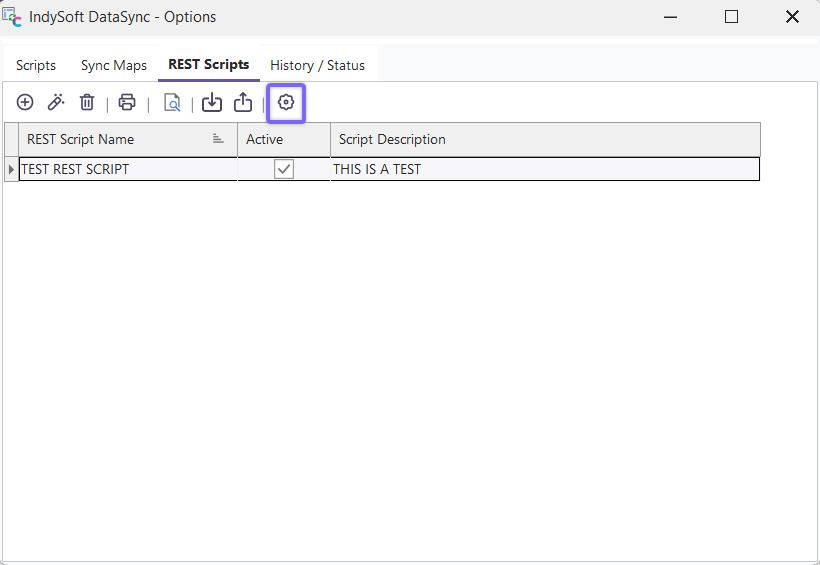
IndySoftRESTServer Setup
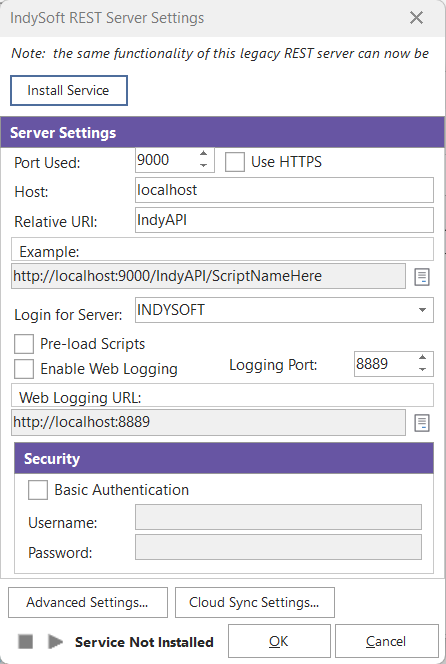
IndySoft REST Server Settings
This dialog is used for installing/de-installing the IndySoft REST Service, starting/stopping the Service, and inputting/saving all related settings. IMPORTANT: Windows Administrator rights will be required if this dialog is used to install/uninstall the service or automatically reserve a namespace for the host/URI. Be sure to exit and restart IndySoftSyncOptions.exe with 'Run as Administrator' in Windows before proceeding.
·Install Service / Uninstall Service: the button on the top of the dialog can be used for installing or de-installing the service, as applicable. Note that appropriate Windows rights are required to perform this action. Once installed, you will see the service listed among Windows services as 'IndySoft REST Server.' After installing or de-install, the dialog will close. Note: you might want to double-check the 'Advanced Settings' button before installing the service. Once installed, the service can be started/stopped from the buttons at the bottom of the dialog. The service can also obviously be stopped/started directly from Windows Services.
·Port Used: Input the desired port for the IndySoft REST Service. This port can be specified in the HTTP request after the host domain, followed by a colon (see Example in dialog).
·Use HTTPS: check this box if you prefer HTTPS requests instead of HTTP. If HTTPS is used, then a certificate must be specified. Upon save of the settings (when OK is pressed) IndySoft will automatically prompt you to select a certificate through Windows. This process will occur as IndySoft attempts to register the specified Host.
·Host: input the name of your host domain for this server. Note: As the settings are saved (the OK button is pressed) IndySoft will attempt to register this URL namespace automatically. The IndySoft REST Server is based on kernel-mode hHTTPsys, which means the operational system processes all HTTP requests. In this architecture, the kernel forwards the HTTP requests based on the requested URL. For this to work, we need first to reserve a URL namespace. Namespace reservation assigns the rights for a portion of the HTTP URL namespace to a particular group of Windows users. A reservation gives those users the right to create services that listen on that portion of the namespace. So, suppose, based on the settings specified in this dialog, your server will run under the address 'http://myurl.com:9001/IndyScripts/'. In that case, IndySoft will attempt to reserve that namespace to ensure Windows accepts HTTP requests to those addresses instead of refusing them. If you need to configure these rules manually, request the IndyHTTPConfig.exe tool from IndySoft Support. Note that this same IndyHTTPConfig.exe tool is already included in the 3-Tier Application Server (in case that service is installed on the same server).
·Relative URI: input the name of the Relative URI. This is the portion of the namespace that follows the Host, for example, the 'IndyScripts' portion of the full 'http://myurl.com:9001/IndyScripts/ScriptNameHere' URL
·Example: This read-only text appends the above four settings into the format required when making the client request. Note that the final portion of the URL will include a reference to the specific script (followed by any optional query parameters). The small button to this edit box's right will launch the specified URL. Your default browser will field the request. Note: this web link will not necessarily be complete - since additional query parameters or a message body are typically required, this is just a place to start.
·Login for Server: The IndySoft REST Server executes the scripts using database client connectivity. This means certain settings like email will follow the user/location settings. For this reason, it is important to specify a user name that should be used for loading these settings upon startup of the IndySoft REST Server. The DEFAULT location for this user will be used.
·Pre-load Scripts: When this box is checked, then upon start of the IndySoft REST Server, all scripts will be pre-loaded into memory. This allows for a slightly quicker execution of each web request. The downside is that if the script is changed (from IndySoft DataSync Utility...REST Scripts), the service will need to be stopped/restarted before the changes in functionality are available. The script is loaded from the database upon each request if this box is unchecked.
·Log All Requests: This option will typically only be turned on when debugging a new script. All requests are logged to the History / Status tab when this option is ON. The request log will include a full listing of all properties, headers, query parameters, and message bodies available for script reference. The values will be noted in the log in the same format as they can be referenced (if desired) within the script.
·Advanced Settings: Optionally, use this dialog to specify service dependencies and credentials. Note: these settings will only apply to a service upon install
·Start/Stop Service: Use the two buttons in the lower-left of the dialog to start/stop the IndySoft REST Server.
REST Scripts Grid
 Add/Edit/Delete REST Script - uses these options to add/edit/delete a REST script. These options are only allowed if 'IndySoft REST Scripting' is a registered product. Otherwise, you will be prompted for a response code that can only be retrieved from IndySoft Support.
 Print REST Scripts Grid - Use this option to print a current REST Scripts grid listing quickly.
 View REST Script Only - Use this button to review the currently selected REST script without edit rights. This option is helpful if you do not have edit rights but need to confirm the functionality in the selected script.
 Import / Export REST Script - Use these options to import a REST script from a zip file (as previously exported from the export option) or export the currently selected script to a zip.
 IndySoft REST Server Setup - Use this option to launch the REST server settings dialog.
REST Script Add/Edit
·Script Name - The unique name of the REST script. This name will appear in the Log history and any emails sent from within the script or in response to script errors.
·Active - Whether the script is loaded/run by the IndySoft REST service. The script can only be tested from the IndySoftSyncOptions screen if this is unchecked.
·VBScript/Pascal - Each script can be written in either VBScript or Pascal syntax
·Encoded Name (for URL) - The script's name ('Script Name' to the left) must be used to call this script from a web HTTP request. If the script's name contains characters that cannot be input in a URL, then the Script Name's encoded version must be used (as automatically shown here). For example, the 'WEB SCRIPT' Script Name would be encoded as 'WEB%20SCRIPT' in a URL.
·Description - A longer description of the script
·Script Errors To - This can contain one or more email addresses. These persons will be automatically emailed if the script throws an error upon execution. Note that these errors are related to the compilation of the script, not necessarily errors from within the script that could be trapped there. For instance, if you have bad syntax in the script, these email addresses will be notified (because the script cannot be compiled). But if your script loads an XML file, as an example, and this XML file has a bad format that returns an error code, then your script logic may or may not respond to that error code - that is up to the script's writer. So if your script reads the error code, you might call the SendEMail function from within the script to respond to this error. If you would like to return these 'Send Errors To' addresses from within the script, use the SendScriptErrorsTo function.
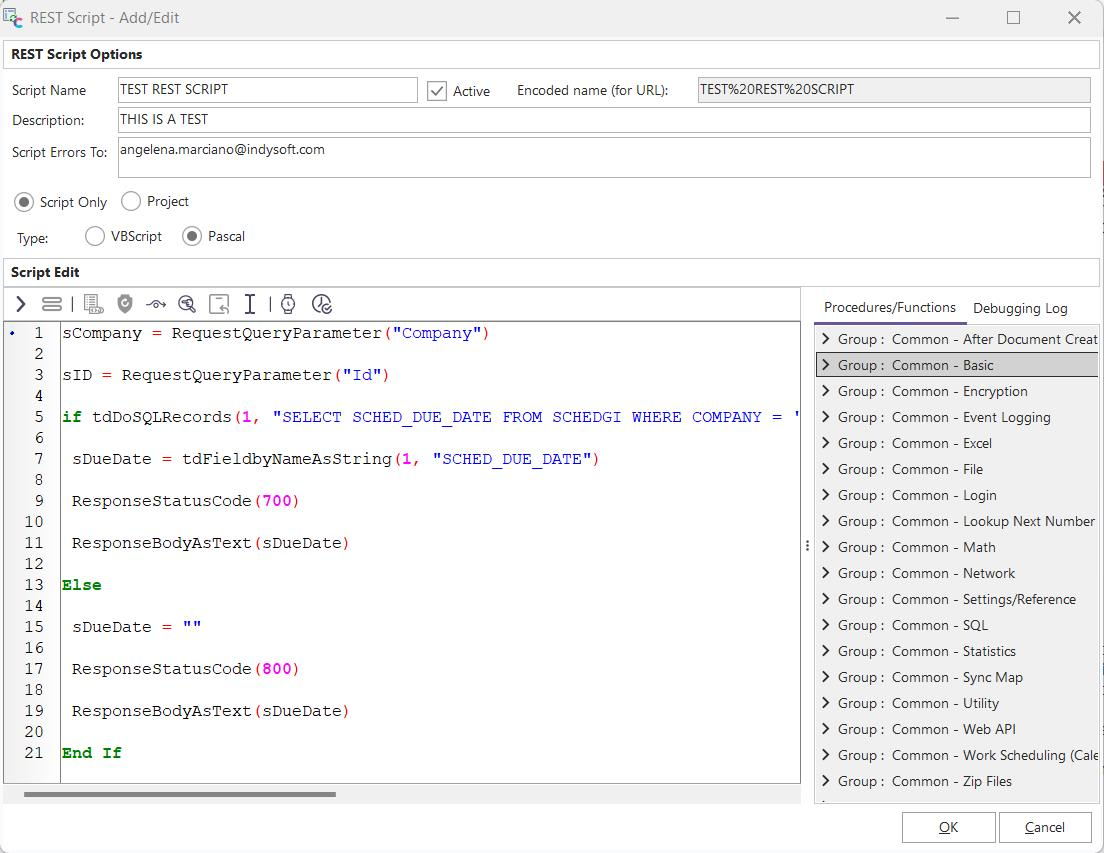
A 'Procedures/Functions' tab is available to the right of the script that reminds users of the available procedures and functions. Users can drag/drop these functions/procedures into the script area. The 'Debugging Log' tab logs any syntax errors upon script testing. Also, this 'Debugging Log' text can be populated with debug notes from within the script by calling the DebugLog function.
For assistance/reference on the available REST-related script procedures/functions, see the REST Scripting Functions topics in the IndySoft Custom Scripting help documentation. |