Sync Maps
Overview
Sync Maps can be used for cloud or directory equipment syncs between two IndySoft databases. There are many different ways to set up the sync - but the basic idea is to sync equipment between two databases in an automated fashion. Each sync map memorizes an exact set of rules for the sync, including details/fields, event types, document types, and sync file/directory locations. Once all the settings are memorized in a sync map, this sync can be scheduled for automatic execution or executed on-demand from the Export/Import system or another script.
The most common usage would be a scenario where a service/repair service vendor is used to perform scheduled events on certain assets owned by an enterprise customer. Imagine if the enterprise customer and the service/repair vendor own their own IndySoft databases and desire an automatic sync of the related equipment & history. This would require a bit of negotiation to ensure that the varying event workflows between the two databases are honored - and certain equipment fields and/or details might need to be omitted to ensure highly sensitive data is not exchanged. But maintaining this sync would be very valuable - since it would allow both databases to hold current details on the assets that could be queried in reports/alarms, etc.
Other uses are also possible - Sync Maps could automatically sync certain assets between affiliates or contract holders who both own an IndySoft database. Or a sync could automatically send work done in a remote database (like a Single-User edition) to the main database. For example, the sync map could be called during an 'Event Finish' script after each service event. A cloud directory like DropBox could hold all the latest asset changes in this usage. A Sync Map in the central database could automatically import all changes every few minutes, etc.
Comparison to Other IndySoft Tools
Of course, there are other ways of syncing equipment-related information in IndySoft:
oLegacy Export/Import Utility: This legacy utility has been helpful because it is file-based and does not require a direct connection to both databases. Also, it can export documents only (some limitations) from synced events - so the workflows in the various databases do not need to be the same. However, the export options are not generally configurable, and all equipment details cannot be included.
oData Exchange Module: This utility is very configurable; receive (but not send) options can be saved/named. These syncs can occur in both directions, but a live database connection is required for both systems. All equipment details are synced, but only limited filtering of event types is allowed.
oExport/Import Module: This utility is file-based (zip files). It uses the IndySoft Data Dictionary, so the equipment details are always thorough, regardless of the database version. The interface is a simple wizard. Most importantly, the data can be reviewed before import. But this tool cannot be automated for scheduled sync or sub-sets of data through the wizard interface.
oDataSync Scripting: In version 9 IndySoft introduced cloud-related script procedures/functions that could be used for automating some Export/Import functions, but their usage requires script access and more complicated script creation.
So the Sync Maps are designed to target only equipment-related syncs but hopefully achieve all the advantages of the above tools with none of the disadvantages. So, in summary, sync maps are file-based, do not require a direct database connection, can export only certain events and equipment details, can export documents only, each sync can be uniquely named, use a simple wizard interface, and take advantage of cloud functionality, and even allow for custom scripting access.
Sync Map Setup/Usage in IndySoft
Sync Maps are created/edited from a new tab in the IndySoft DataSync Options utility:
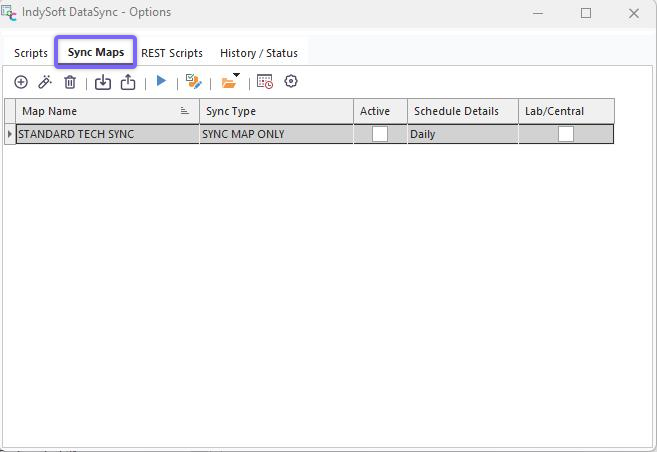
IndySoft DataSync - Sync Maps Tab
Each sync map can optionally be scheduled for automatic execution. An IndySoft task will be created in Windows Task Manager if a sync is activated and scheduled. The actual execution of the sync will be accomplished by IndySoftSync.exe, which can execute a sync map without any user interface (called from a Windows Task). For instance, the task below was automatically created by the scheduling of an IndySoft Sync Map:

Sync Maps - As Setup in Windows Task Scheduler
Or any sync map can also be executed on-demand from the Export/Import Module. All sync maps are available for execution from the first step of the Export/Import wizard:
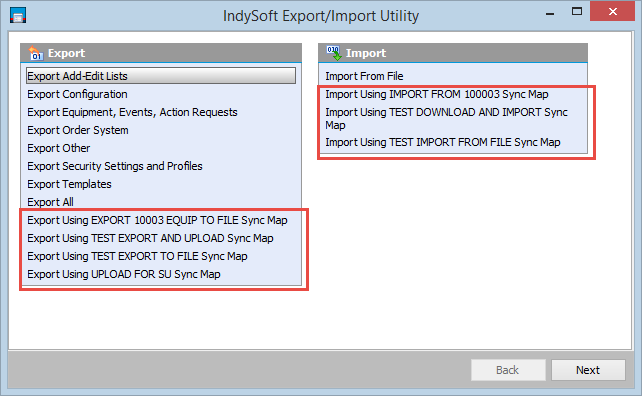
Sync Map options in Export/Import Utility
When sync maps are executed from within the Export/Import module, all exported assets can be confirmed/selected before export, and sync progress can be seen onscreen.
Finally, any sync map can be executed within any scripting type in IndySoft. For example, an event script could call for the execution of a particular sync map against the current asset serviced in the event. This could export the asset and upload it to a DropBox directory. This functionality is hidden within scripting but can be used to keep data synced between two databases - and the technician running the event never needs to remember to export/upload the assets after performing the service!
Adding/Editing Sync Maps
Above the Sync Maps tab within IndySoft DataSync, you will see a header with options for adding/editing Sync Maps:
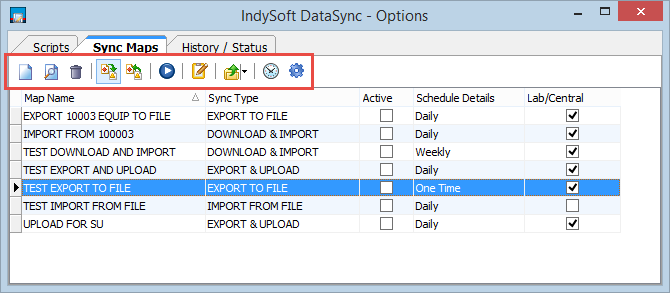
Header Options - Sync Maps
 Add Sync Map - creates a new sync map, launches the Add/Edit Sync Map wizard
 Edit Sync Map - edits the currently selected sync map, launches the Add/Edit Sync Map wizard
 Delete Sync Map - deletes the currently selected sync map (after confirmation)
 Import Sync Map - imports a previously exported Sync Map into the current database. A file-selection dialog will be shown. If a sync map by the same name already exists in the database, then a confirmation dialog will be shown:

Duplicate Sync Map - Confirmation Dialog
 Export Sync Map - exports the currently selected Sync Map to a zip file for quick import into another IndySoft database. A file name matching the current sync map will be defaulted. Note: This export creates a zip of the sync map settings - so it can be imported into another 'IndySoft DataSync Utility' sync map grid for similar use. This is different than an actual sync map zip created during the execution of a sync map. That zip would contain actual asset/event data AND an embedded version of the sync map used upon creation.
 Execute Selected Sync - allows for testing of the currently selected sync map. Testing a sync map in this fashion will run the sync within the current 'IndySoftSyncOptions' process but without any user interface - like how the sync would be executed when run from a scheduled Windows task.
 Update Windows Task Schedule With All Active Sync Maps - press this button to quickly (re)add all Sync Maps currently set to Active as Windows tasks. To see the currently scheduled IndySoft Windows Task, press the 'Launch Windows Task Scheduler' button. Note: removing a task from within the Windows Task Scheduler is possible, so this button could be used as a quick method of re-adding these tasks simultaneously.
 Setup Cloud Service Authentication - this button is equivalent to the same button on the 'Scripts' tab, just shown here as a convenience since the Cloud functionality can be used by both Scripts and Sync Maps. Any cloud-related Sync Map could be set up to prompt for Cloud authentication (if needed), but if preferred, this button can be used to pre-save the credentials that should be used for access to the appropriate Cloud service. These credentials are then saved to the database (encrypted) for later re-use. Both Box.com and Dropbox.com can be authenticated. Menu options are also available for removing previously saved credentials from the database.
 Launch Windows Task Scheduler - this button is equivalent to the same button on the 'Scripts' tab, just shown here as a convenience since both Scripts and Sync Maps can use the Task Scheduling functionality. Use this option to quickly launch into the Windows Task Scheduler (the same option is available within Windows Control Panel Administrator Options). Note that IndySoft-related tasks are typically grouped in a common folder, as set up in the Task Scheduler Options dialog ('IndySoft' by default)
 Task Scheduler Options - this button is equivalent to the same button on the 'Scripts' tab, just shown here as a convenience since the Task Scheduling functionality can be used by both Scripts and Sync Maps. This button displays a dialog with all options for creating IndySoft tasks in Windows Task Scheduler.
Log of Sync Operations
Note that a log of all sync operations is kept in the IndySoft DataSync - Options dialog, along with the System Administrator Log in Profile Manager:
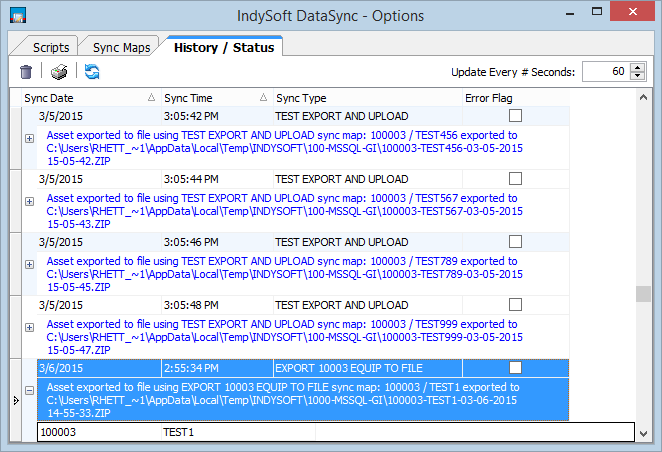
IndySoft DataSync - Options...History / Status |