Selecting Kits Within IndySoft
Kits can be quickly selected from within IndySoft events. When a kit is selected, the equipment linked to the kit through the Kit Contents rules is automatically added to the event, just as if each piece of equipment had been selected individually.
Note: When equipment selected from a kit appears in the 'Choose Equipment' grid within an IndySoft event, you will see the name of the kit used for selected listed in parentheses after the equipment ID. For more information on event configuration, please see the Workflow Configuration section.
See the image below for an example:
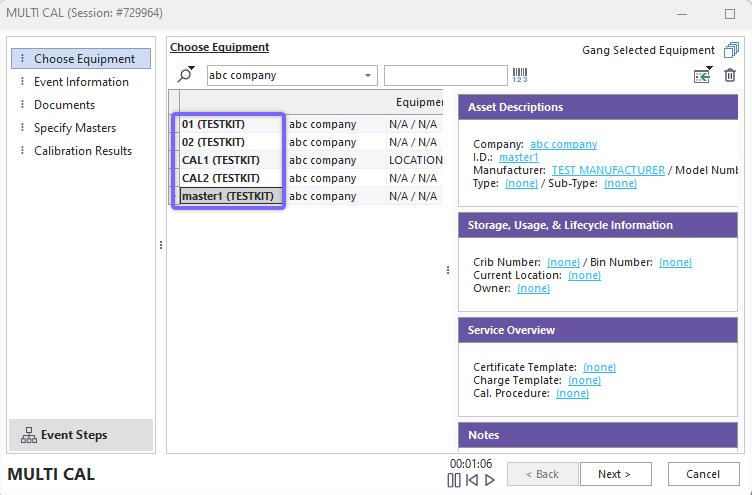
Event with Equipment Selected from Kit
There are two ways to select a kit from within an IndySoft event. First, you can use the 'Add Equipment From A Kit... (Alt+6)' menu option available from the  button:
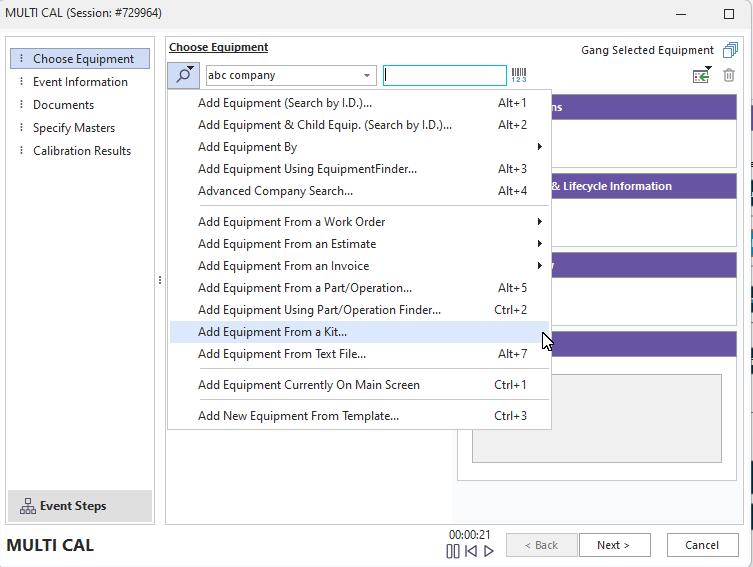
Search By Menus Within IndySoft Events
The dialog appearing will be identical to the 'Search By Kit I.D' dialog in the Kitting Module. See Finding By Kit I.D. for more details. Each 'Kit Contents' rule is read when a kit is selected, and the first matching piece of equipment (if any) is added into the event. If a selection rule(s) has been setup for the event with the Event Configuration Module, then the first matching piece of equipment that passes the selection rule(s) (if any) will be added to the event.
Note: If you select a 'Unique Kit' from within an IndySoft event, this selection is allowed for 'In-Type' events and 'Out-Type' events (example: check-ins and check-outs). If you select a 'Kit Template' from within an IndySoft event, this will only be allowed for 'Out-Type' events. This is because 'Unique Kits' must be treated as a whole, even though they involve multiple pieces of equipment. So, there must be a matching in-type event for each out-type event. For 'Kit Templates,' these kits are only used to assist in quickly assembling equipment requested for check-out. Generally, the 'Kit Contents' rules for 'Kit Templates' are more generalized. Equipment selected out to the floor from a 'Kit Template' is checked back in as individual equipment. Thus, these check-in events do not need to happen within the same event.
Kits can also be selected into IndySoft events using the barcode features in the Event Configuration Module. For more details on setting up and using this feature, see the 'Event Configuration - Barcodes / Location Rules' topic in the main IndySoft help. Note: This option is only relevant for events that allow selecting multiple pieces of equipment - meaning events with a 'Choose Equipment' tab selected within the Event Configuration Module. As a quick summary, select the 'Kit I.D.' option among the barcode options in Step 4 in the Event Configuration Module, as shown below:
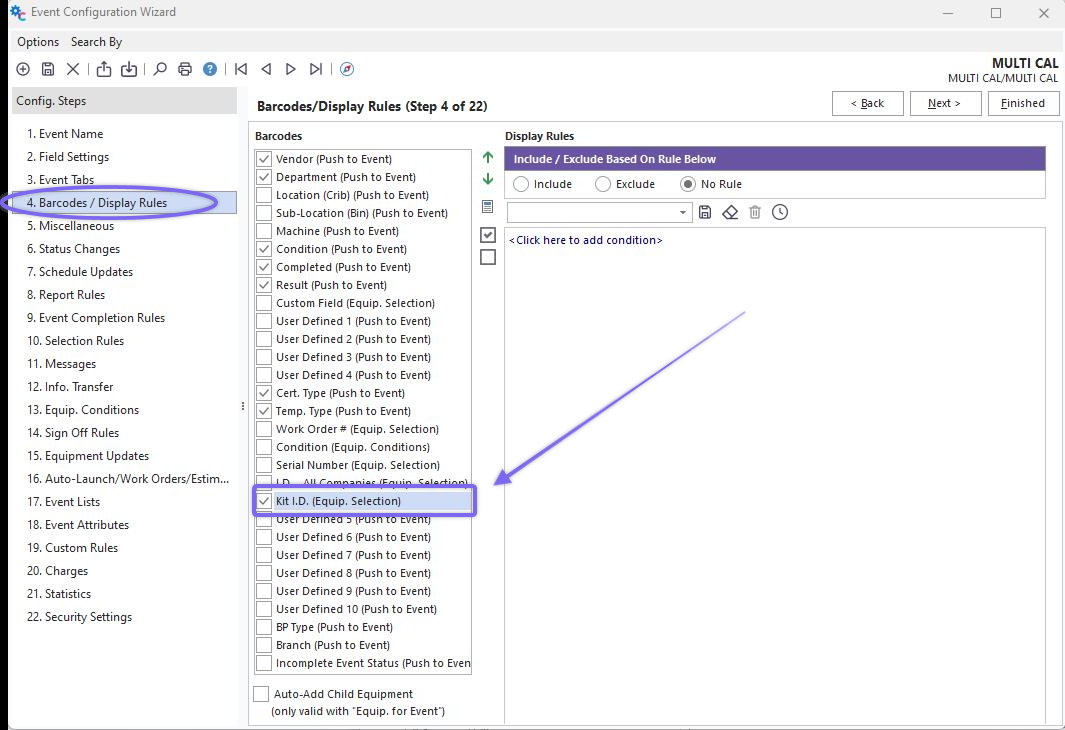
Step 4 - Event Configuration
Then restart IndySoft to pick up the event change. When you perform this event, you can barcode a Kit I.D. into the barcode edit box on the 'Choose Equipment' event step (manually typing a Kit I.D. into the barcode edit box will perform the same operation). See the example below:
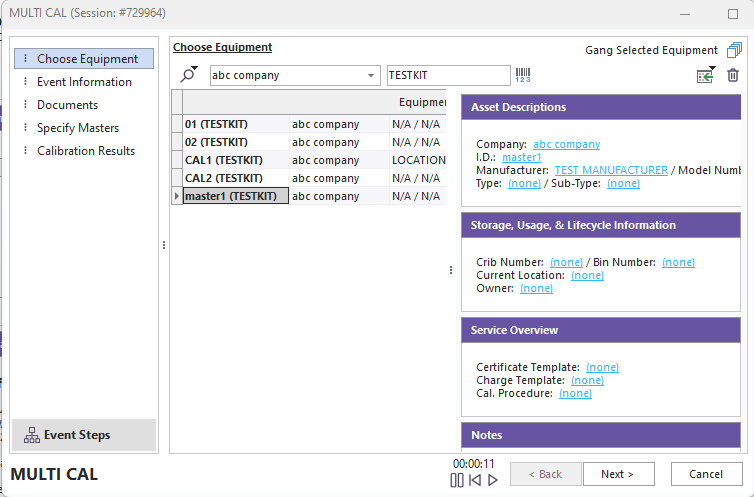
Selecting Equipment From Kits - From Barcode
To remove equipment selected from a kit within an event, remove each piece using the  'Remove Selected Equipment' button above the grid. |