Task Editor - Overview
 Note: the topic below only applies to the Preventive Maintenance version of IndySoft.
PLEASE NOTE
The following topic may include references to the custom scripting aspects of the IndySoft product line. Some aspects of the discussed features may not be accessible to end customers. For reference, the affected features will use the word 'script' or 'custom script.' Refer to the Custom Scripting Overview topic for more information about custom scripting and how it is implemented and supported within the product.The Preventive Maintenance version of IndySoft uses the IndySoft Task Editor to create Task documents and track their revisions. Tasks are specific to templates and also require a revision number. Once task documents are created, these tasks can be scheduled for equipment (Scheduling tab on the main screen). Then when the 'Tasks' tab is used in an IndySoft event, these tasks can be viewed/edited. Task documents allow for the viewing/editing of:
·Task fields (view only)
·Event fields
·Task Attributes
·Event Attributes
Each task has associated equipment requirements, part requirements, and schedule update rules. Fields (hyperlinks) in the process document can be quickly modified, like Equipment View and/or Template Editor. In addition, expanded interfaces can be created through the IndySoft Services Group utilizing custom scripting and project features. Any hyperlink in the task document can launch a script project. These projects can have their forms & interface, all configurable within IndySoft. These scripts can directly modify the database, or they often return a line of text to the task document itself.
Task documents can also reference links to System-wide projects. These projects can be quickly edited through the Task Editor. Each project is edited through a scripting interface that allows for forms, procedures, functions, and common components like edit boxes, drop-downs, buttons, etc. Images and descriptive text can also be quickly added in line with task results when needed. Tasks can also be optionally linked to a parent task - multiple levels are allowed. Task parent/child relationships can be seen from an outline tree on the lower right - and tasks can be quickly navigated through the tree.
Locating the Task Editor Utility
The IndySoft Task Editor Utility can be found in your file explorer by navigating to:
C:\Program Files\IndySoft\TaskEditor
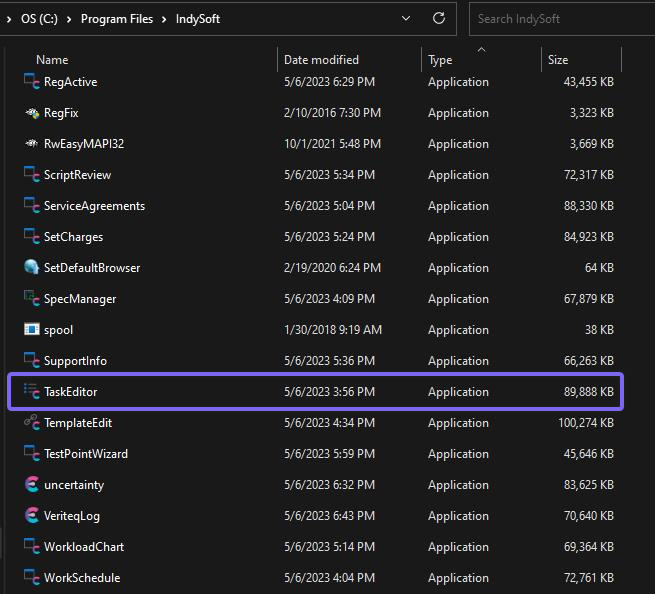
Locate Task Editor
In version 13, Task Editor can also be launched from within the Admin Panel:

Admin Panel - Task Editor
Creating a New Task
You will first be prompted to create a new task. You must enter a template, task name, and revision # to do so. The following dialog will appear:
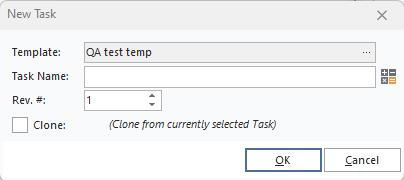
New Task Dialog
Click on the  to choose an equipment template. You can choose to search for a simple or advanced template selection. See the following dialog:
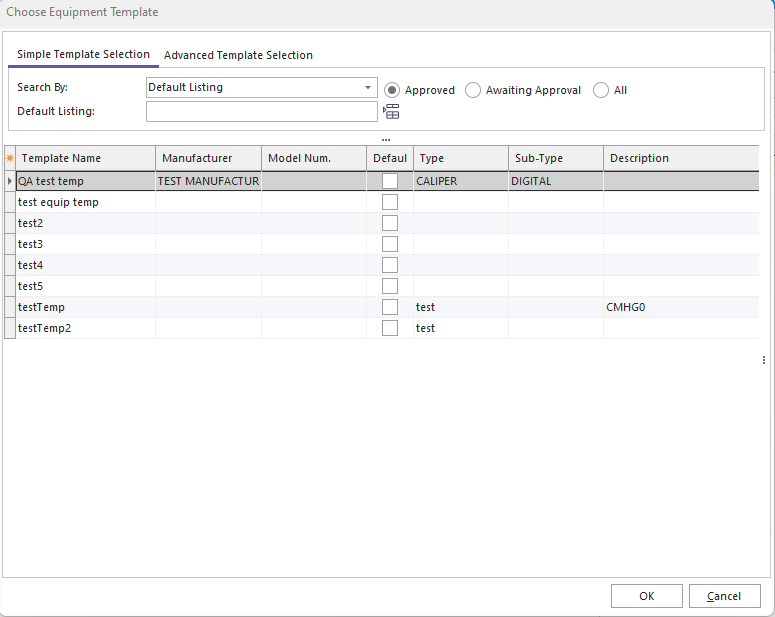
Choose Equipment Template Prompt
Task Editor Interface
Two tabs are used in the IndySoft Task Editor utility: 1. Task Details and 2. Task Document.
- Task Details Tab
This is the Task Details Tab. All fields in this section can be edited. For managing fields, please see the Task Layouts section.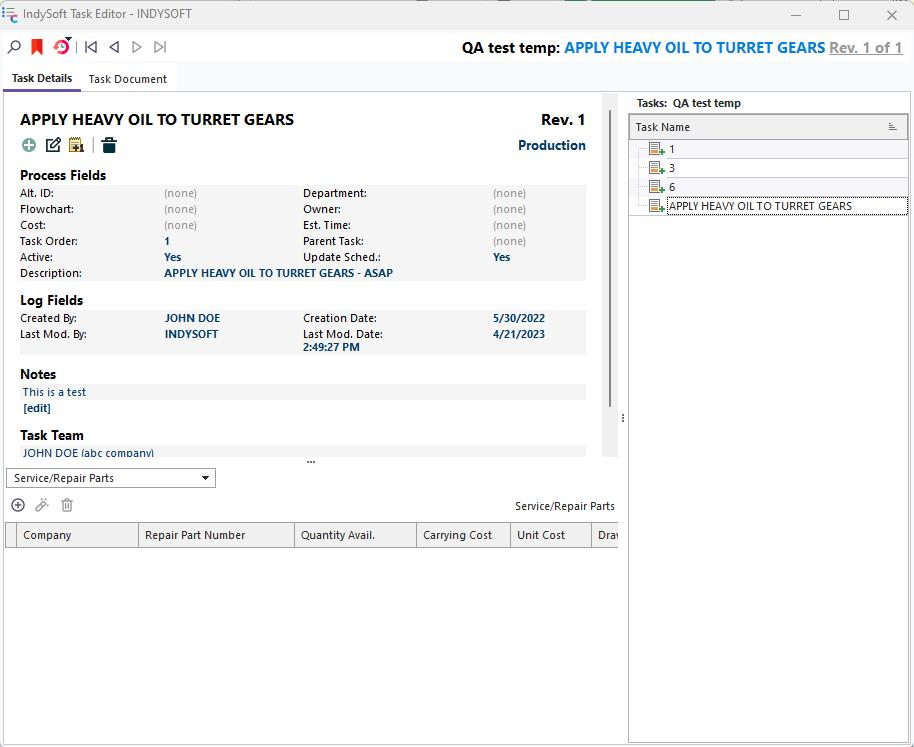
Task Editor - Task Details Tab
In the right-hand panel, you will have a list of your tasks for the designated template (in this example, all tasks are visible for 'TEST_TEMPLATE_EQUIP'). This allows you to switch between tasks easily.
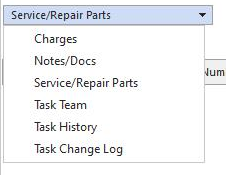
In the screen's lower-left panel, you can associate certain pieces of information with the designated task. There is a drop-down with several options for access here:
| --- || | 
| --- || | 1. Charges
| --- || | Use this section to add charges to the specified task. For more info on adding charges to IndySoft, click here.
Task Editor - Charges
2. Notes/Docs
| --- || | Use this section to add notes and/or supporting documents to the specified task. For more info on adding documents to IndySoft, click here.
Task Editor - Notes/Docs
3. Service/Repair Parts
| --- || | Use this section to add service/repair parts to the specified task. For more info on adding service/repair parts to IndySoft, click here.
Task Editor - Service/Repair Parts
4. Task Team
| --- || | Use this section to build a task team for the specified task. Use the blue arrows to add/subtract employees.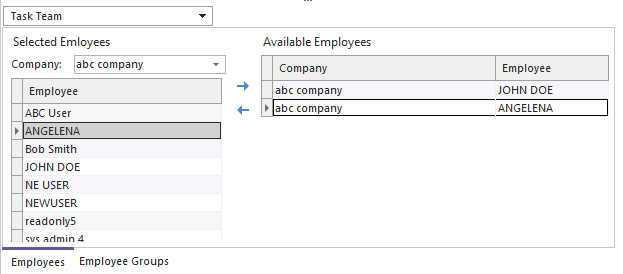
Task Editor - Task Team
-
Task History

Task Editor - Task History -
Task Change Log
| --- || | Use this section to view changes made to the task.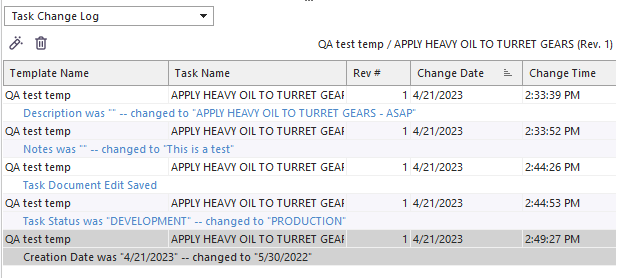
Task Editor - Task Change Log -
Task Document Tab
This is the Task Document Tab. Here you can adjust the layout of the task document. In this example, we added our attributes using the right-hand panel.
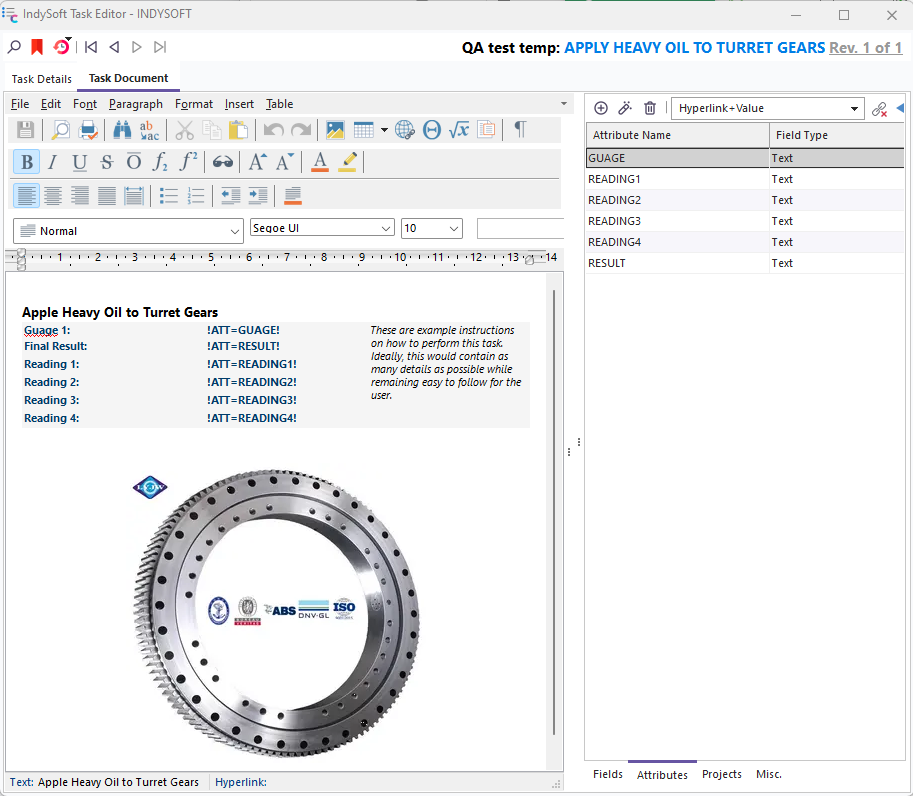
Task Editor - Task Document Tab
For more information on using the task document interface, please see the Layout Editor section of the manual. |