Uncertainty Tab - Attributes
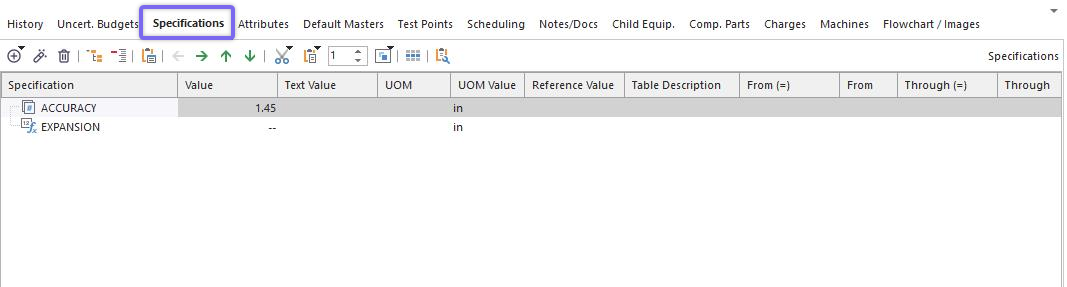
IndySoft Main Screen - Uncertainty Attributes Tab
When the IndySoft Uncertainty Module is installed, you will notice a new tab called 'Uncertainty' on the IndySoft main screen. This tab allows for inputting two types of information: Attributes and Budgets. Add these tabs to the Equipment View screen using the "Setup Dialogs" option (System Admins). In newer versions, Uncertainty Attributes are now called Specifications (Specs).
Uncertainty Attributes relate to any piece of information that you need to store at the equipment level that could be potentially accessed from within an Uncertainty Budget's VBScript (by using the LookupAttributeGage or LookupAttributeMaster functions).
To add a new Attribute, press the  button above the grid. To edit a previous item, press the
  button.
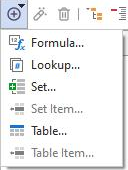
When inserting/editing an Uncertainty Attribute, you will see a dialog similar to what is shown below:
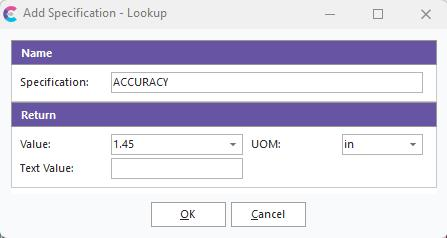
Add/Edit Uncertainty Attribute - LOOKUP Type
New Uncertainty Attributes default to a 'LOOKUP' Attribute Type. Multiple Attribute Types are available: LOOKUP, TABLE, SET, and FORMULA. LOOKUP Attribute Types are numeric values (Attribute Lookup) associated with an Attribute Name. Attributes of the LOOKUP type can be referenced within VBScript by using the LookupAttributeGage or LookupAttributeMaster functions. For LOOKUP Attribute Types, you can specify nil for the 2nd parameter of these functions (since you do not need a table lookup value).
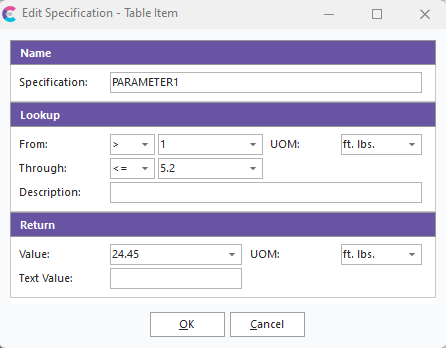
Add/Edit Uncertainty Attribute - TABLE item
TABLE Attribute Types store multiple Values per Attribute. When referencing these Attributes from VBScript, you specify both the Attribute Name and lookup value (see LookupAttributeGage and LookupAttributeMaster for more details). Users must specify the 'From' and 'Through' bounds for each Value when setting up TABLE Attribute items. 'From' or 'Through' bounds must also be specified as 'greater than,' 'greater than,' or 'equal to,' 'less than,' or 'less than or equal to,' as appropriate. When a Value is requested from this table by the LookupAttributeGage or LookupAttributeMaster functions, the lookup value is compared against the 'From' and 'Through' values in this table to find the appropriate Value to return. Optional 'Parameter' names, 'Unit of Measure,' and 'Resolution' can also be specified. Changing the 'Resolution' per parameter will modify the resolution of the 'From,' 'Through,' and 'Value' fields in the table.
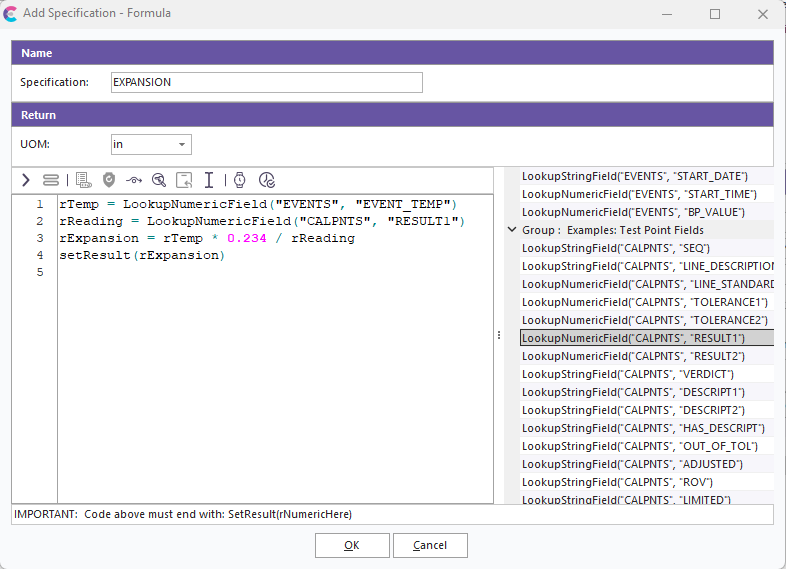
Add/Edit Uncertainty Attribute - FORMULA Type
Finally, for advanced Attributes, there is a FORMULA Attribute Type. This type provides a VBScript window (just as in the Uncertainty Module's Contributing Items and Correlation Formula) for complex calculations that reference live event data optionally. This VBScript can reference live data fields by calling VBScript functions that return values. Examples of all potential VBScript functions specific to the IndySoft Uncertainty Module are listed to the right of the script editor. This VBScript can be as simple or complex as the attribute requires - the only requirement is that the last line of VBScript code MUST call the SetResult function. This function returns the Attribute value that will be available to IndySoft. For more notes on the wealth of functions/procedures native to VBScript, see the VBScript Help topic. For more notes on the functions specific to the IndySoft Uncertainty (that return live event data, etc.), see the following topics:
SetResult
LookupStudy
LookupAttributeGage
LookupAttributeMaster
ContribItemResult
SetCommonVarNumeric
ReturnCommonVarNumeric
LookupNumericField
LookupStringField
To test the VBScript you have edited, press the 'Test Script' button to the right of the Script Editor. When scripts are executed within the IndySoft event system, the live field data is automatically entered into the VBScript at the appropriate times. However, live event data is unavailable when debugging the script within this dialog. For this reason, if example data is required by the VBScript when performing a 'Test Script' operation, the user will be prompted to type the appropriate field data, select an appropriate example gage, etc. This tool is provided so users can save time when creating VBScript - so they do not have to perform an actual IndySoft event to test the result.
To delete an Uncertainty Attribute, highlight the appropriate Attribute in the grid, and press the  button. The deletion must be confirmed before completing. |