Detail Dialog Launching - Right-Side Panel
The third group might be visible on the right-side panel of the Equipment View named 'Details' (if set up in the 'Dialogs' dialog in Layout Editor).
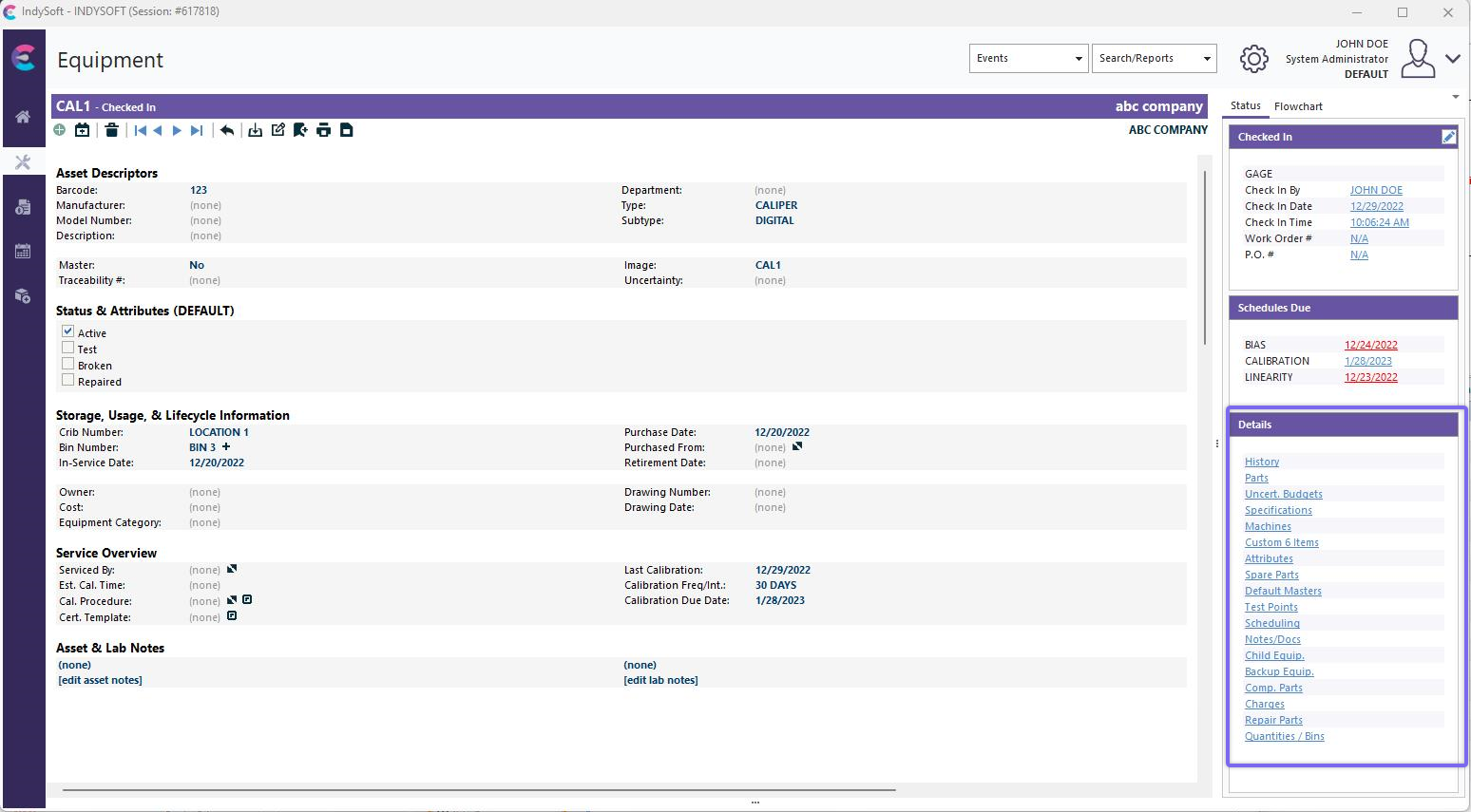
Details Group (all details displayed)
When setting up this 'Details' group, you'll notice it takes the place of the bar typically seen at the bottom of the Equipment View. Not only can you decide the placement of these convenient details, but you can also decide which details you'd like access to, if not all.
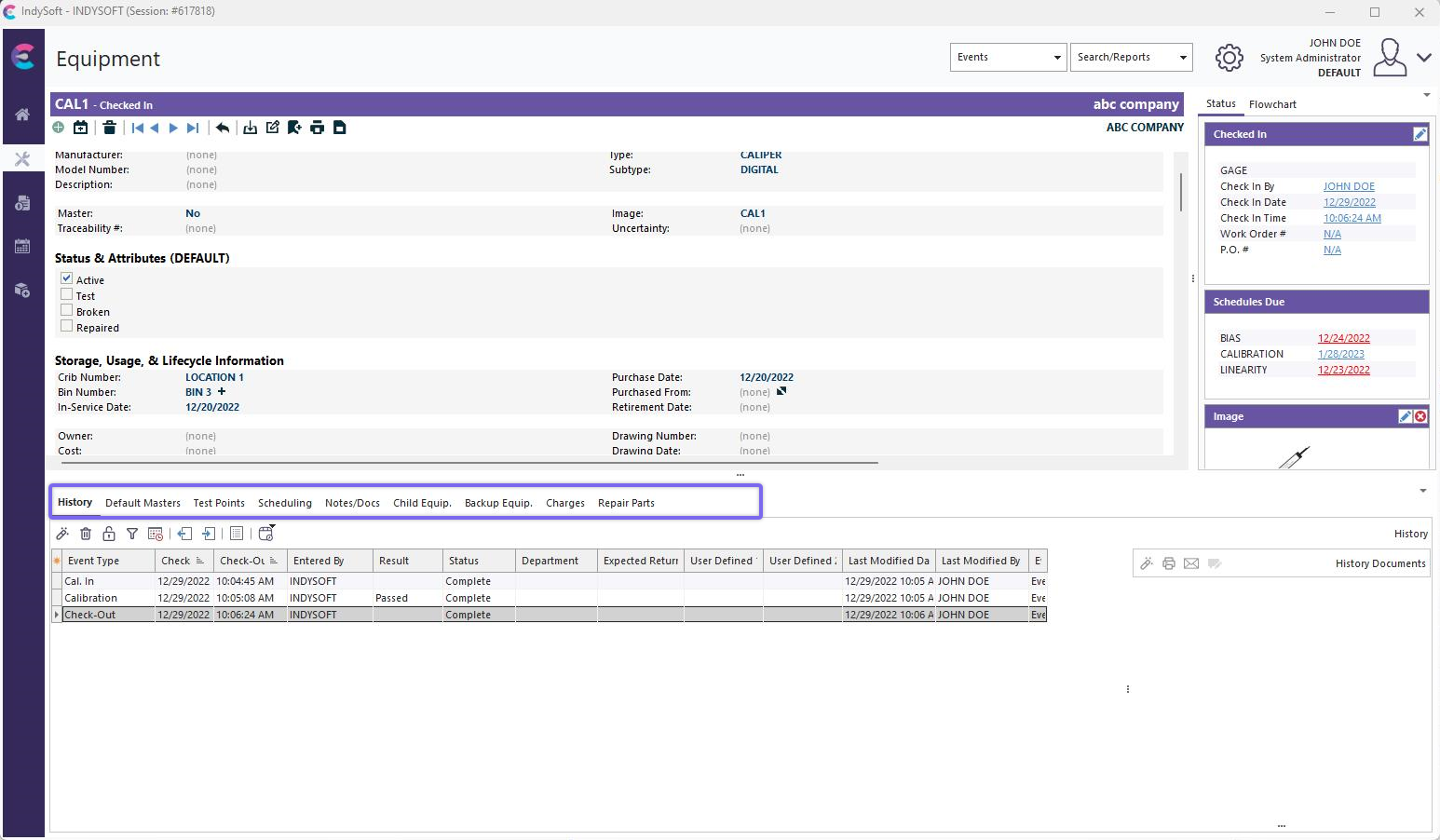
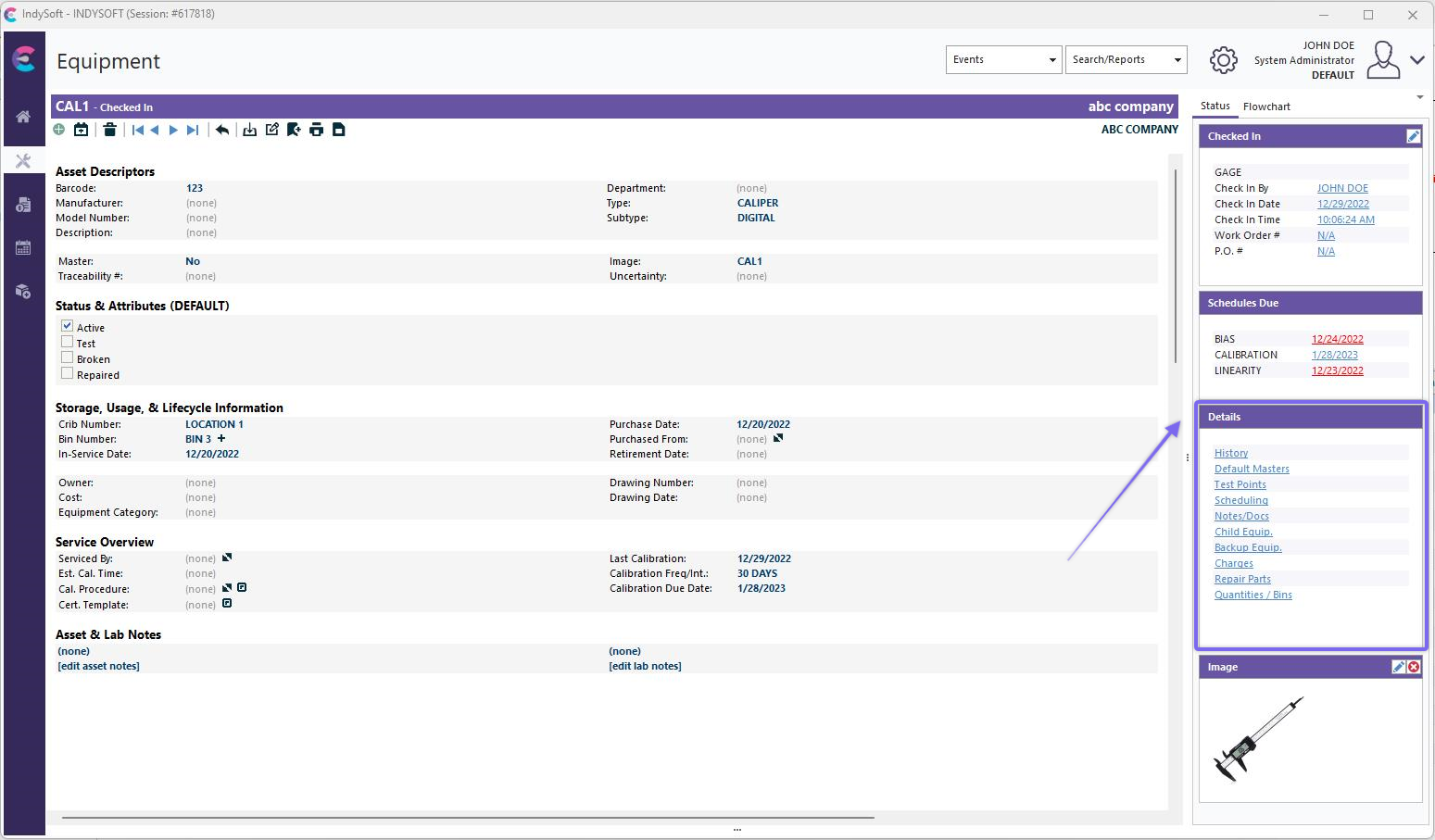
The two ways Details can be displayed
Use this section to launch into equipment detail dialogs quickly. See the Equipment Detail Tabs/Dialogs topic(s) for more details on the available sections. Simply single-click on the image or caption to launch the detail dialog. The captions for these detail dialogs and the specific dialogs available for selection are configured per Equipment View Layout through LayoutBuilder. See Equipment Detail Dialogs for more details. Administrators who control the Equipment View layout can choose from the options below:

Options for Equipment Detail Dialogs - Available through LayoutBuilder
For more details on the functionality contained in these detail dialogs, see the topics below:
Equip. Detail Dialogs
ØHistory
ØTest Points
ØScheduling
ØNotes/Docs
ØChild Equip.
ØCharges
ØComponent Parts
ØRepair Parts
ØMachines
ØCustom 6 Items
ØBackup Equip.
ØParts
ØAttributes
ØQuantities / Bins
ØTemplate Links
ØUncert. Attrib.
ØUncert. Budgets
ØDefault MastersNote: 'Maintenance Tasks' is only available as a legacy option - it is not relevant or available for most IndySoft products. |