Main Screen Layout
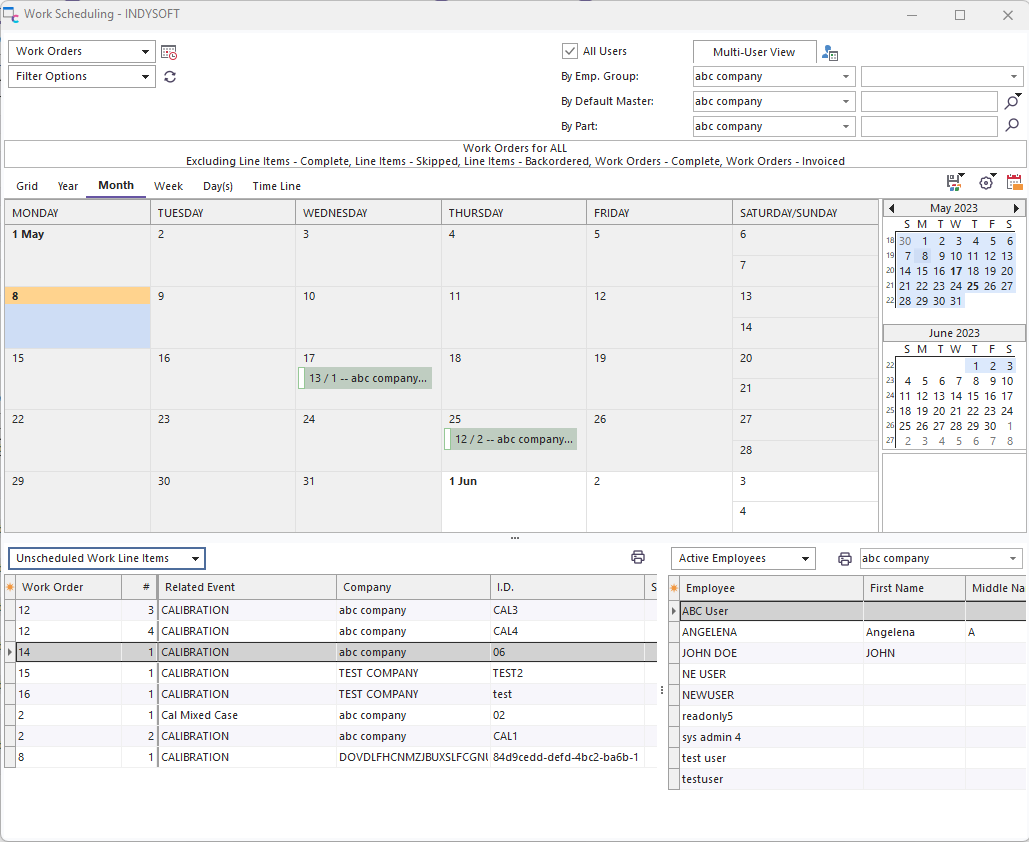
Work Scheduling Module - Main Screen
The screen is laid out into several main sections:
·Header Controls: this is the main gray bar on the very top of the screen. There are options here for filtering the calendar/grid records, launching related utilities, etc.
·6 Views of Work Orders: This is the 'middle section.' Six tabs show views of scheduled items (work orders and/or work order line items): Grid View, Year View, Month View, Week View, Day(s), and Time Line View.
·Unscheduled Work (bottom left). This is found in the lower left-hand corner of the form when the 'Unscheduled Work' (rather than 'Unassigned Work') button is selected. This section lists all unscheduled work items so they can be added to the calendar/grid.
·Unassigned Work (bottom left). This is also found in the lower left-hand corner of the form when the 'Unassigned Work' (rather than 'Unscheduled Work') button is selected. This section lists all unassigned work items so they can be assigned from the panel on the right.
·Active Employees Grid (bottom right). This is found on the lower right-hand corner of the form when the 'Active Employees' (rather than 'Employee Groups') button is selected. This section lists all active employees from the company to the right so they can be used for quickly assigning work.
·Employee Groups (bottom right). This is also found on the lower right-hand corner of the form when the 'Employee Groups' (rather than 'Active Employees') button is selected. This section lists all employee groups for the company to the right, so they can be used for quickly assigning work.
·Load Graphs (bottom right) - This is found in the lower right-hand corner of the form when the 'Load Graph' tab is selected (rather than 'Grid View'). There are two types of graphs: 1) Total Time and 2) # of Jobs. The 'Total Time' graph shows the total time currently scheduled for all pending jobs assigned to the user/group. For instance, if this user/group is currently assigned three jobs, the first for 1 hour, the second for 3 hours, and the third for 2 hours, the total time will show as 6 hours. The '# of Jobs' option lists the number of jobs currently scheduled for that user/group.
The bottom half of the dialog can be quickly hidden/reshown from the horizontal sizer bar. The bottom right section of the dialog can be quickly hidden/reshown from the middle sizer bar. All onscreen information can be manually refreshed from the 'Refresh All' button on top header bar. All onscreen information is automatically refreshed every 10 minutes. |