Scheduled Event Dialog
When a scheduled event is edited from any view or a new ad-hoc event is created, then the Scheduled Event Dialog will be displayed:
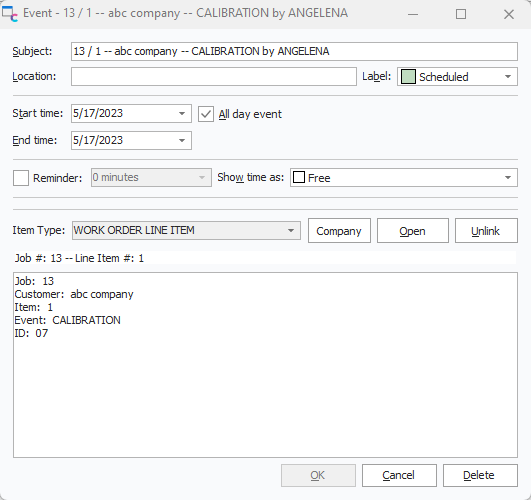
Scheduled Event Dialog
Subject: This text can be automatically populated based on Setup Default Item Captions under menu items above the scheduler. This value can be modified after initial auto-populate.
Location: Location of the scheduled work; any text is allowed.
Label: The labels/colors in this drop-down can be configured using the Setup Labels menu item above the scheduler. The color associated with the status label will determine the color of the scheduled item in the calendar.
Start/End Date/Time: Use these dates/times to schedule the item on the calendar.
All-Day Event: Click this checkbox to schedule the event for an entire day, no specific time. When this field is checked, the start and end time edits will be hidden since they are irrelevant.
Reminder: Click this box to set up an automatic reminder for this item; specify the # of minutes preceding the start time for the alert. Alerts will only show if the Work Scheduling module is running.
Show Time As: the options here are 'Free,' 'Tentative,' 'Busy,' and 'Out of Office.' This selection will be noted on the border of the scheduled item in calendars (if space allows).
Item Type: this group box will display details about the associated IndySoft item, if relevant (either 'WORK ORDER' or 'WORK ORDER LINE ITEM'). If the item is ad-hoc, an item type can be selected from the drop-down. Use the Setup Item Types dialog under the menu items above the calendar to configure the item types available. If the item is associated with a work order, then the 'Company' button can be used to review company details for the related company quickly. Press 'Review' to automatically look up the associated Work Order on the Dashboard main screen. Press 'Unlink' to remove the association to the IndySoft Work Order (or Line Item). This 'Unlink' will retain the scheduled item but remove the link.
Notes: This text can be automatically populated based on the Setup Default Item Captions under menu items above the scheduler.
Recurrence: These options are only available/relevant for ad-hoc scheduled items. |