Web-Tier Browser Interface
The new IndySoft WebTier allows IndySoft Web-Tier users to run the client within any modern HTML 5.0 Web Browser (IE10/11, Chrome, Safari, Firefox, Opera, etc.). Contact IndySoft Sales for more details.
Running IndySoft from within a browser requires zero installation - direct your browser to the IndySoft Web-Tier server and log in. The initial launch screen will appear as follows:
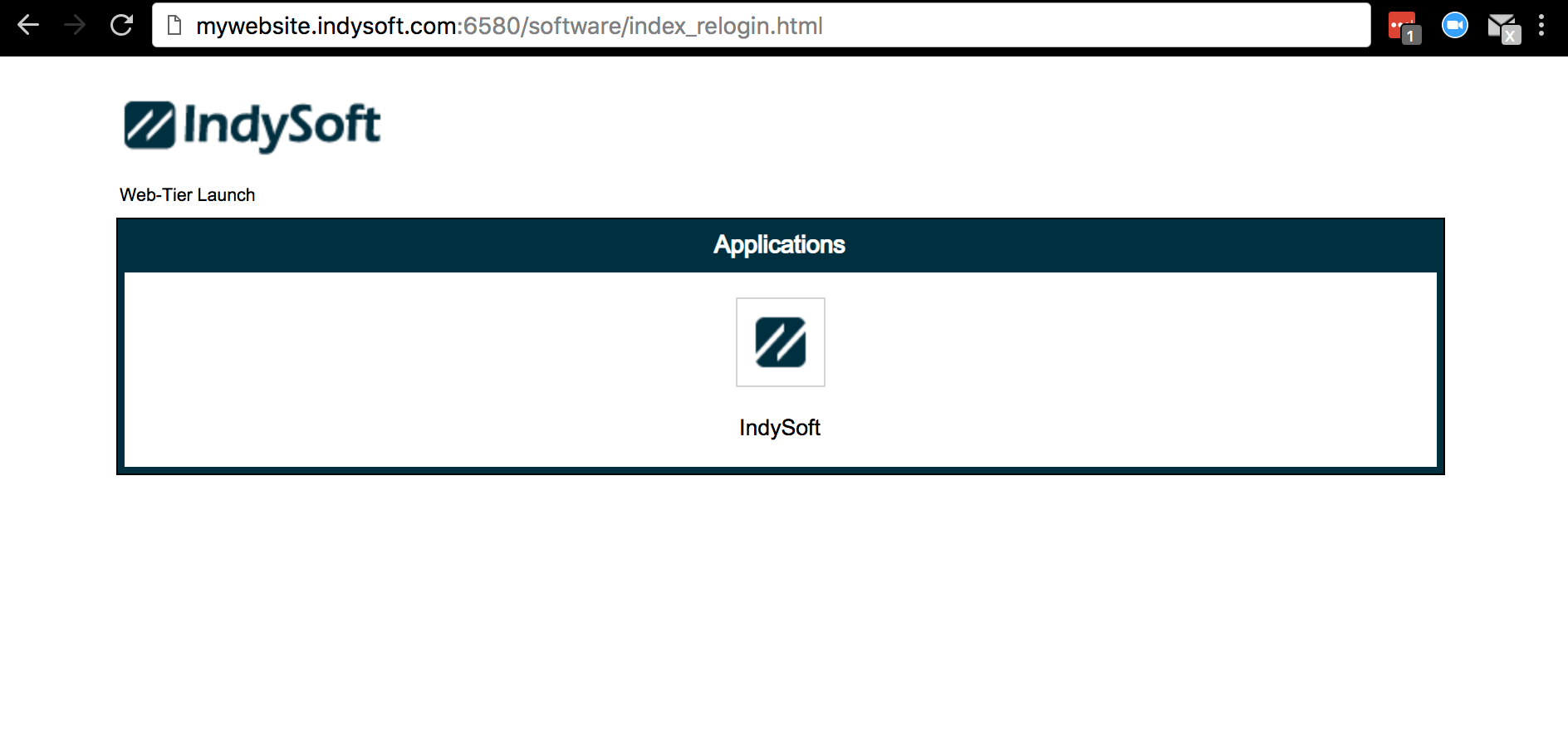
IndySoft Web-Tier - Browser Launch Page
Choosing the 'IndySoft' icon will launch the IndySoft login screen. Upon the start of IndySoft, the link to the server will be established. At this point, any necessary alerts based on current Web-Tier license usage will be shown. Next, the IndySoft login screen will appear in the browser tab:
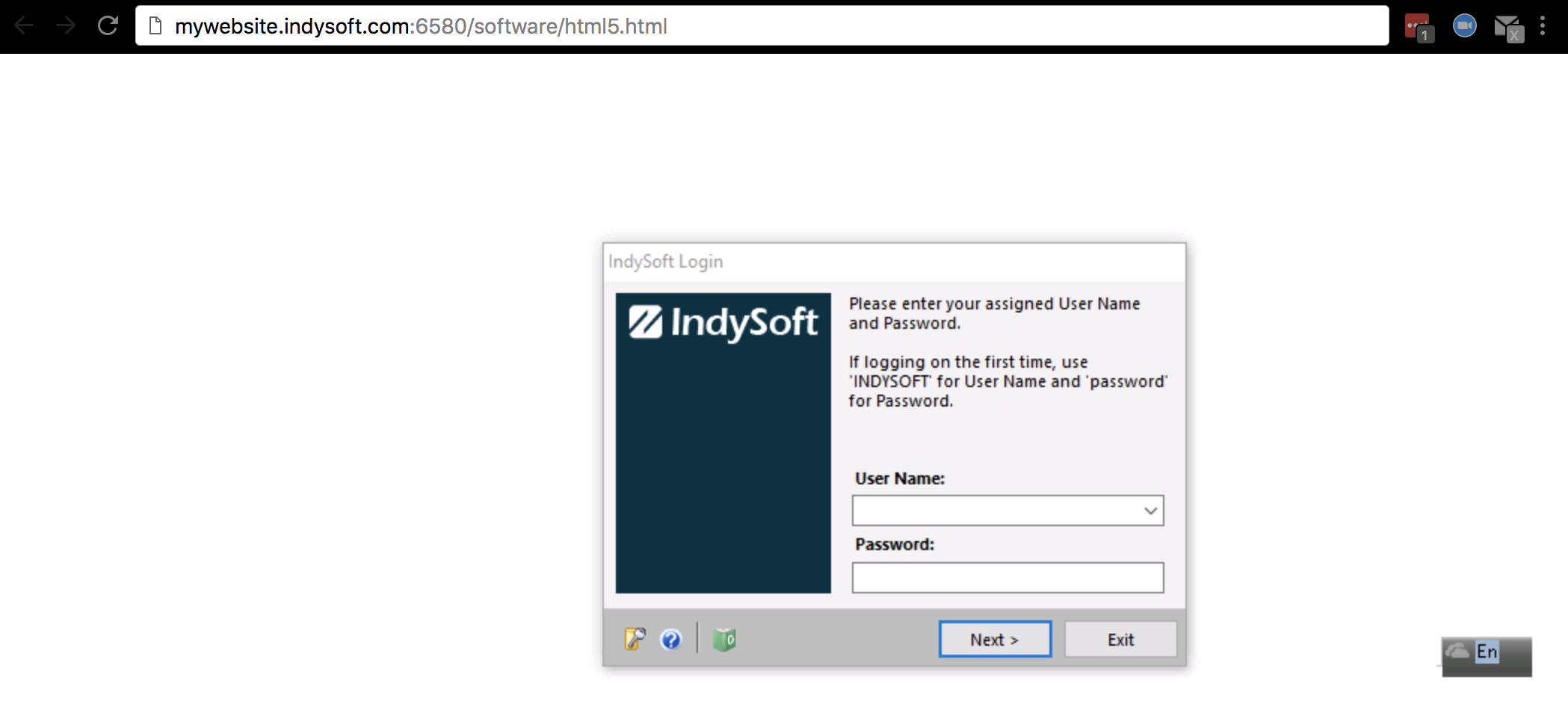
IndySoft Web-Tier - Login
Note: all IndySoft dialogs appear within the browser tab. Think of the space within the browser tab as your 'desktop' and IndySoft dialogs appear within this canvas - centered when appropriate, etc. If you launch other IndySoft utilities from the main screen, these secondary dialogs will appear within the same browser tab. Dialogs can also be resized (if the particular dialog allows) and repositioned within the browser tab - just as when running a local application. Each application can also be minimized as needed. IndySoft applications, when minimized, are displayed as icons in the lower left of the browser tab. Click on the icon to bring the window back into view.
Once logged into the main screen, IndySoft runs with the same user interface within the web browser as when run as a Windows application! There are only a few couple quick notes on the interface that you would expect to be somewhat modified:
Printing Within Web-Tier Browser Interface
The IndySoft Web-Tier allows for printing to all local printers through the browser. But as a convenience, many print jobs that involve web-capable content like pdf files, etc., will be previewed in a small dialog before sending to the printer when running:
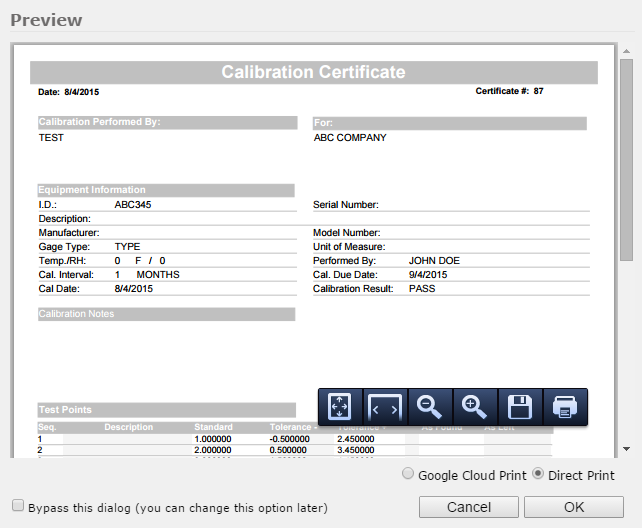
Web-Tier - Print Preview for PDF
The previewed PDF can be resized/zoomed as needed. Select 'Direct Print' to send to a local printer. After 'OK,' the browser will take over the print job, routing to the selected local printer. Or, select 'Google Cloud Print' for routing through Google options:
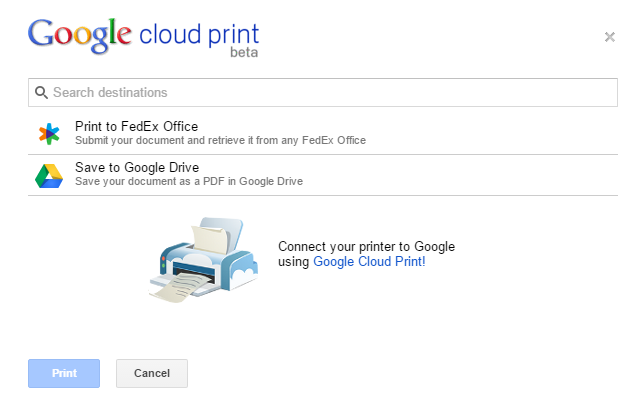
Google Cloud Print
Suppose the IndySoft user requests a preview of the content that cannot be previewed within the browser (like an Excel file, Word file, etc.). In that case, this file will be automatically downloaded to the browser's Downloads section for quick review.
Scanning Within Web-Tier Browser Interface
Scanning functionality is currently not supported in the Web-Tier. But any file created/scanned locally can quickly be uploaded as an event document, etc. Select 'Attach From File Name':
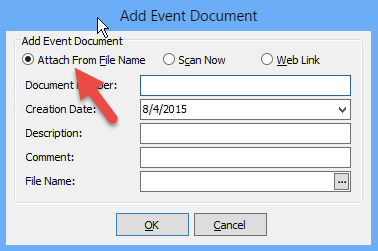
Attach From File Name
Uploading Documents Within Web-Tier Browser Interface
Occasionally IndySoft will need to prompt for a local document (as in the 'Attach From File Name' example above). In these instances, instead of showing a Windows 'Open' dialog directly (as when using the Windows client), an 'Upload File' dialog will be shown:

Web-Tier - Upload File Dialog
Press the binoculars button to quickly locate a local file that will be uploaded through the browser to the IndySoft Web-Tier - then press OK to proceed. Note that you can also drag-drop a file onto this 'Upload File' dialog. |