Workflow Configuration - Equipment Updates
Configuration Wizard - Equipment Updates (Step 15 of 22)
The Equipment Updates tab allows you to update any Equipment field with information from an event or a question asked of the user.
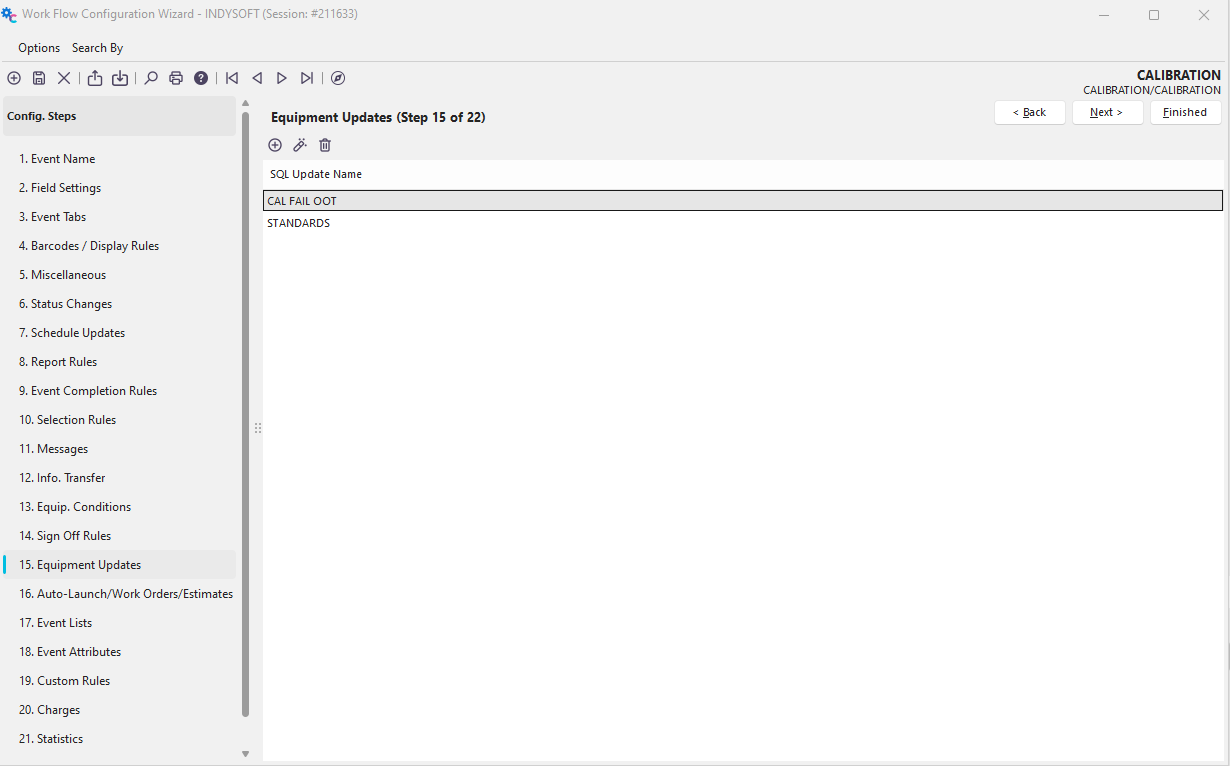
Configuration Wizard - Step 15 of 22 - Equipment Updates
 Click the 'Add Equipment SQL Rule' button to add a new rule or
  to view/edit.
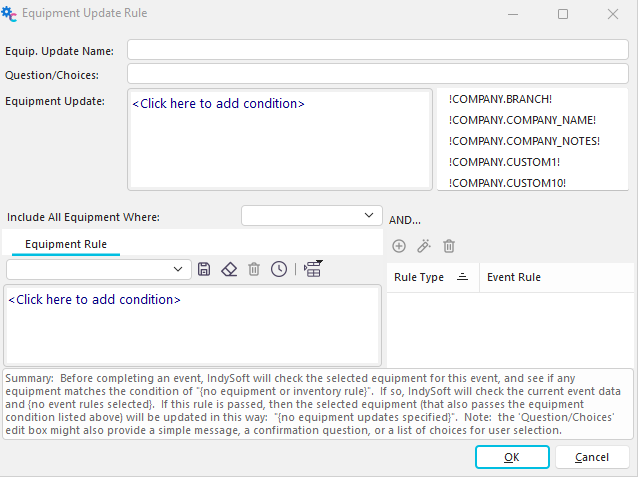
SQL Update Rule Example
Following the 'flow' described in the screenshot above to better understand how this step works.
Equip. Update Name
This field is a unique name for the Equipment Update Rule. This name must only be unique for each Event Type you set up.
1. If Selected Equipment Matches This Condition...
If you add Equipment Conditions in Step 13, those conditions will show in the drop-down box. You can choose one of those conditions or leave the field blank. Before completing an event, IndySoft will check the selected equipment for this event and see if any equipment matches the conditions in steps 1 and 2.
2. Equipment Rule
Use this dialog to pick (filter) the type of equipment that you want to be considered in the equipment update. If you want all equipment applicable for the equipment update, leave the filter blank.
3. Rule Type
Here an Event Rule can be created, viewed, or deleted. IndySoft will check the current event data. If this rule is passed, the selected equipment (that also passes the equipment condition listed above) will be updated from the information created in Step 5, Equipment Update. Note: the 'Question/Choices' edit box (Step 4) might also provide a simple message, a confirmation question, or a list of choices for user selection.
4. Question/Choices
This is the optional question that will be displayed. To ask a yes/no question that displays two buttons for "Yes" and "No" (instead of simply "OK"), type your question, then put a pipe character: | followed by YESNO. Example: 'Should the return date be cleared?|YESNO'.

Equipment Update Selection - Example 1
Or, if you would like to list various choices, add a pipe character before each item. The choices will be shown in a list box to the right of the question - as in the example below. Leave this field blank if you don't want to ask a question and always want the equipment update to be performed.

Equipment Update Selection - Example 2
- Equipment Update
This option allows you to pick Equipment fields to update. Use the text variables on the right to choose the information that you want to use to update the specified equipment field. You can choose as many equipment fields to update as you like. One option you can use is if the question has a list of choices (like in the above example); the selected choice can then be transferred to an equipment-level field. First, select which field you want to fill by the answer, then add the variable !QUESTIONRESULT!. (Example would be 'Should the return date be cleared?|YES|NO', whichever word is selected would then be moved to that field). So the Equipment Update filter, as set up in workflow configuration, would look like this:

Equipment Update Filterbox Example |