Workflow Configuration - Equip. Conditions
Configuration Wizard - Equip. Conditions (Step 13 of 22)
Equipment Conditions can be set up during events such as Receive, allowing you to enter common conditions for each piece of equipment quickly.
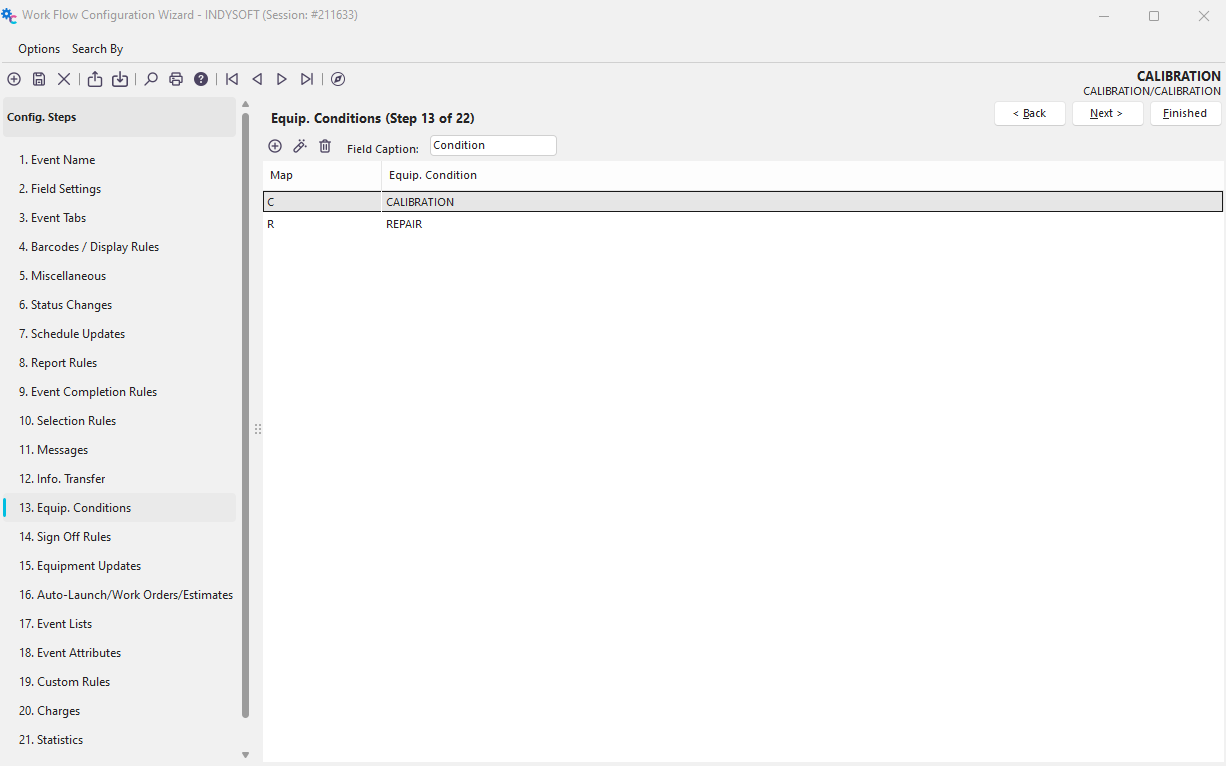
Configuration Wizard - Step 13 of 22 - Equip. Conditions
Field Caption
Enter the name of the column label that the conditions will be under. See the example in the 'Choose Equipment' dialog below.
 Click the 'Add Equipment Message' button to add a new rule or
  to view/edit.

Add/Edit Equipment Condition Example
Mapping Char
Each condition must be associated with a single alphabet character - typically, these start at A..Z, etc. - this mapping allows multiple conditions to be associated with an asset through one field in the database.
Equip. Condition
Enter a new condition name in this field.
Using Equipment Conditions
Equipment Conditions will only be available when performing an event if you have activated them as described above. Once activated, the green icon below will appear in the 'Choose Equipment' section of the event you are performing.
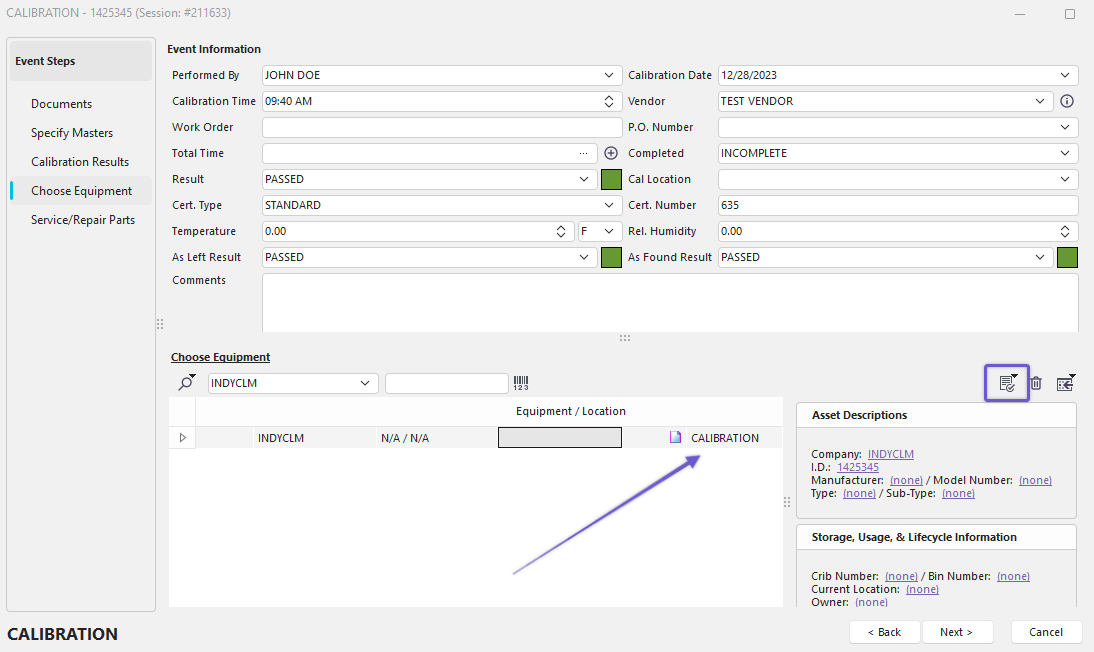
Performing an Event - Choose Equipment Field - Conditions
The 'Field Caption' label you created earlier may need to be added to the grid using the 'Customize Grid' option.
 Once the equipment is selected, click this icon to access the drop-down Equipment Conditions menu. Select a condition which will appear under the 'Field Caption' ('Condition' in this example). You can add multiple conditions by clicking more from that field's menu. |