Workflow Configuration - Event Lists
Configuration Wizard - Event Lists (Step 17 of 22)
This step allows you to specify up to four per event type you set up. These lists can be used in any of the four user-defined fields in the Event Information Section.
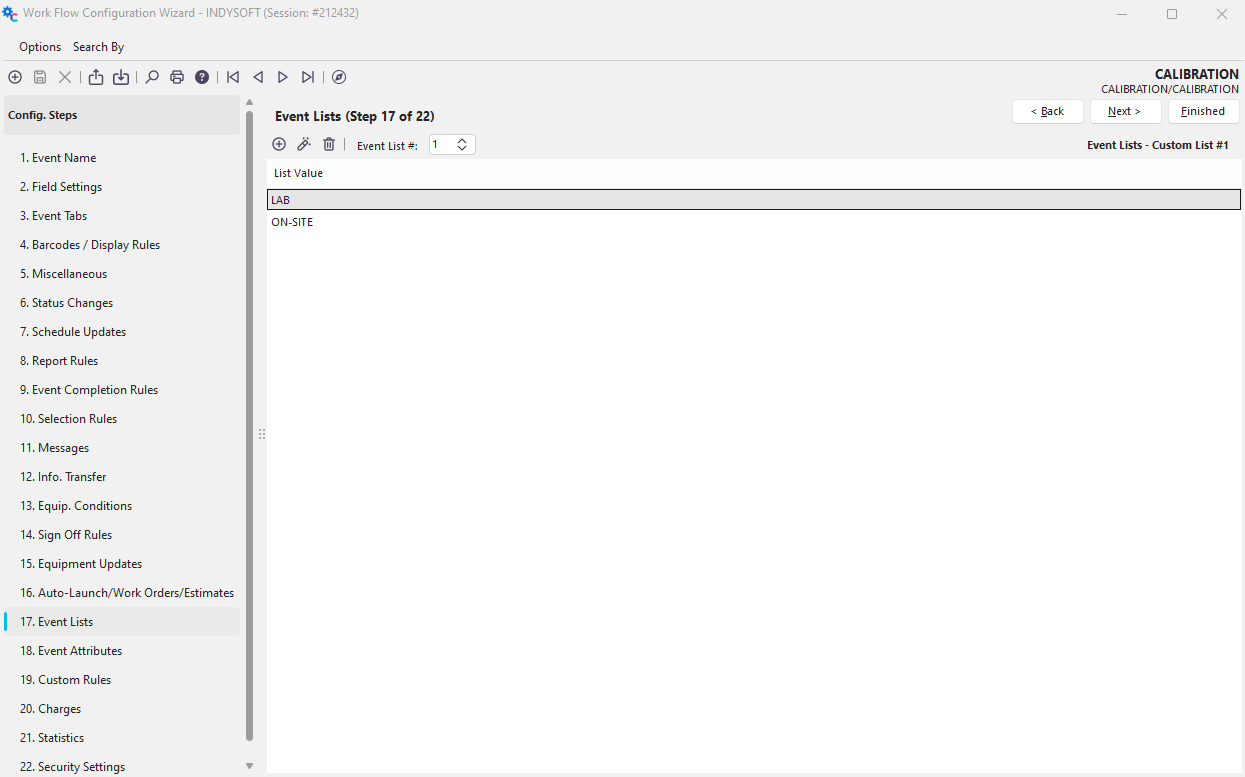
Configuration Wizard - Step 17 of 22 - Event Lists
 To add a new event list, specify the Event List #, then click the 'Add Event List Item' button.

Add New Event List Item
Enter in the Event List Value, click 'OK,' and repeat as necessary for each list.
While still in the Workflow Configuration Wizard, go back to Miscellaneous Step 5:
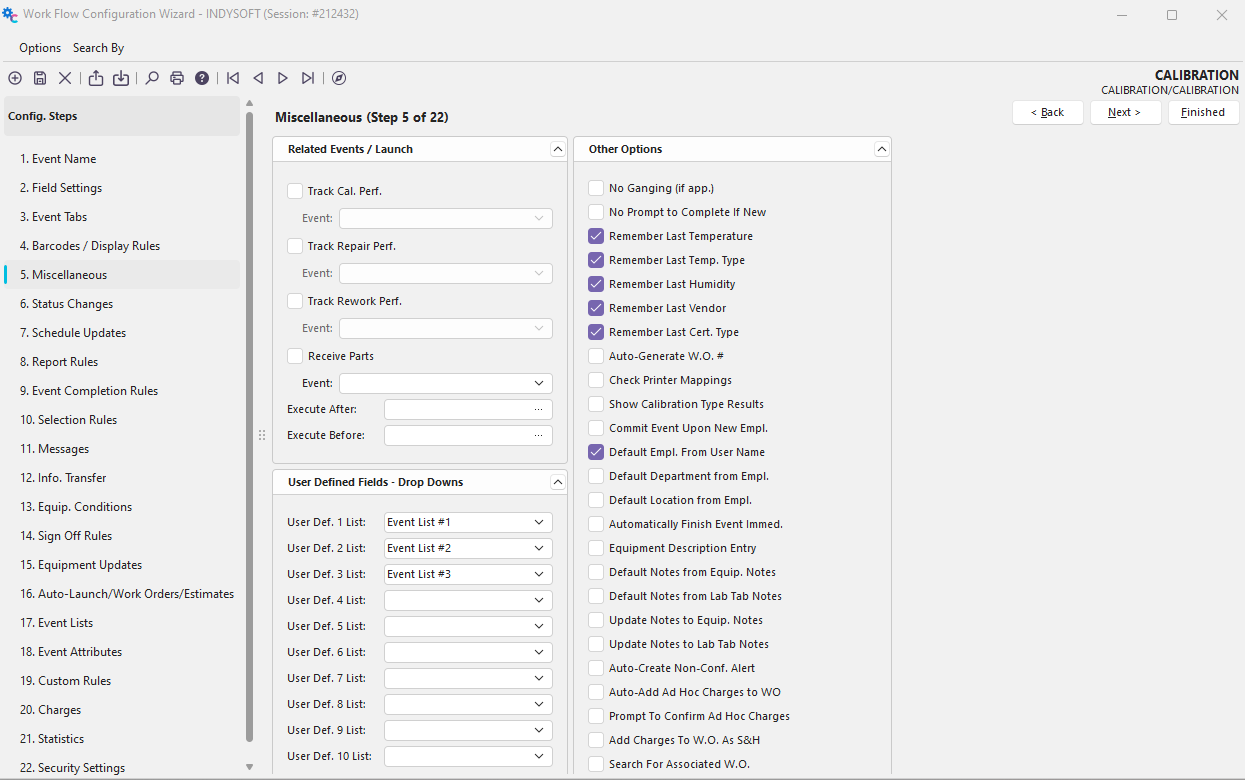
Miscellaneous (Step 5 of 22) - User-Defined Fields
Under the User Defined Fields - Drop Downs, select the Event List # you want to have available in the event.
Next, while still in Workflow Configuration, go back to Field Settings Step 2:
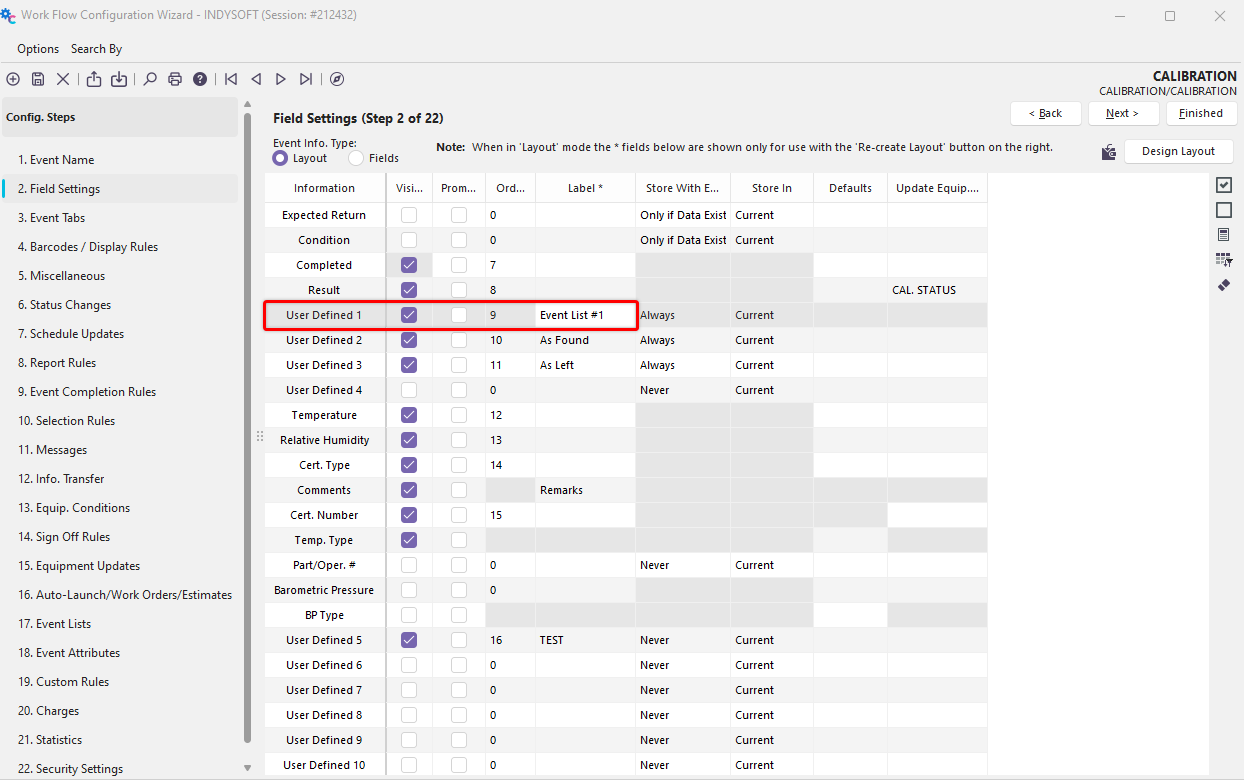
Field Settings (Step 2 of 22) - User Defined 1 - 4
In the Information Column, select a User-Defined field not being used. Check 'Visible,' enter an 'Order' number, then type in a unique name for the Label. (Event List #1 in this example).
Save settings. Refresh IndySoft. Run your event...
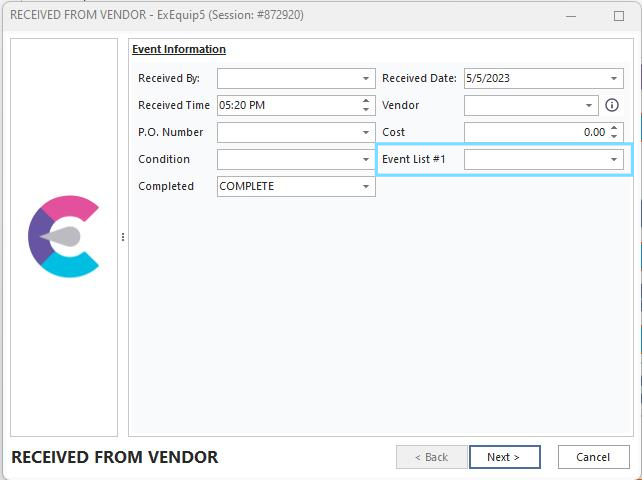
Event Information Example - Event List #1
The Event List will be available in the drop downs as shown. |