Notes/Docs
The Notes and Documents tab stores unlimited notes about a piece of equipment. It can also be used to add equipment documentation (Drawings, Service Instructions, etc.).
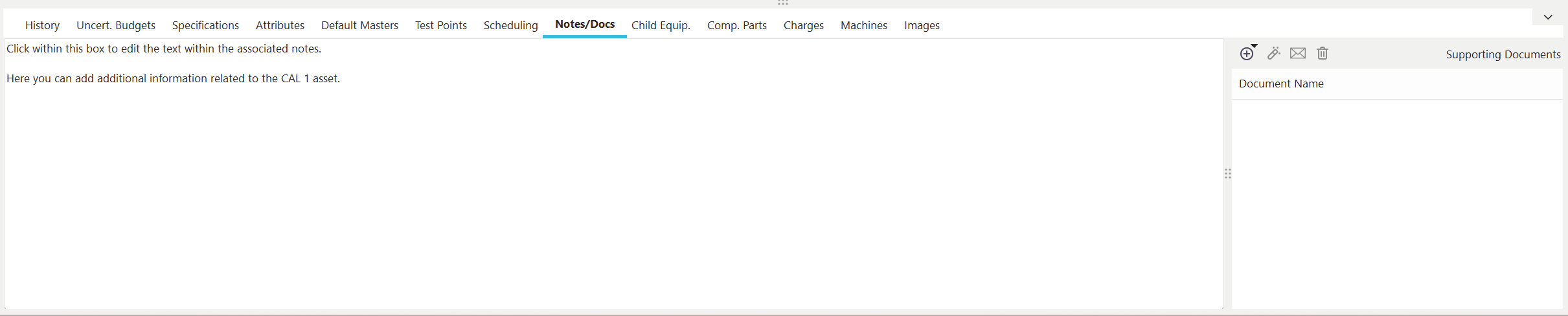
Notes and Documents Tab/Dialog
To save the added notes, use the red 'Save Changes' button that appears at the top of the equipment view. To cancel changes, use the blue X button.

Equip View - Save Changes
Notes
The notes section can be used to enter unlimited comments about a piece of equipment. In Dashboard View, this Notes field can be viewed and edited from within the Equipment Layout, just like any other Equipment field.
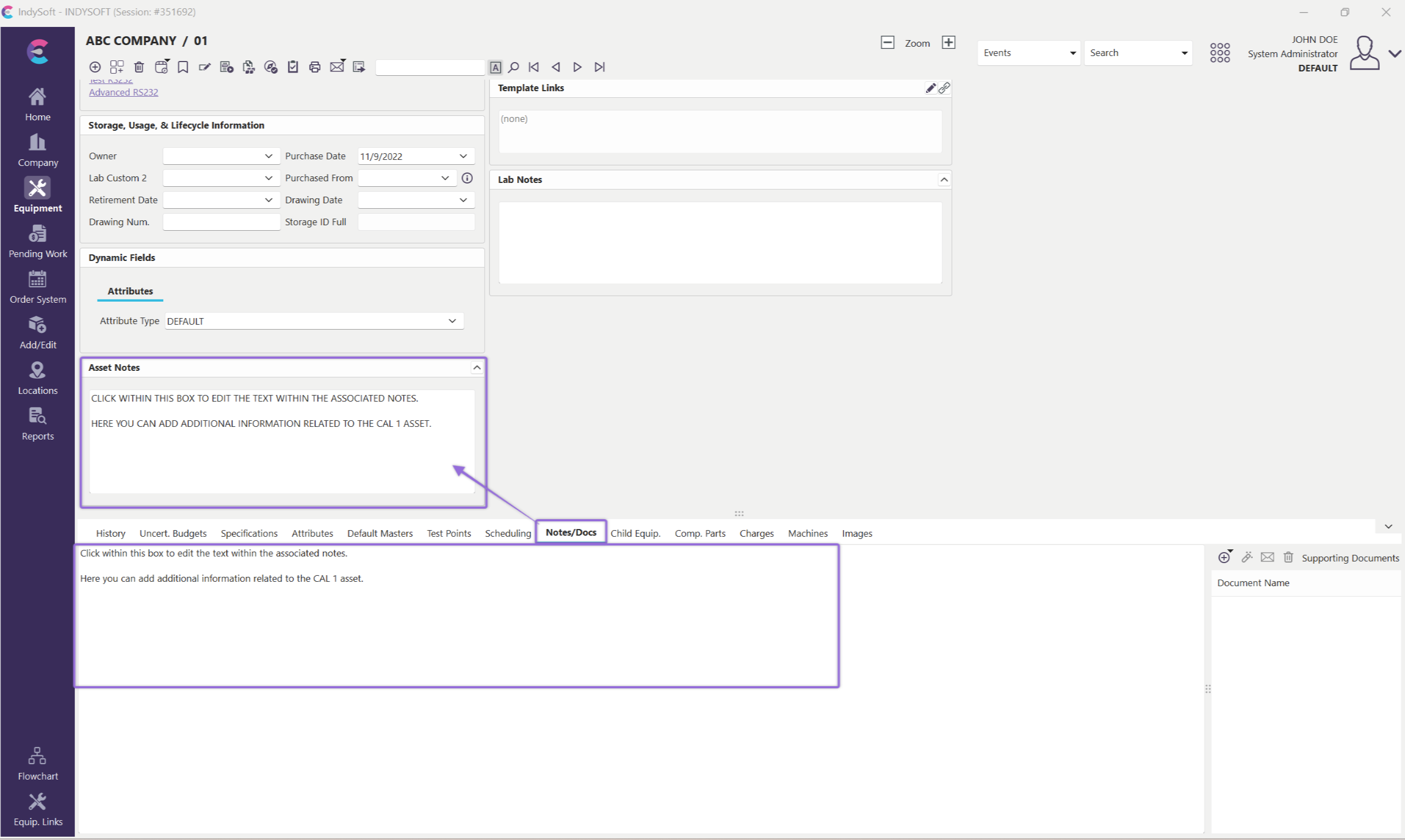
Notes and Documents Tab/Dialog
Supporting Documents
Each asset can have an unlimited number of associated documents - use the 'Supporting Documents' grid on the right side of this tab/dialog to associate these documents. This functionality is similar to Schedule Procedures - but in this case, you are associating a document with the entire asset rather than associating a procedure with a particular schedule type. The documents associated here come from the Add/Edit..Documentation...Documents wizard.
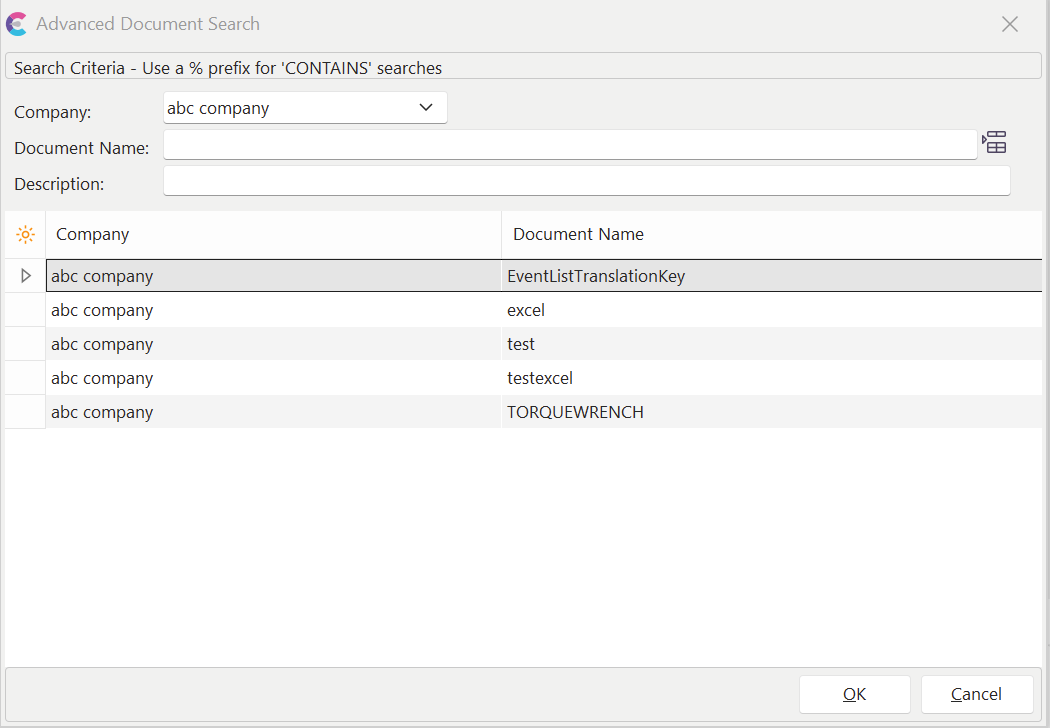
Advanced Document Search
 Add Supporting Document
Two options are available for adding supporting documents:
Add Document
Use this option to select a procedure from the Advanced Procedure/Document Search dialog.
Add New Document From File
Use this option to select a document from a file quickly. This operation will accomplish two things at once. 1) the file will create a new IndySoft document in the Add/Edit...Documentation...Documents wizard. The current company will be used as the owner of the document. The file name will be used for the document name (minus the file extension and possibly truncated to make an acceptable name). 2) This new document will be associated with the asset, like the 'Add Document' option above.
 View Supporting Document
Use this option to view the selected document. This will retrieve the document from the database, and Windows will be prompted to display it through the default file association for its extension.
 EMail Supporting Document
Use this option to quickly email the selected document as an attachment. The Choose Employees/Groups/Vendors/Companies to EMail dialog will be displayed to populate the email distribution.
 Delete Supporting Document
Use this button to delete the selected document. Note that this deletion removed the association of this document with the asset - it does not permanently remove the procedure from the Add/Edit..Documentation...Documents listing. |