Template Links
Another essential template purpose is to link equipment to a particular template, then permanently link specific fields to the template. This linking effectively blocks all editing of that field on the field level. The value for that field is synced back to any changes made to the template, but only the template. This linking can be accomplished not only for equipment fields but also for equipment detail tables like test points, default masters, parts to be measured, etc. From the Dashboard main screen, all template linking is accomplished from the 'Template Links' dialog:
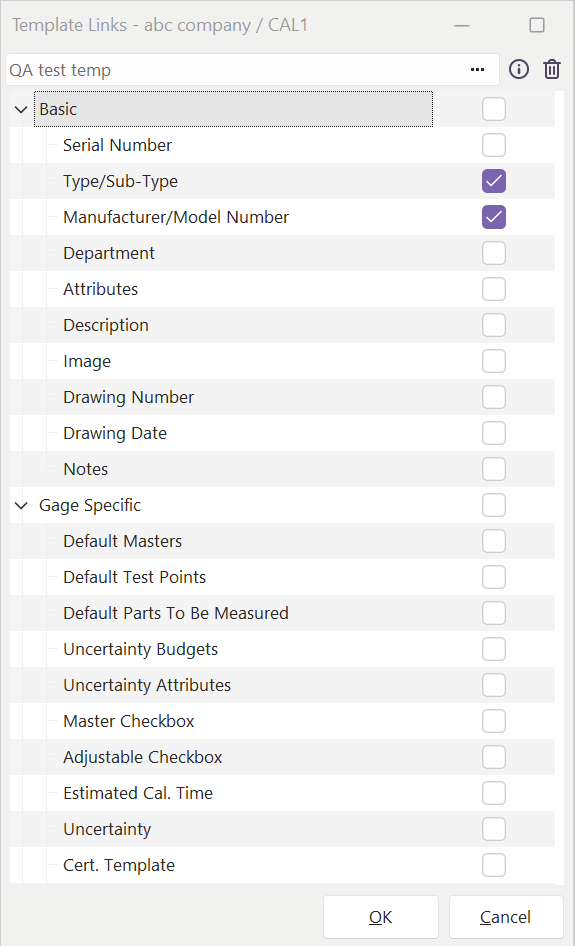
Template Link Docking Panel
Note that there are two sections to this panel's contents - a top section for selecting the template and a bottom section that lists all equipment fields and detail tabs that can be associated with the selected template.

 Press this ellipsis button to select a template that should be associated with the equipment.
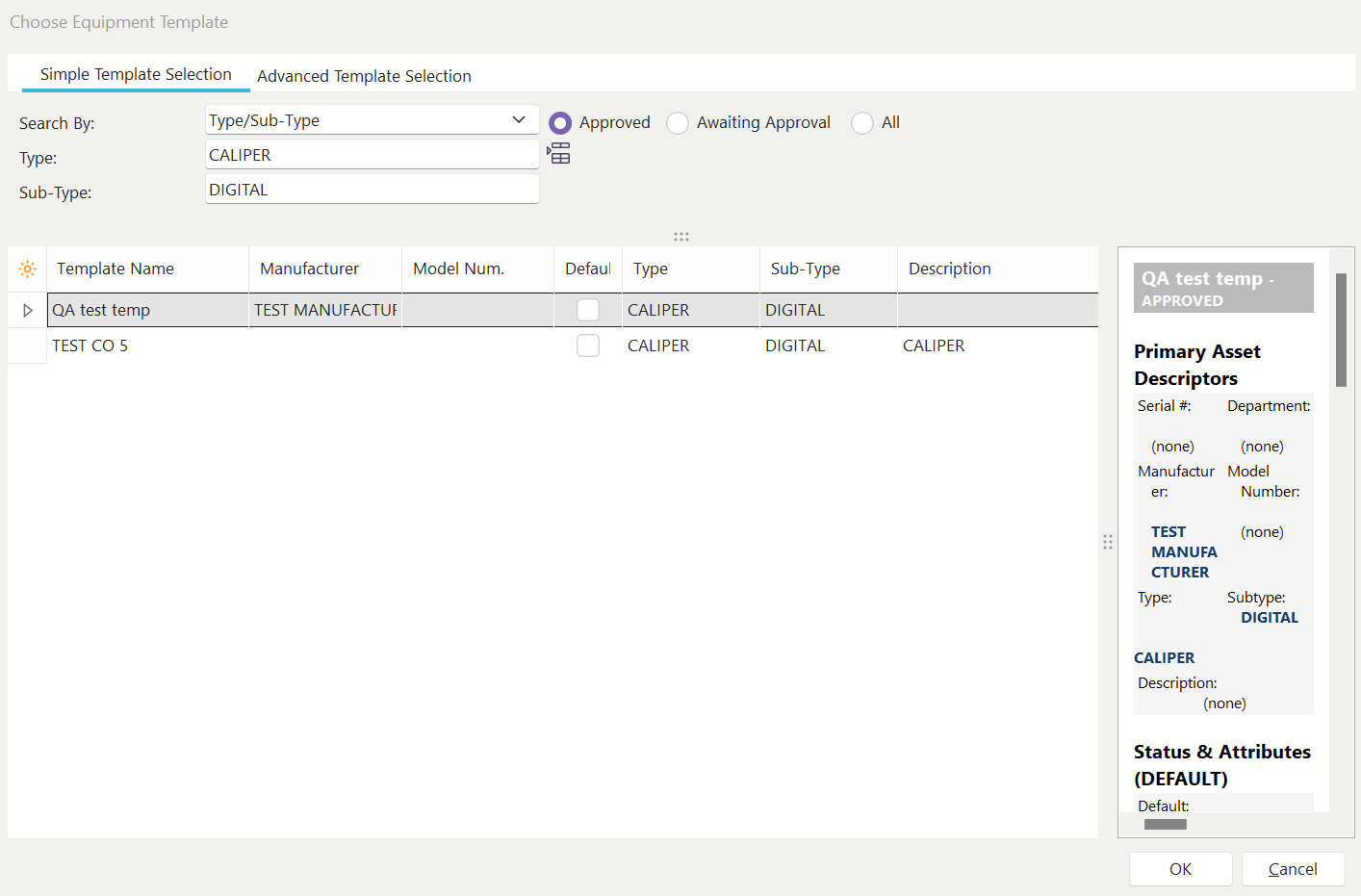
Choose Equipment Template Dialog
Note: if you select a new/different template for the current asset, you will be prompted to quickly set all the template link checkboxes to the default template link settings stored within the template. A confirmation dialog like the one below will be shown:
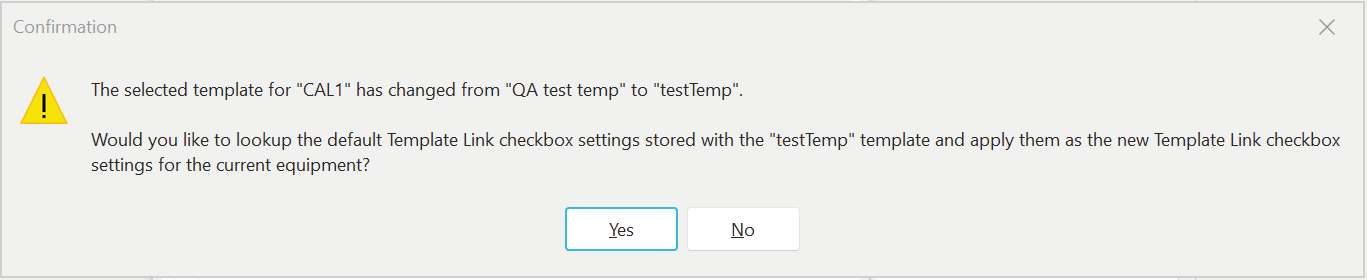
Template Confirmation Dialog
If you select yes, the checkboxes stored on the template level (defaults) will be copied to the equipment's Template Link docking panel. Select No to skip this sync. You can right-mouse click within the edit box that displays the current template and select:
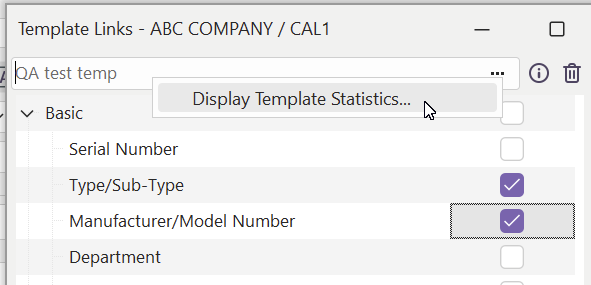
This option will quickly display the Display Template Statistics utility.
 Launch Associated Template
Press this button to launch immediately into Template edit mode for the selected template. See Template Editor - Overview for more details on editing templates.
 Remove Template Association
Press this button to delete the currently selected template.
Linked Equipment Fields and Tables
When a field is linked back to a template, it is colored a distinct color and disabled from direct edits from the equipment screen. The only way to change the value is to go to the template and edit the value on the level of the template (assuming you have the appropriate security). To specify the font style/color for template-linked fields, add a '!STYLEFOR=TEMPLATELINKS!' text within your Equipment Layout (typically placed on the bottom). This text will be replaced with empty text when the Equipment Layout is drawn on the main screen, but the font style/size/color will be memorized and used when redrawing all equipment fields linked to a template. By default, you will see template-linked fields in bold-face dark red:
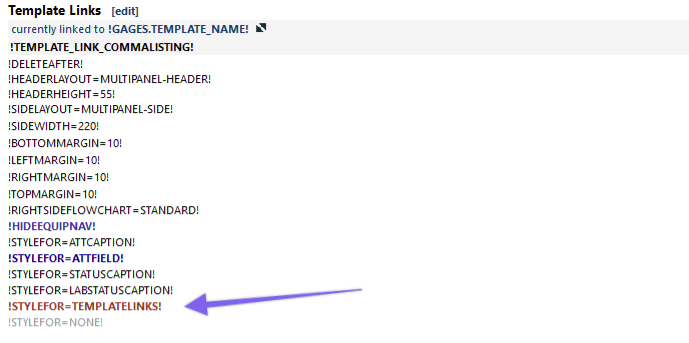
Equipment Layout in LayoutBuilder - example of how to setup template linked field style/color
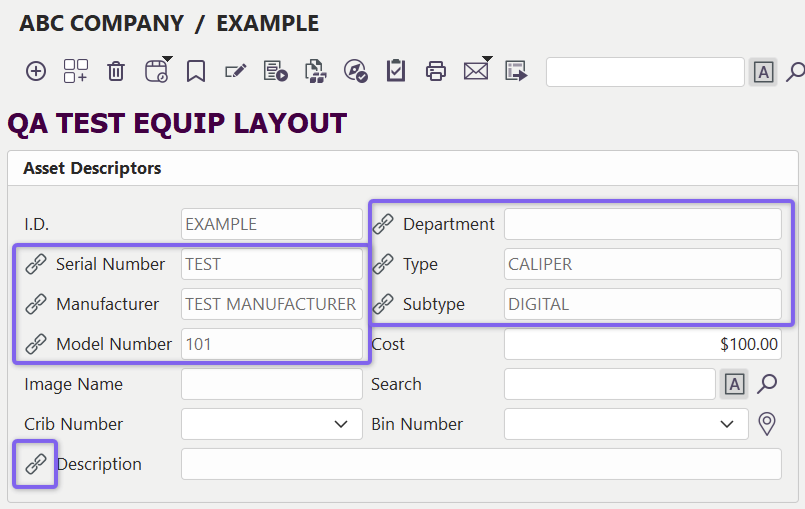
Example - Dashboard Equipment View with Template Linked Fields
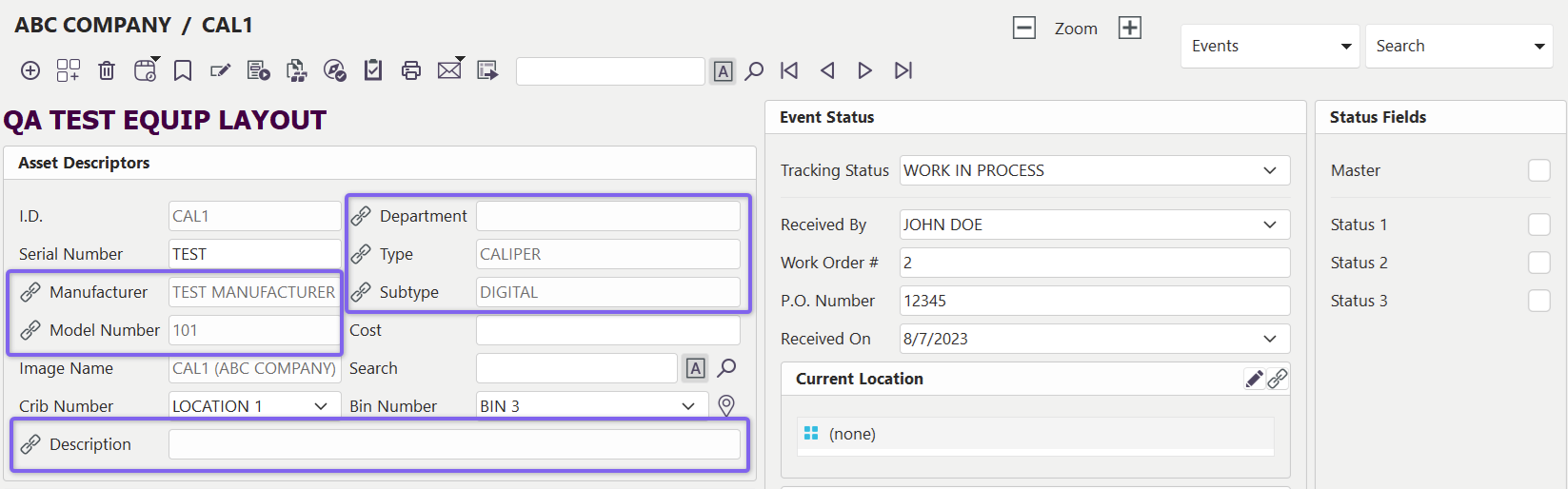
Example - New Field Layouts Equip View with Template Linked Fields
In the above example, 'Manufacturer,' 'Model Number,' 'Description,' and 'Department' are linked to the template.
There are also many available template links that link entire tables/tabs instead of just fields. An example would be the 'Default Test Points' template link checkbox that can be found under the 'Gage Specific' outline node in the 'Template Link' docking panel:
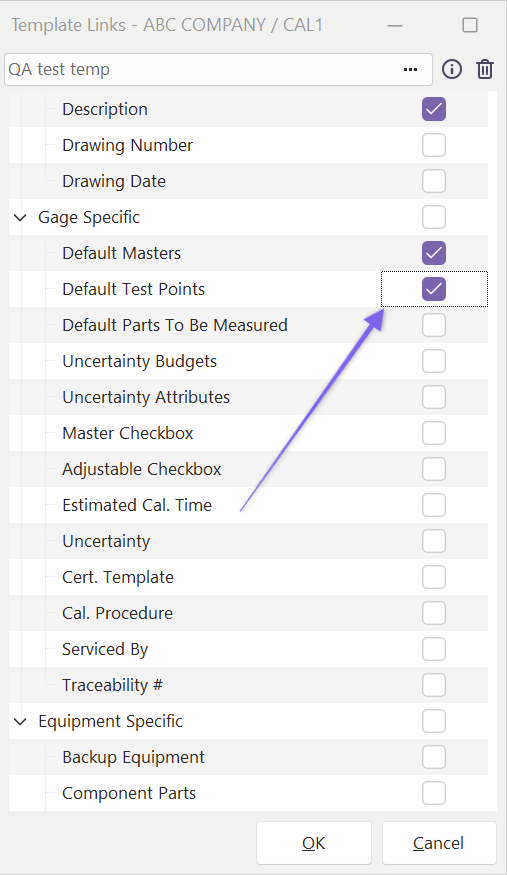
Example - Default Masters Template Link
When this 'Default Test Points' link is established, then the 'Default Test Points' dialog will be disabled from editing:
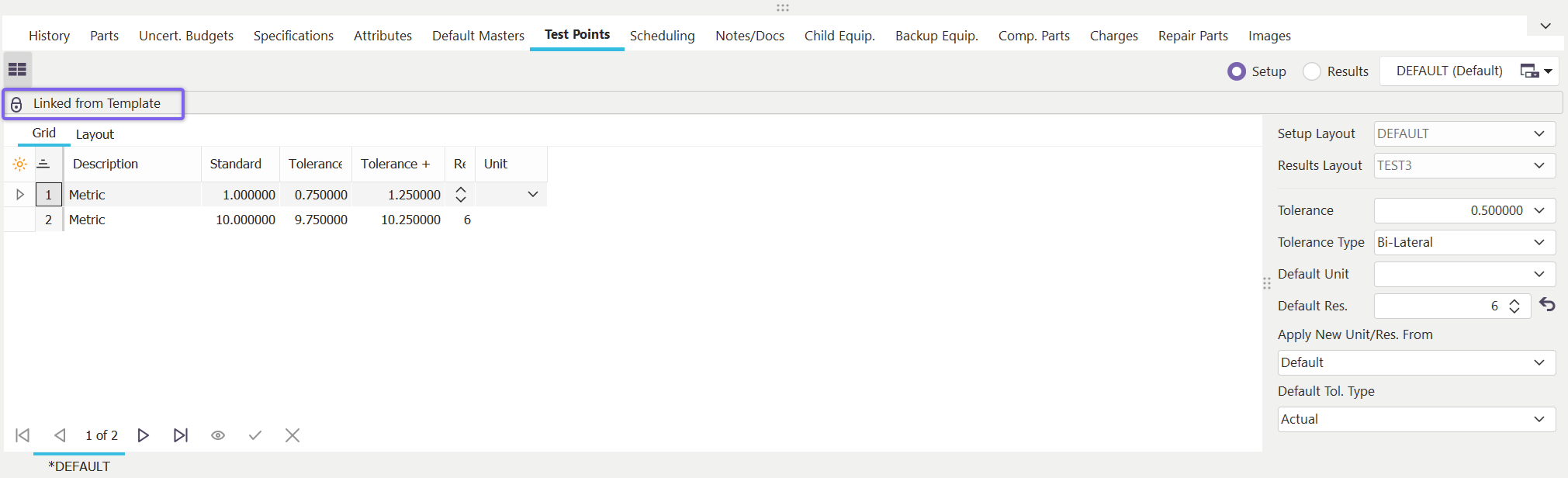
Example - Default Masters Linked to Template
Notice the dark gray panel displayed above the grid when the grid's contents are linked back to the template. This same 'look' is used for all detail tables linked to the template. |