Calculating Uncertainty
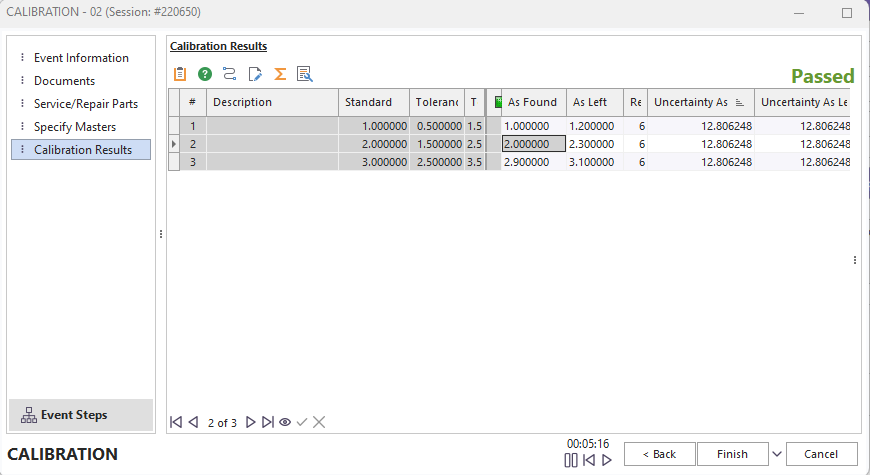
Calibration Results - Calculating Uncertainty
Calculating uncertainty with the IndySoft Uncertainty Module is simple - because no additional steps are involved. Enter your 'As Found' and 'As Left' values as normal, and scroll off the test point. IndySoft checks the equipment for any associated budgets as the test point is saved. Suppose an associated budget is found for the current test point. In that case, this budget's contributing items are read according to the correlation formula, and the resulting uncertainty is returned to the calibration event and inserted into the 'Uncertainty' column for the appropriate test point. Also, if the uncertainty budget has a 'Map Unit/Res. To' field selected in the Uncertainty Module, ' the budget's 'Unit of Measure' and 'Resolution' are copied into the appropriate field. (Don't forget that test point field column names can be modified from the IndySoft 'Test Points' tab by focusing the field, right-mouse clicking on the field header, and selecting 'Grid Options...Modify Current Column Caption' option.)
If you would like to recall the 'Uncertainty Masters Mapping' dialog, you can right-mouse click inside the test points 'Calibration Results' grid and find an option, as shown below:
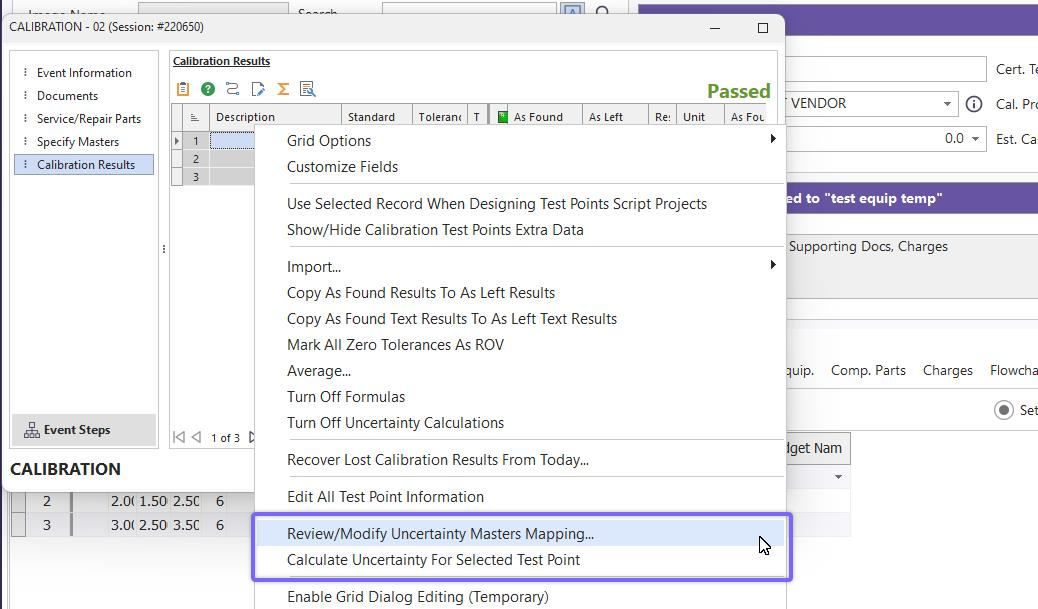
Right Mouse Click Options In Calibration Results Grid
Also, you will notice there is a right-mouse click option that allows you to explicitly calculate the uncertainty for the selected test point (uncertainty will be edited into the grid). This way, you can calculate uncertainty without moving off the test point record. |