Selecting/Verifying Masters
During a calibration event (or any event type that uses test points and will calculate uncertainty), it is necessary to select the masters or standards that are necessary to calculate uncertainty. These masters have been set up in the related Uncertainty Budget through the Master Rules tab. When a calibration event is performed, there might be additional masters that are required to perform the calibration beyond those needed to calculate uncertainty. For this reason, when the 'Specify Masters That Will Be Used to Calibrate This Equipment' tab is viewed, a listing of masters required for uncertainty calculations is listed at the bottom of the page. This grid lists all the master rules and rules descriptions for each uncertainty budget associated with the selected equipment and test points. This grid will be blank if you have not yet selected equipment for the event. This 'Masters Required to Calculate Uncertainty' grid is provided as a visual note when selecting masters to ensure all appropriate masters are selected. It is advisable to have your 'Specify Masters...' event tab appear before your test points tab when calculating uncertainty - since the exact master's attributes could be referenced within an uncertainty budget when uncertainty is calculated from the test points tab.
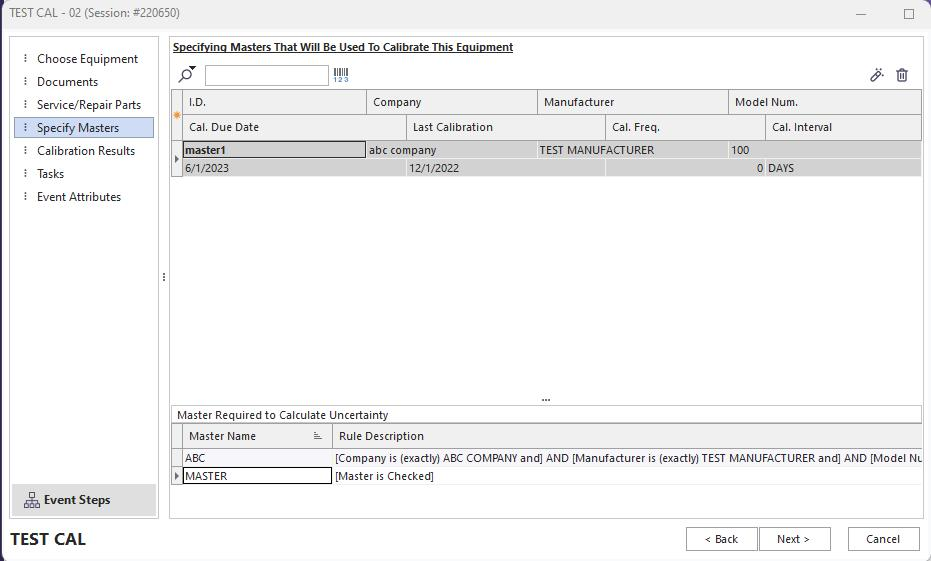
Masters Required to Calibration Uncertainty
As you enter the 'Calibration Results' tab in the event, the master rules for all test points budgets relevant to this calibration event are compared against the masters selected. IndySoft attempts to match the general filter box rules in the Uncertainty Module to the selected masters and guess which masters apply to each master rule for each uncertainty budget. If a master rule is broken (master not selected), then the user is alerted with a dialog similar to the one below:
Master Gage Not Found for Uncertainty Budget
Often, one failed master rule will apply to multiple test points. In this case, you will receive duplicate error messages, as shown above. When you see this is the case, you can select the 'Do Not Show This Message For Other Test Points' checkbox to suppress future messages during this master check. (Re-entering the 'Calibration Results' tab will launch a new set of master rule checks) Since more than one master gage can meet more than one master rule, the user must confirm these assumptions before uncertainty is calculated. For this purpose, an 'Uncertainty Masters Mapping' confirmation dialog is shown:
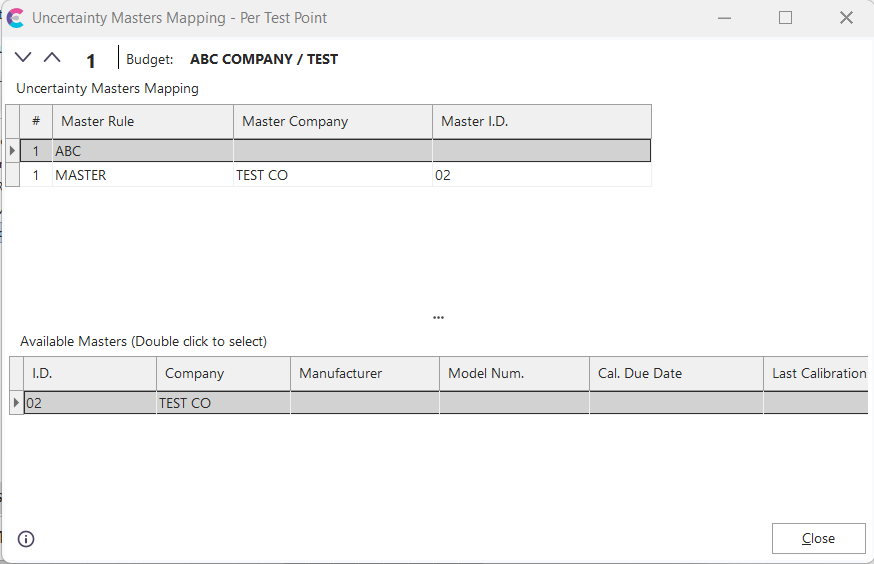
Uncertainty Masters Mapping
The above example shows that the 'ABC' Master Rule has failed for the currently selected test point. To calculate uncertainty correctly, the user must select the appropriate 'Master Company' and 'Master I.D.' by selecting from the masters available in the bottom grid (in this example, only one is selected in the event so far - so only one is available in the bottom grid). If the masters have already been correctly selected, this dialog should be a quick visual confirmation, then simply press "OK." As you scroll through the test points grid in the event, this screen will refresh with the master rules appropriate for the current test point. Or, you can scroll through the test points by pressing the up/down buttons on the top of the dialog. Double-click on a master from the bottom grid to automatically select it for use on the master rule above.
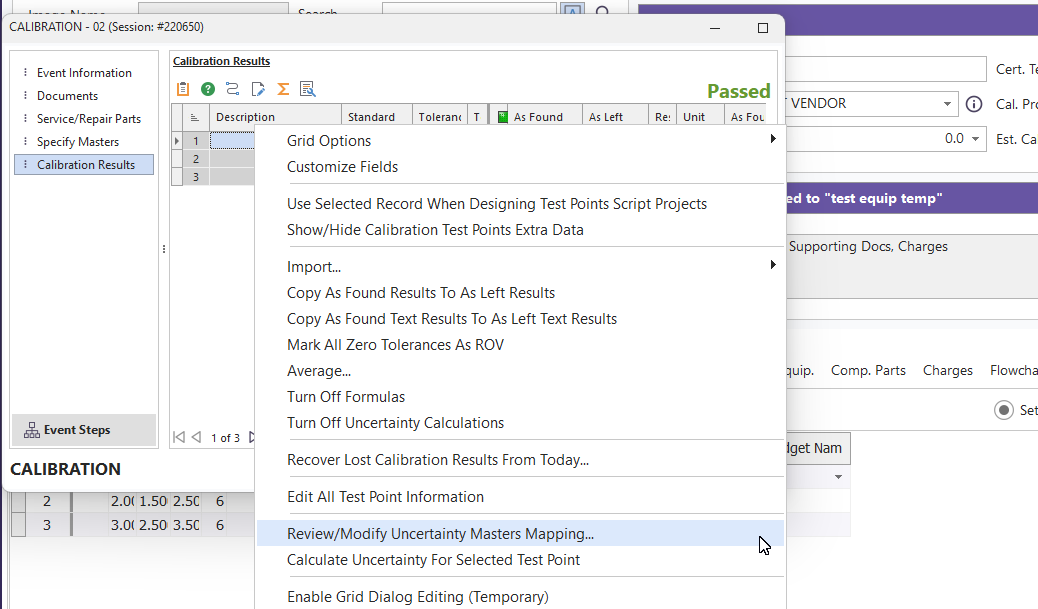
If you would like to recall the 'Uncertainty Masters Mapping' dialog, you can right-mouse click inside the test points 'Calibration Results' grid to find a 'Review/Modify Uncertainty Masters Mapping...' option.
 |
|