Workspace - Language Manager
When the project is opened, you see a grid that allows you to translate your language files. Each column but the fixed one corresponds to one language. You may change the order of columns by dragging and dropping them. The left-most fixed column contains properties/constants names.
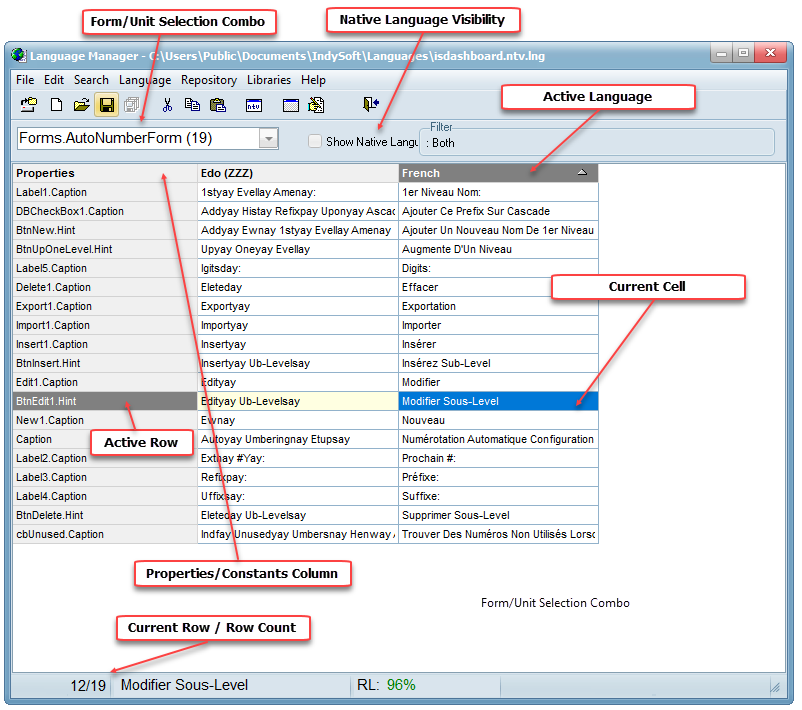
Language Manager - Workspace
The grid filled with properties/constants values is a translator's main field of action.
Each column of the grid represents the language file to be translated. Each row represents the property or the constant to be translated.
The special mark * on the right side of the column caption means that the language has been modified (some cells have changed their values).
Native language visibility check box
Unmark this check box if you want to hide the native language column. Mark it again to show the native language.
Properties/Constants column
The most left (fixed) column displays the names of the properties or constants. The properties/constants names include form/unit name if the form/unit selection combo is set to display all forms/units (i.e., Form1.Label1.Caption is displayed if Forms is selected). Otherwise, the forms/unit names are omitted (i.e., Label1.Caption is displayed if Form1 is selected).
Click on the cell in this column to see a hint with a full property/constant name.
Active language
The active (current) language the language of one of the opened language files. Each open file corresponds to one column in the table. The active language column is marked out with darker header color. Please select one of its cells to make the column (language) active.
Operations concerning the language (somewhat file operations, font changes, etc.) are performed under the active language.
Read-only columns
The columns marked with paper-clip signs are read-only. It means that you cannot edit the cells in those columns.
The native language column is always marked as read-only to prevent the editing of the native language.
Translated/untranslated
The blue triangle sign in the cell's bottom corner indicates that its content was not translated yet (or its version is outdated). The state is changed to "translated" when you edit the cell.
If the native value was updated by the Language Wizard, the other state is changed to "untranslated." In this case, the values that have never been translated are changed to the new native value.
The translator can also set the state manually.
Untranslatable items
The translator can mark some properties or constants as untranslatable. Such rows are marked out with color and do not allow to edit their cells. The program can automatically hide the untranslatable rows if the appropriate option is set.
The untranslatable properties and constants are not changed during language switching.
Verified cells
If the cell value is checked and will not change in the future, the cell can be marked as "Verified." Such cells are marked with color and can not be edited (read-only).
The cells marked as untranslated can not be marked as verified. When the cell state is changed to "untranslated" (due to native language updating), the "verified" mark is removed.
Repository availability
The red triangle in the cell's bottom right corner indicates that this cell has proper translation in the Repository and can be translated via it. If the cell can be translated only using the "smart repository" feature, the color of the triangle is yellow |