Week View
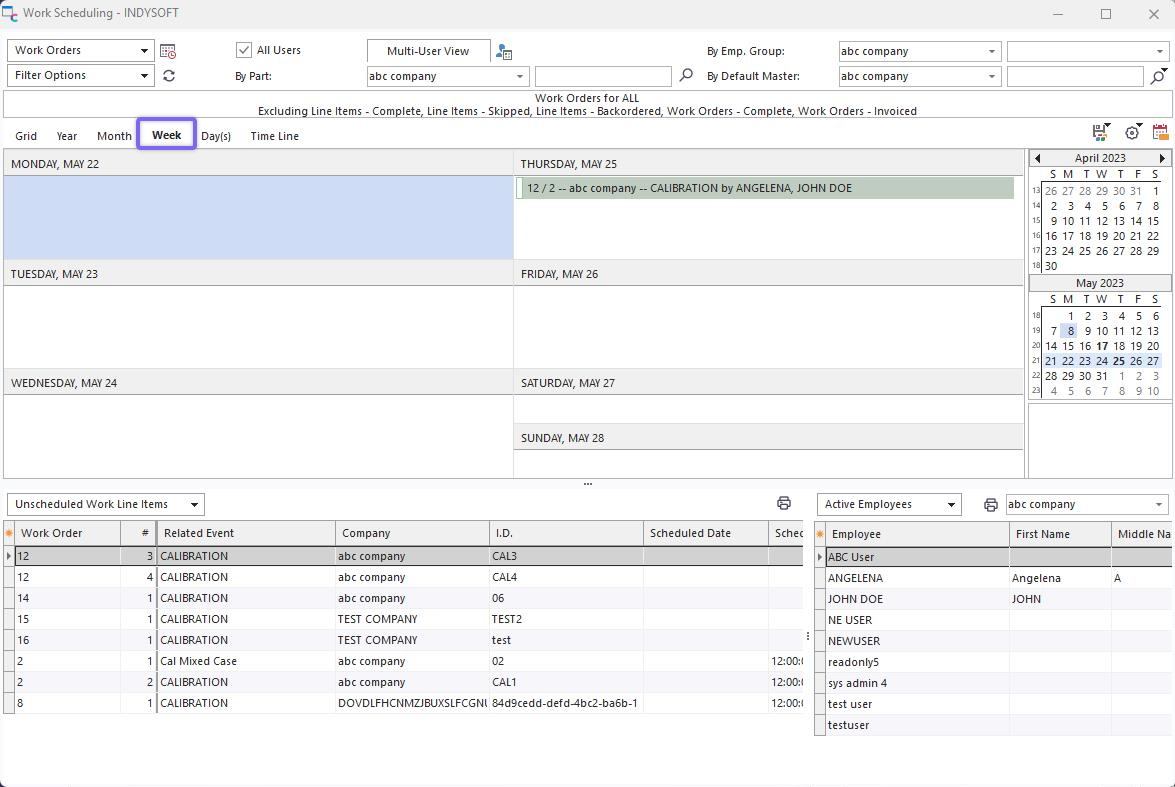
Work Scheduling Module - Week View
This view displays one week's worth of days - each day containing as many visible items as possible. If additional items cannot be shown, a  symbol will be displayed at the bottom of the date box. Click on this symbol to quickly move to this date and review scheduled items. Double-click on any scheduled item to edit through Scheduled Event Dialog, or use the same right-mouse click options as available in Grid View. The selected week is highlighted in the Date Navigator to the right. Use the back and next arrows to move between weeks quickly.
Several options are available for Week view - as set up in  menu above the scheduler:
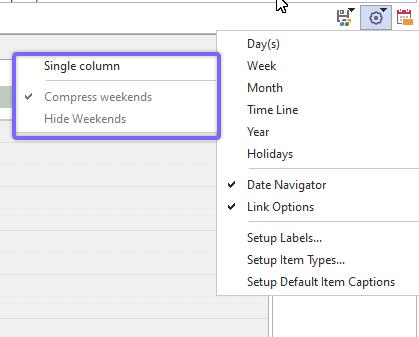
Week View Options
Single Column: Days of the week are shown in one column only. This allows for more space for item captions. Note: This item must be checked for 'Compress weekends' or 'Hide Weekends' to be enabled.
Compress weekends: Saturday and Sunday are combined into one day space. This is only relevant with 'Single Column.'
Hide Weekends: Saturday and Sunday are hidden. This is only relevant with 'Single Column.' |