Day(s) View
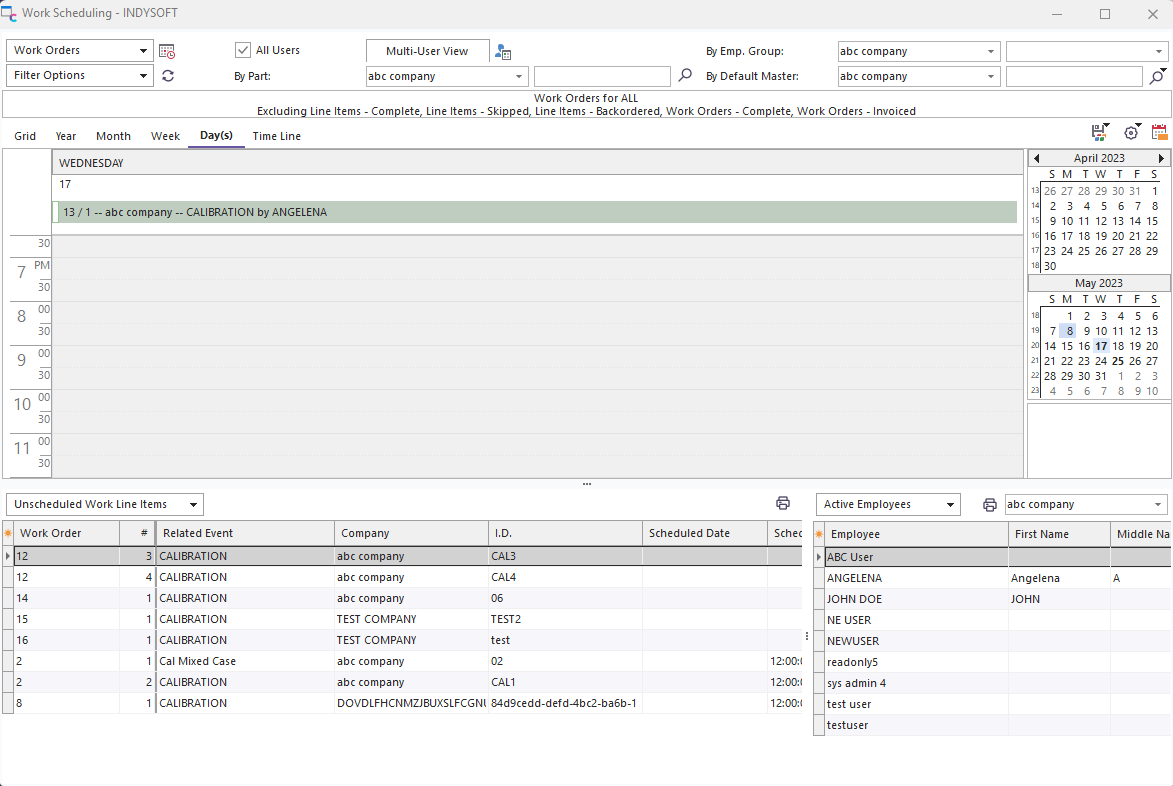
Work Scheduling Module - Day View
One day's worth of scheduled events is shown. The selected date is highlighted in the Date Navigator to the right. Select a different date if desired. Dates with scheduled items are shown in boldface in the Date Navigator. Each day contains as many visible items as possible. If additional items cannot be shown, a  symbol will be displayed at the bottom of the date box. Click on this symbol to quickly move to this date and review scheduled items. Double-click on any scheduled item to edit through Scheduled Event Dialog, or use the same right-mouse click options as available in Grid View.
Several options are available for Day view - as set up in  menu above the scheduler:
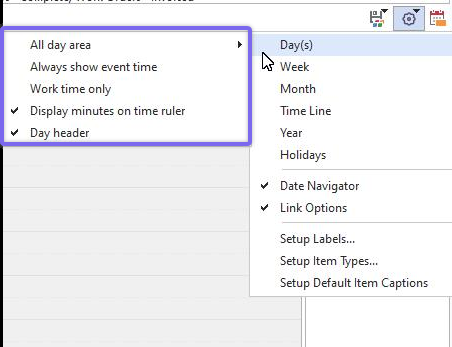
Day View Options
All Day Area: Toggles the display of All Day Area above the day. Any items created/shown in this box are automatically flagged as 'All Day' events. Additional options are available to control the height of this panel, the scroll bar, and whether full-day events should be shown in the calendar area among specifically scheduled items.
Always show event time: Toggles the event time display (if the event is not 'All Day Event') in Day View.
Work time only: Toggles the display of periods before/after 8 AM and 5 PM.
Display minutes on time ruler: Toggles the display of '30' for half-hour designations on the time ruler.
Day header: Toggles the display of the date header above the scheduled items (i.e., 'Tuesday, August 05') |