Work Filtering Options

Work Scheduling Filtering Header (Top of Screen)
·Company filter
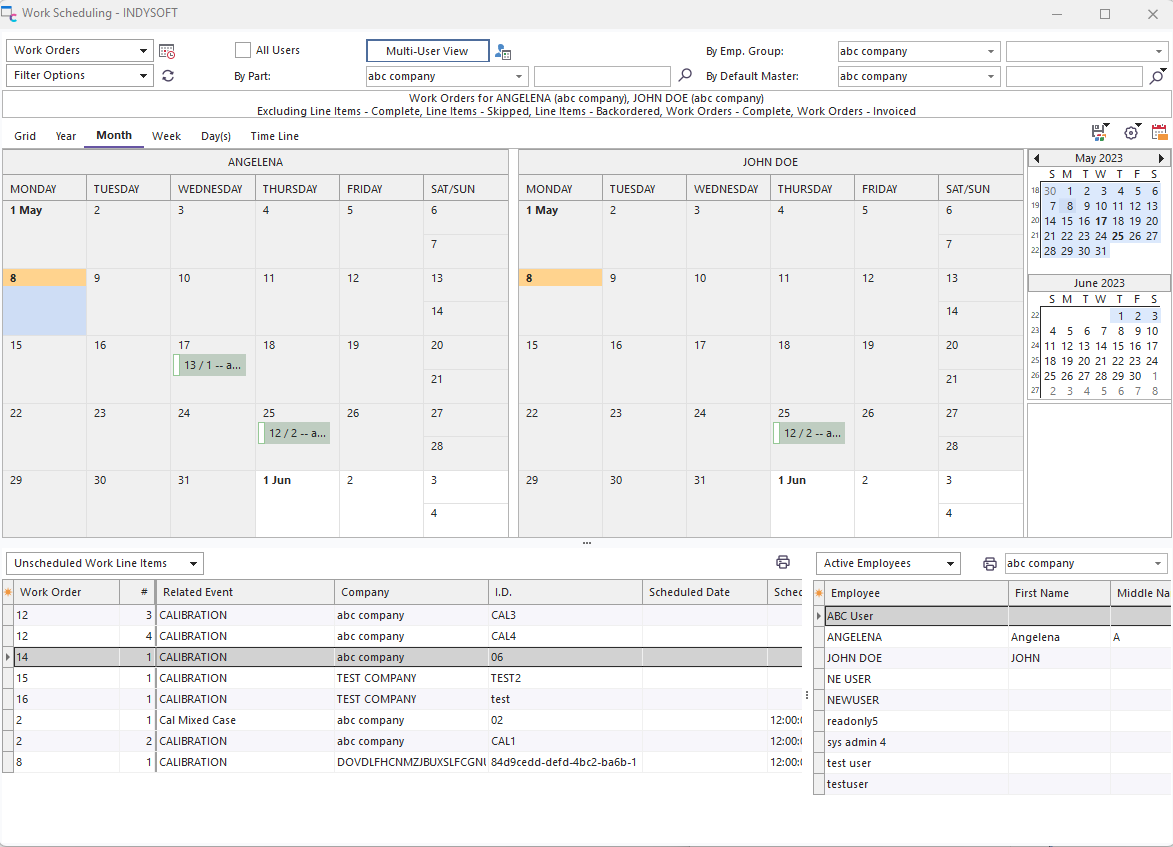
·Parallel Calendars (Multi-User View)
·Filter by Estimates, Work Orders, and Invoices
·All / Employee / Employee Group filter - linked to Company drop down
·Scheduled Work Exclusions, same as IndySoft Order System
·Matching items are shown in the selected scheduling view.'
·Work Orders can be refreshed from the 'Refresh All' button
·If you would like to see all work orders that relate to 1 employee plus all related employee groups, press the 'Include Employee Group With Individual Employee Selections' button
·There is also a 'Select All (for View Above' button in this lower-right section - this is equivalent to selecting 'ALL' in the upper-right drop-down
·You can filter By Part and, By Default Master
·Holiday Dialog can be input and controlled for Read-Only Display
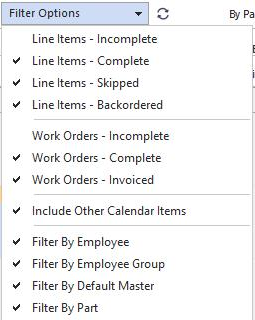
Scheduling View Filters
·Note that the filtering options on the left include options for filtering both Work Orders Line Items (by Incomplete, Complete, Skipped, Backordered) and entire Estimate, Work Order, and/or Invoice (by Incomplete, Complete, Invoiced). If you would also like to see ad-hoc calendar items (items not associated with an IndySoft Work Order or Line Item, check the 'Include Other Calendar Items' checkbox)
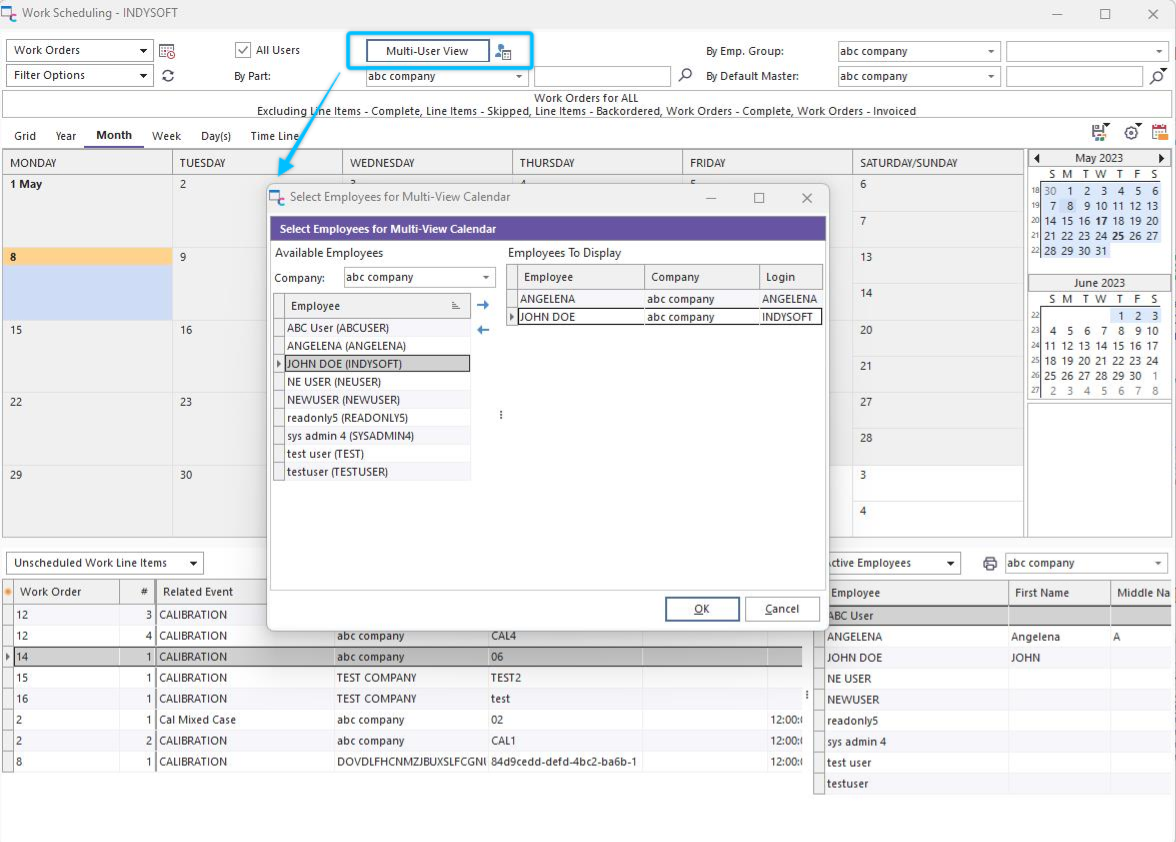
Multi-User View
Filter by employee, and you can set up parallel calendars. Select the employees out of the Available list and click OK.
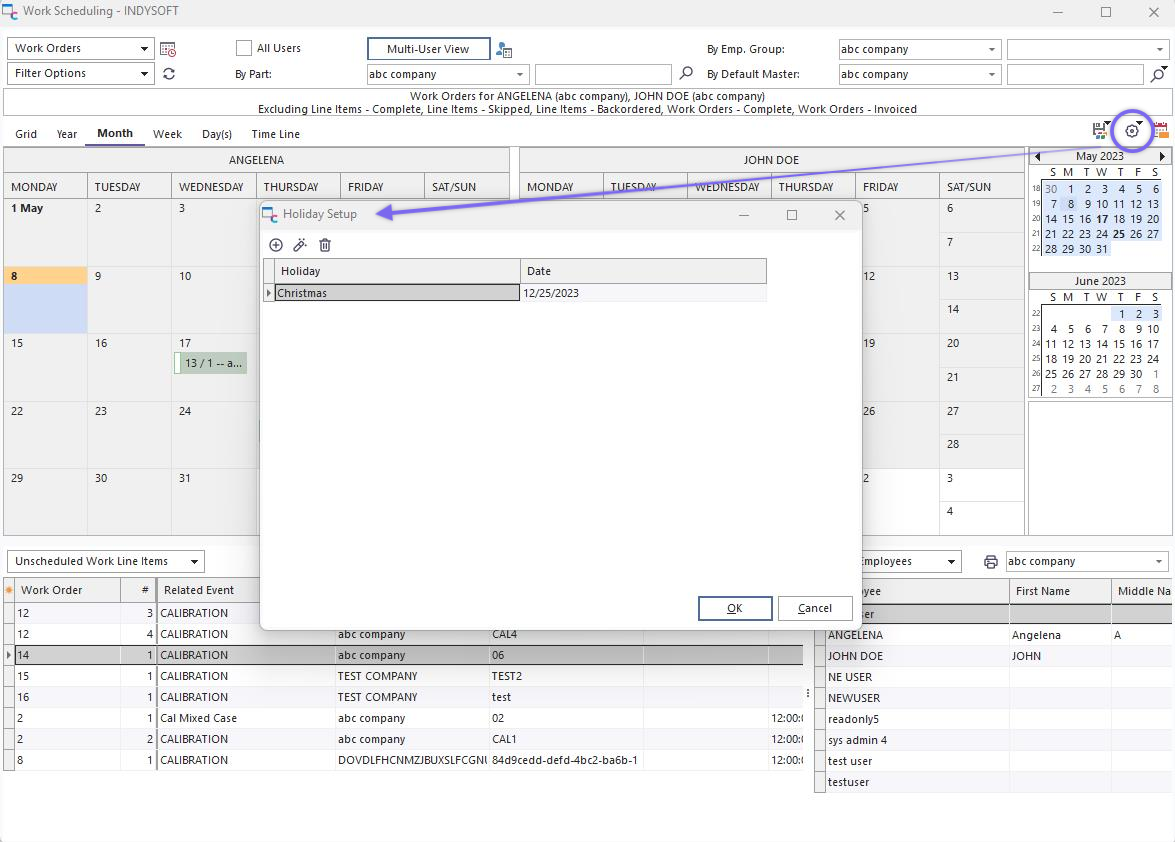
Holiday dialog can be manually input for Read-Only display. |