Workflow Configuration - Schedule Updates
Configuration Wizard - Schedule Updates (Step 7 of 22)
The Schedule Updates tab determines if and how an event updates equipment schedules.
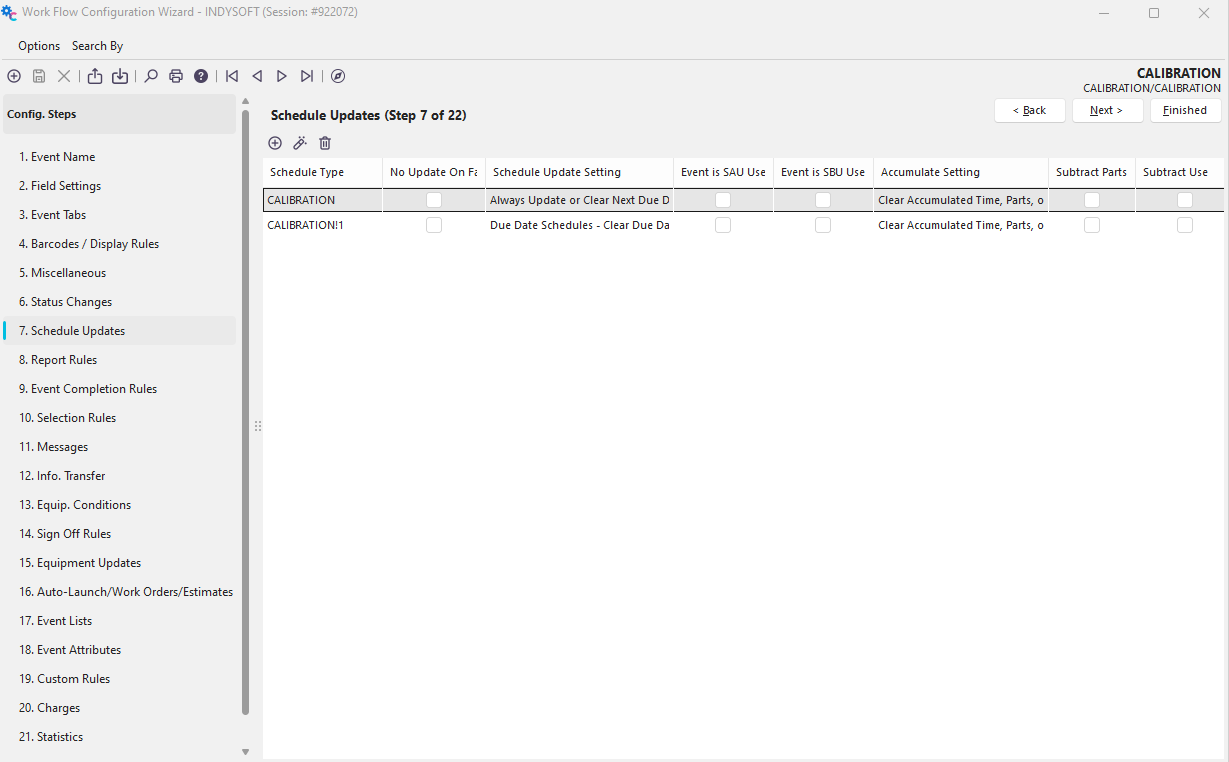
Configuration Wizard - Step 7 of 22 - Schedule Updates
 To add a new Schedule Update, press the add a new schedule button, and the following dialog will appear:
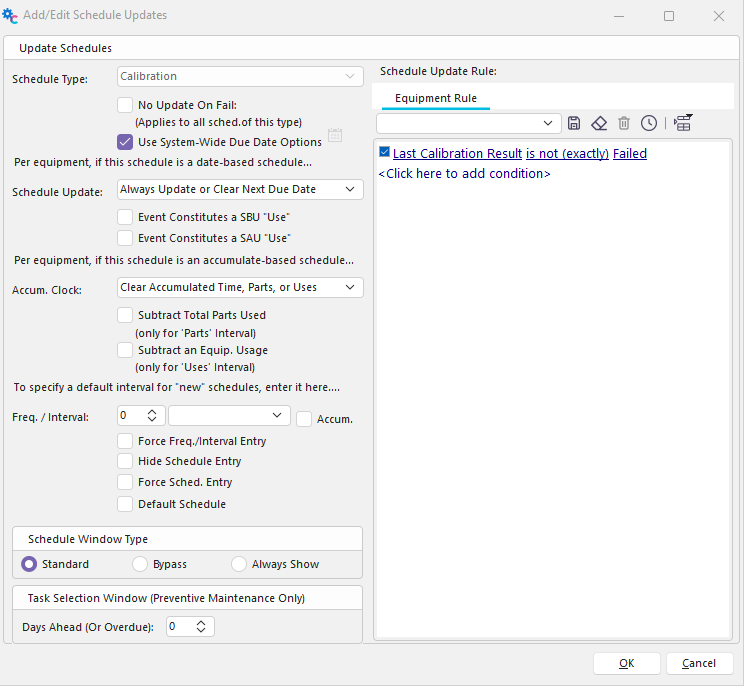
Add/Edit Schedule Updates
Schedule Type
Choose from this list of Schedule Types the equipment schedule that you wish to update after completing the current event.
No Update On Fail
Checking this option will not update the specified schedule if the event has a result type of status and that status has been marked as 'Failed.'
Use System-Wide Due Date Options
Per equipment, if this schedule is date-based. These options apply only to date-based schedules.
Schedule Update
Always Update or Clear Next Due Date
Choose this option if you want a due date-based schedule to always update the schedule. The Next Due Date will be cleared if the equipment has no valid schedule interval (i.e., six months).
Clear Due Date if SAU/SBU Interval Only
Choose this option if you want the due date for an SAU/SBU type of Interval to be cleared upon completion of the current event. Note: SAU stands for 'Schedule After Use,' and SBU stands for 'Schedule Before Use.'
Update Due Date Only If Interval is not SAU/SBU
Choose this option if you want to update the schedule due date only for schedules, not SAU or SBU based. Note: SAU stands for 'Schedule After Use,' and SBU stands for 'Schedule Before Use.'
Do Nothing
Choose this option if you don't want anything to occur to a due date-based schedule.
Due Date Schedules - Clear Last Date Perf. Only
Choose this option to clear the last date the schedule type was performed.
Due Date Schedules - Clear Due Date Only
Choose this option if you want to clear the due date for the schedule type.
Due Date Schedules - Clear Last Date Perf. & Due Date
Choose this option if you want to clear the last date the schedule type was performed and the due date for the schedule type.
Due Date Schedules - Delete Schedule
Choose this option if you want to delete the entire schedule type if it exists for the specified equipment.
Increase/Decrease Schedule By Freq./Int.
Choose this option if you want to increase or decrease the existing schedule by a set # of days that are specified in the Freq. field (Note: With this option, the Interval field is ignored. This option is always expressed in days. Also, a date is decreased by specifying a negative number in the frequency field).
Increase/Decrease Schedule By User Defined 1 Value
Choose this option to increase the existing schedule by a # specified in the User Defined one field. This value is always expressed in days and can decrement days by expressing a negative number.
Set Freq. & Interval From User 1 & User 2 Without Calculating Sched.
Choose this option if you want to set the interval/frequency of the schedule based on User Define fields 1 & 2 - without calculating a schedule.
Set Freq. & Interval From User 1 & User 2 - Calc Schedule from Event Date
Choose this option if you want to set the interval/frequency of the schedule based on User Define fields 1 & 2 - and calculate the schedule from Event Date.
Set Freq. & Interval From User 1 & User 2 - Calc Schedule from Last Sched. Date
Choose this option if you want to set the interval/frequency of the schedule based on User Define fields 1 & 2 - and calculate the schedule from the Last. Scheduled Date
Set Freq. & Interval From User 1 & User 2 - Calc Schedule from Expec. Return Date
Choose this option if you want to set the interval/frequency of the schedule based on User Define fields 1 & 2 - and calculate the schedule from Expected Return Date.
Set Due Date to Expected Return Date
Choose this option if you want to set the due date using the Expected Return Date of the event.
Set Due Date to Event Date
Choose this option to set the due date using the event date.
Set to Non-Accumulation of Time - Retain Freq., Interval, Due Date
Choose this option to set the schedule to a fixed date format and retain the current frequency, Interval, and due date.
Calc. Schedule from Existing Due Date (When Available)
Choose this option if you want the due date calculated based on the current date. The last Scheduled date will show the date of the event itself. To prevent an event incompletion/re-completion from triggering this option inadvertently - if the Last Scheduled Date is the same as the Event Date, no schedule will be updated.
Event Constitutes an SBU 'Use'
Check this box if you want the event to trigger a scheduled due date as the date of the current event, but only for the SBU (Schedule Before Use) type of equipment. A typical example of this would be a Check-Out type of event. In this case, you would typically check this box because the event should trigger all SBU schedules to immediately be scheduled for the associated event, such as a calibration.
Event Constitutes an SAU 'Use'
Check this box if you want the event to trigger a scheduled due date as the date of the current event, but only for the SAU (Schedule After Use) type of equipment. A typical example of this would be a Check-In type of event. In this case, you would typically check this box because the event should trigger all SAU schedules to immediately be scheduled for the associated event, such as a calibration.
Per equipment, if this schedule is accumulate-based
These options apply to only accumulate-based schedules.
Accumulate Clock
Start the Accumulate Interval's Clock
Choose this option to start the clock on an accumulated schedule. This would generally be used for a Check-Out event where a piece of equipment would be used.
Stop the Accumulate Interval's Clock
Choose this option to stop the clock on an accumulated schedule. This would typically be used for a Check-In event where equipment was taken out of use.
Clear Accumulated Time, Parts, or Uses
Choose this option to clear the time, parts, or uses that a piece of equipment has accumulated. This only applied to accumulate style schedules.
Do Nothing to Accumulate Clock
Choose this option if you don't want anything to occur to an accumulation-style schedule.
Subtract Total Parts Used
If a Parts Interval is being used, the Total Parts used during the event will be subtracted.
Subtract an Equip. Usage
If a Uses Interval is being used, it will subtract 1 for each piece of equipment.
To specify a default interval for 'new' schedules, enter it here...
Freq./Interval/Accum.
This option allows you to specify a default value for the schedule when a schedule has never been performed before.
Bypass Schedule Window
Checking this option will bypass the schedule window and auto-calculate a scheduled date based on the default Freq./Interval/Accum settings.
Force Freq./Interval Entry
Checking this option requires a freq./interval to be specified when creating a new schedule.
Hide Schedule Entry
Checking this option will hide the date portion of the schedule when a new schedule must be entered after an event is completed.
Force Sched. Entry
Checking this option will require the date portion of a new schedule to be filled in.
Default Schedule
Checking this box will make this schedule update always occur if the gage matches none of the specified filters in other schedule update rules.
Schedule Window Type
Schedule Update Rule:
Adding or Editing a Schedule Update Rule
Custom Schedule Update Rules can be added by clicking <Click here to add condition>. The Equipment Rule function works similarly to Event Finder. Once a rule is created, it can be tested by using the stopwatch icon or saved. Saved rules are then available in the drop-down list for re-use. |