Workflow Configuration - Info. Transfer
Configuration Wizard - Info. Transfer (Step 12 of 22)
The Info. Transfer tab allows you to transfer equipment information from one field to another after completing an event.
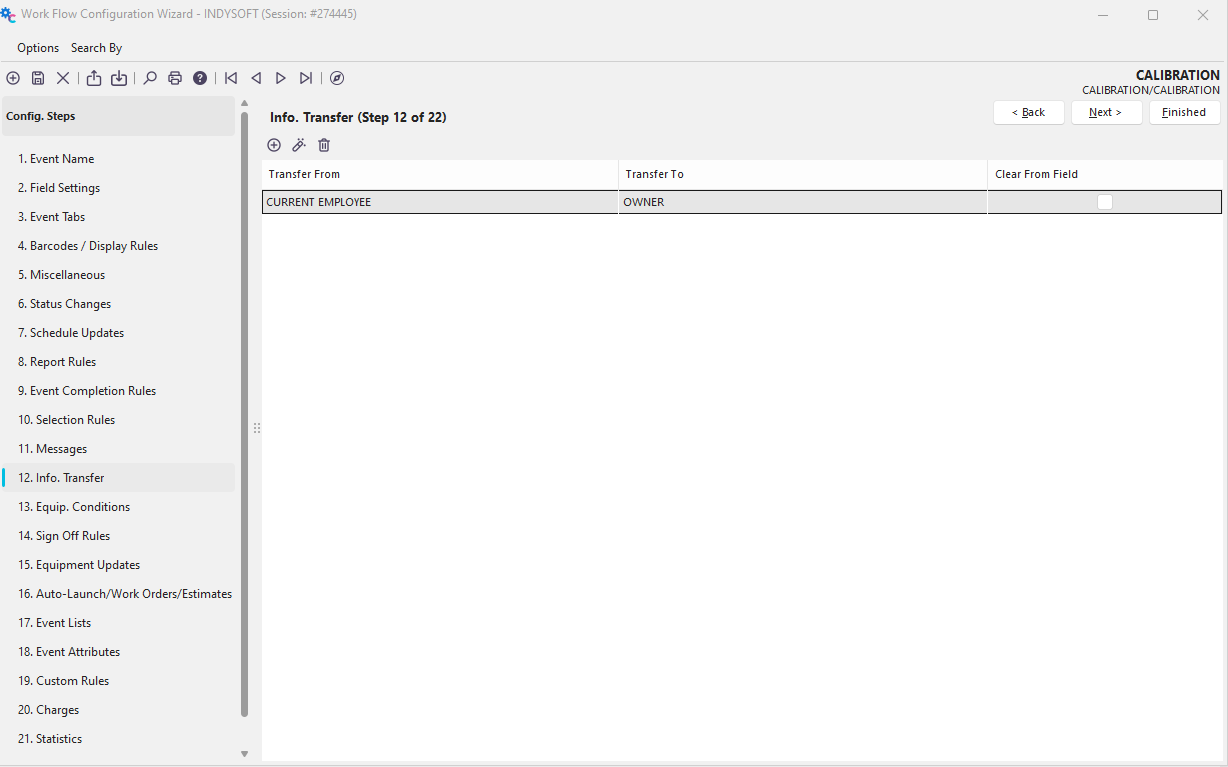
Configuration Wizard - Step 12 of 22 - Info. Transfer
 Click the 'Add Equipment Message' button to add a new rule or
  to view/edit.
An example is if you send a piece of equipment in for calibration by a vendor, you will set the Transit location to that vendor's name. The current location would be left alone so it is known where the equipment came from (last known location). Once the equipment arrives, the 'Receive for Calibration' event will be run. At this point, the Transit Location is copied to the Current Location. This allows you to use a simple 'Receive for Calibration' event rather than inspecting what type of equipment it is twice, once to send and once to receive.

Add/Edit Select Transfer From /To Example
Transfer From
This field is used to specify what equipment information to transfer.
Transfer To
This field is used to specify where you want to transfer the equipment information.
Clear From Field
Checking this option will clear the information specified in the Transfer From field. |