Workflow Configuration - Sign Off Rules
Configuration Wizard - Sign-Off Rules (Step 14 of 22)
The Sign-Off Rules allow you to require sign-offs from other IndySoft users before an event can be completed.
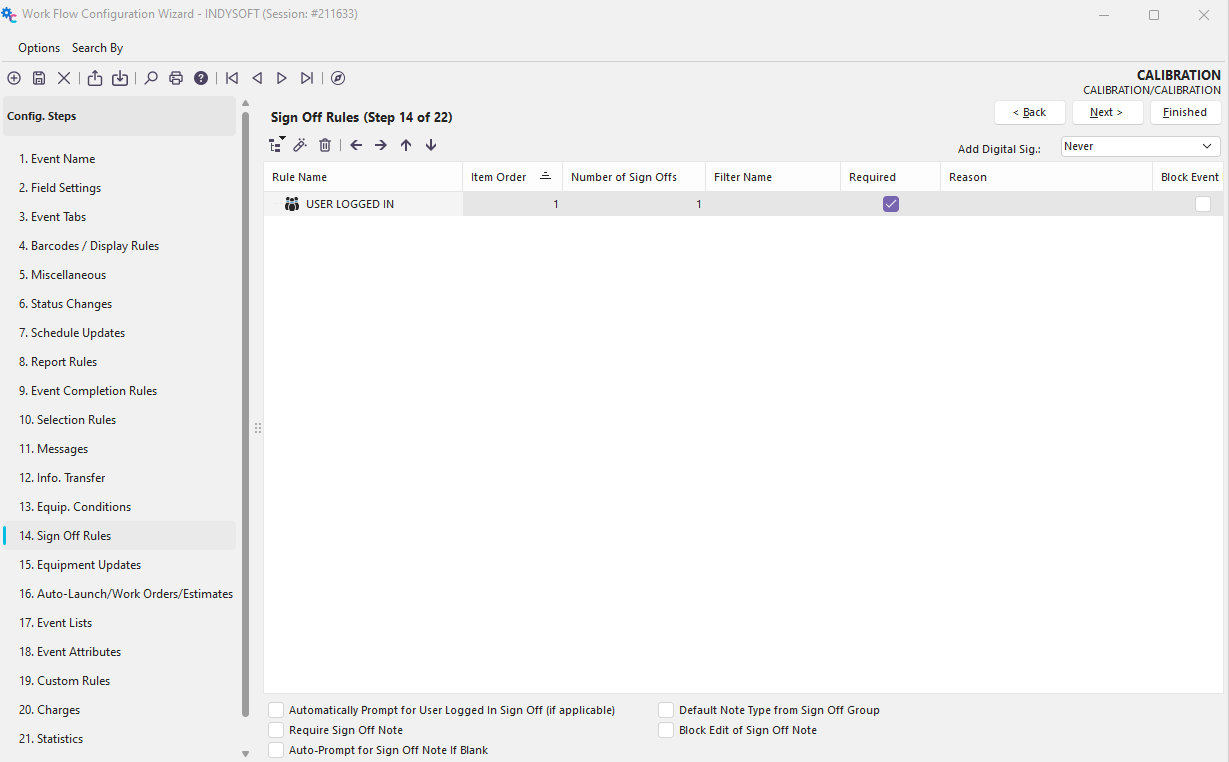
Configuration Wizard - Step 14 of 22 - Sign Off Rules
If an event completes - if all event sign-offs have not been completed, then a snapshot is taken of all the database users who could potentially fulfill the remaining sign-off requirements for this event. These users are populated on the main screen's Pending Work...Event Sign-Offs grid. Each time an event is finished as incomplete, this listing is repopulated.
Sign-Off Rules - Structure
Two methods can be used for organizing Sign-off rules: 1) Tree level and 2) Item Order. These two organizational tools can also be used together. Both methods allow you to structure which sign-offs must be performed before others. When organizing rules as a tree, all parent sign-offs must be completed before child sign-offs in the tree. When organizing rules based on Item Order, all lower-ordered sign-offs must be performed before higher-order items. If multiple sign-off items exist at the same tree level (for instance, all root levels), then the Item Order will prioritize sign-offs. Multiple items may be performed in any order if they have the same tree level and Item order.
Take the following simple example:
Both sign-offs exist at the root level, but the 'ADMIN SIGN OFF' has an Item Order of 1, and 'USER LOGGED IN' has an Item Order of 2. So, the 'ADMIN SIGN OFF' must occur before the 'USER LOGGED IN.' The same functionality could be accomplished by organizing the same two items:

So, either method may be used to provide order - or they can be used in combination. Note that there are four arrow buttons available above the tree that can be used for quickly re-arranging the tree:

Pressing the 'left' button will move the selected rule one indent position to the left, and the 'right' button will move it one indent position to the right. The 'up' button will lower the Item Order by one step, and the 'down' button will raise the Item Order by one step.
Event Sign-Off Rules - New Rules
There are five different options when adding a new sign-off rule: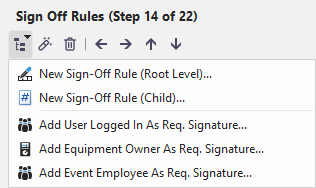
Event Sign-Off Rules - Options
New Sign-Off Rule (Root Level)...
This option adds a new sign-off rule to the root level (left-most in the tree). Root level sign-offs must be performed before and child (or grand-child, etc.) nodes. If multiple sign-off rules exist at the root level, the sign-off ordering will be according to the 'Item Order.' If multiple sign-offs at the root level (or any same level) have the same 'Item Order,' then they can be performed in any order.
New Sign-Off Rule (Child)...
This option adds a new sign-off rule as a child of the currently selected sign-off. Child rules must always be performed AFTER the parent.
Add User Logged In As Req. Signature...
This special option will require the user currently logged into IndySoft to perform a sign-off before the event is completed.
Add Equipment Owner As Req. Signature...
This special option will require the user associated with the equipment owner of the event asset to perform a sign-off before the event is completed. Note that this user might be different than the user currently logged into IndySoft (so this user might more conveniently perform the sign-off later from the 'Pending Work'...'Event Sign Offs' grid.
Add Event Employee As Req. Signature...
This special option will require the user associated with the employee in the 'Performed By' field in the event to perform a sign-off before the event is completed. Note that this user might be different than the user currently logged into IndySoft (so this user might more conveniently perform the sign-off later from the 'Pending Work'...'Event Sign Offs' grid.
Add/Edit Event Sign-Off Rules
Event sign-off requirements are based upon a filter of users - this filter can be as generic or specific as needed.
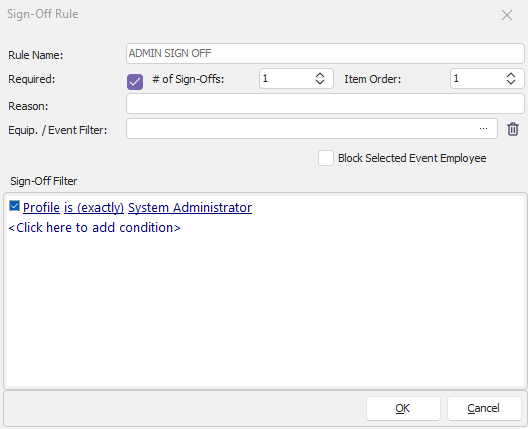
Add/Edit Event Sign Off
Rule Name - a unique name for this rule.
Required - whether this rule is merely a suggestion noted below the sign-offs grid in the event or if it is required before the event is completed.
# of Sign-Offs - the number of equivalent sign-offs (all following the filter box requirements input in this dialog) that must be performed before the sign-off requirement is completed.
Item Order - the order of the rule relative to other rules on the same tree level
Reason - an optional descriptive reason of the rule. If this description is empty, the 'Rule Name' will be used when displayed on the final sign-off.
Equip. / Event Filter - an optional equipment/event filter can be associated with each rule. Press the ... button to add/modify these filters.
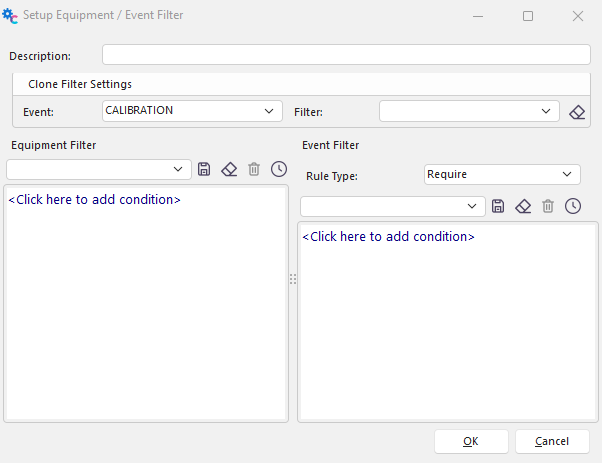
Use the above dialog to add an optional equipment and event filter. The equipment filter is input on the left, and the event filter on the right. The event filter can either be a 'require' or 'forbid' type of rule. Note that previously created equipment/event filters can be selected from the 'Clone Filter Settings' group box. Once a previously created filter has been selected, press the  button to clone the filter. This does NOT mean that the filter is held in common - instead that the filter is quickly cloned to this new name, saving you the time of assembling a similar rule.
Block Selected Event Employee - if this option is chosen, then regardless of the sign-off filter, the login associated with the 'Performed By' employee in the event will be excluded from being able to perform this sign-off.
Sign-Off Filter - the filter for available users. Available filter fields include user-based fields and linked employee fields. (Each user login in IndySoft is mapped to one and only one employee record from Add/Edit...Employee...Employees. This association is made from Profile Manager - Adding/Removing Users.
Additional Sign-Off Options

Additional Sign-Off Options
Automatically Prompt for User Logged In Sign Off
Checking this option will cause IndySoft to prompt the user to complete the sign-off if required by the 'Add User Logged In as Req. Signature option, if selected as a current rule.
Require Sign-Off Note
Checking this option will require inputting a Sign-Off Note with each sign-off in the event.
Auto-Prompt for Sign-Off Note If Blank
Check this option to automatically launch the 'Add From Note Types' dialog automatically if the note is blank - typically, this option is launched from a right-mouse click on the note.
Default Note Type from Sign Off Group
Check this if you would like the sign-off note to be automatically populated from a note type that matches.
Block Edit of Sign-Off Note
Check this option if you would like to block any edits to the sign-off note - this would only be appropriate if the 'Default Note Type from Sign Off Group' option is also ON - otherwise, no note could be populated.
Sign-Off Rules - As Used In the Event
Sign-offs are performed in a unique tab in the event wizard. As assets are selected for the event, all event sign-off rules are reviewed to ensure that any equipment/event filters are honored. If these filters are not met, then the related rules are excluded. The sign-offs that remain are listed in the event at the top of the sign-off page:
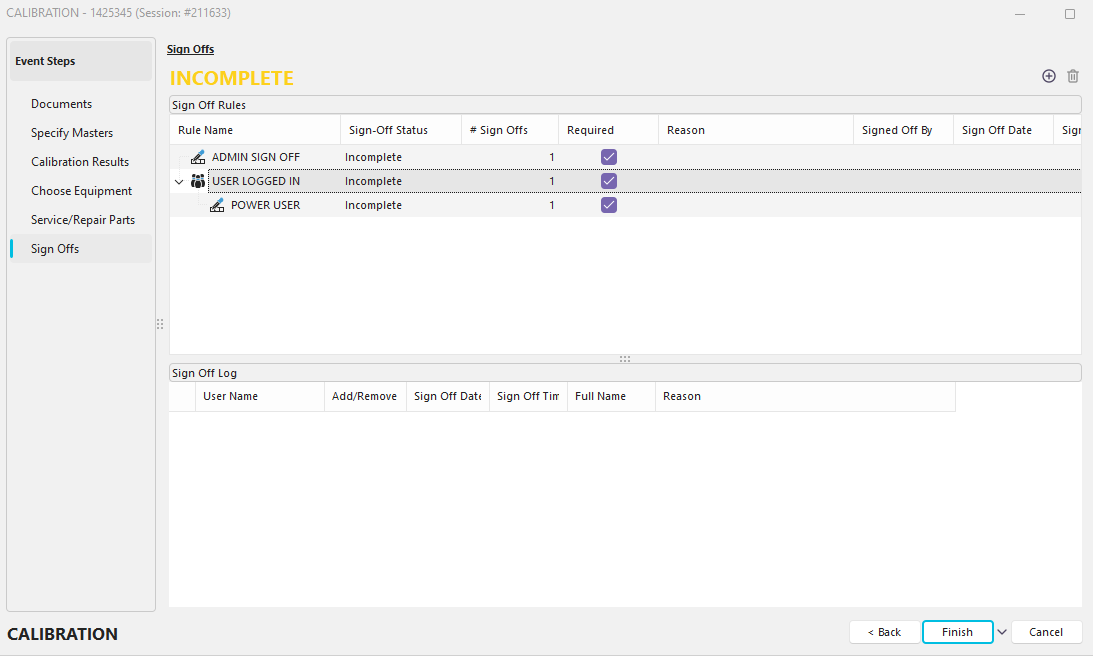
To perform a sign-off, double-click the rule from the top grid. In certain instances, only one username can fulfill the requirement (i.e., the user logged in, the user related to the event employee, etc.). In this case, the username will already be input in the sign-off dialog. Complete the sign-off dialog, inputting the related password and optional sign-off note to complete the sign-off.

Once sign-offs are completed, they are listed in the 'Sign Off Log' at the bottom of the event sign-off tab. This grid notes the user, date/time, full name, reason, and whether this log record reports a new sign-off or removes a previously input sign-off. Once all sign-offs have been completed, the event status will be set to COMPLETE.
If the event is exited (through the 'Finish' button) before all the sign-offs have been completed, then any remaining sign-offs are logged to the Pending Work...Event Sign Offs grid on the main screen. At the time of the event finish, all users that can fulfill each remaining sign-off are logged as potential signers in these grid records. For instance, if you have 3 'System Administrators' setup in your database, and one of your events sign-off rules requires a 'System Administrator' sign offs, and this sign-off is not complete at the time of the event finish, then three records will be added to the 'Pending Work' event sign offs grid, one for each admin. Note that one or more of these records might be omitted if that same login has already been used for a previous sign-off - or will be required to accomplish another 'special' sign-off, like the 'Event Employee as Req. Signature'.
To complete a sign-off from the 'Pending Work...Event Sign Offs' double click on the item will launch the related event. Review the event details from within the wizard, then go to the sign-off page and complete the sign-off as usual. |