Workflow Configuration - Barcodes / Display Rules
Configuration Wizard - Barcodes/Display Rules (Step 4 of 22)
The Barcodes / Location Rules screen lets you choose which fields may be used as 'bar coded' items and how. Also, you can use the location code of each workstation to filter out certain event types that appear on the menu.
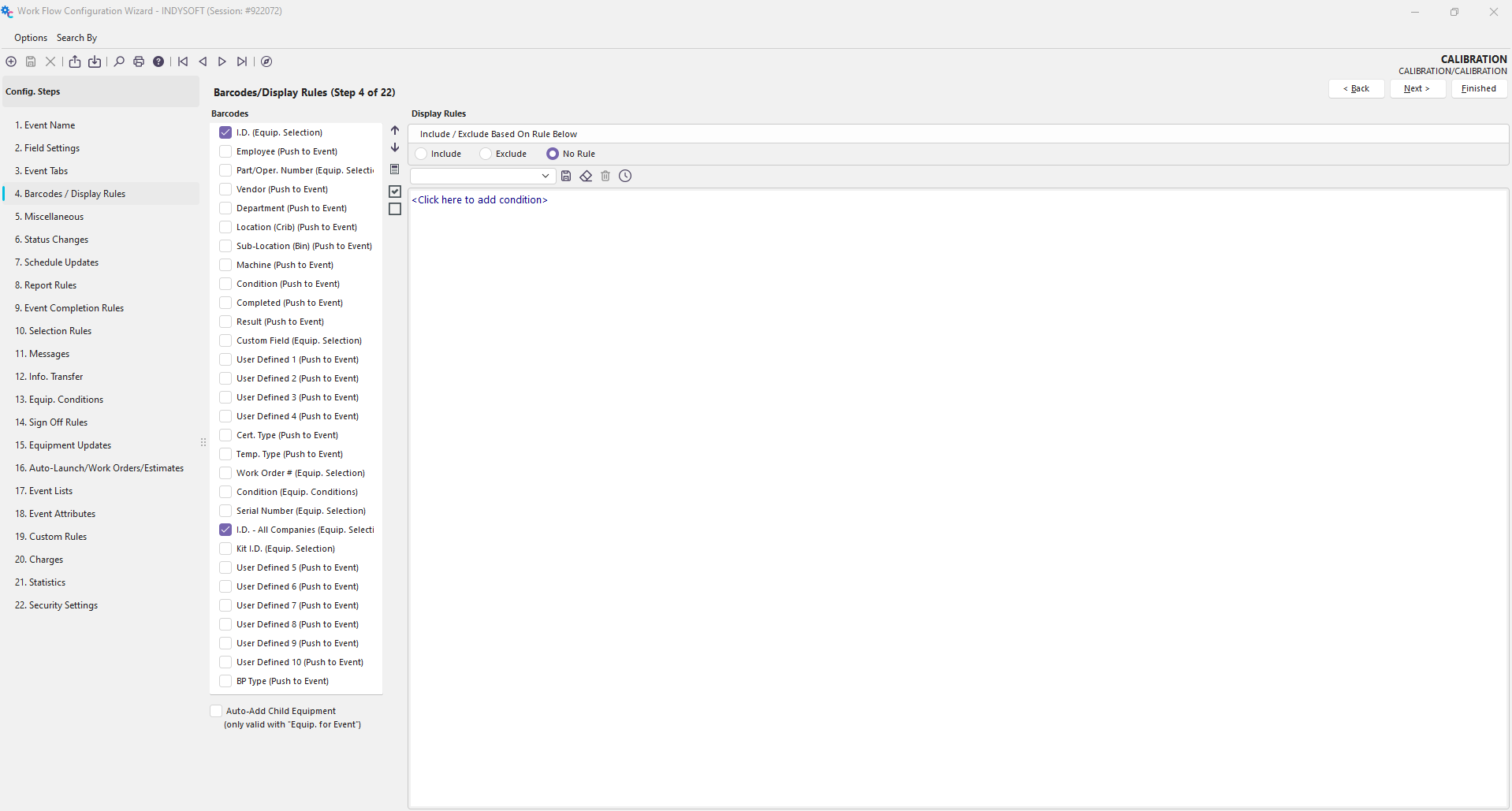
Configuration Wizard - Step 4 of 22 - Barcode/Display Rules
Barcodes
The Barcodes option is used to specify which fields (if any) should be searched each time an item is entered into the 'quick entry' field. Below is an example of the Quick Entry Field.
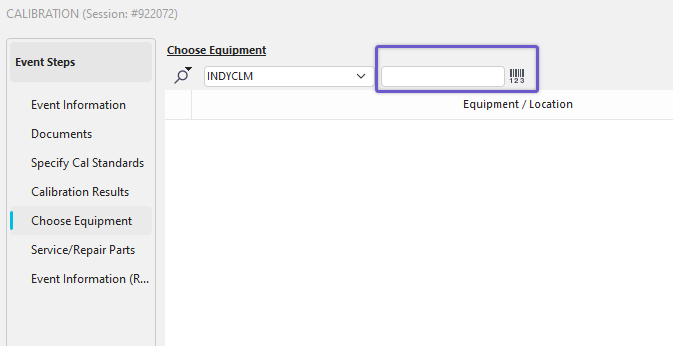 ../Storage/indysoft-help-publication/98832330.png
Calibration Event w/Quick Entry Field
IndySoft starts checking for matches at the top of the list and goes down. Any checked item will be searched for a match in the associated field's list, and if found, the information will automatically be placed into the appropriate area. This can be a great time saver because your cursor doesn't have to be in the appropriate field for barcoding to work. To be most efficient, choose the most commonly entered equipment info close to the top of the dialog and ensure it is checked.
Note: The Barcode must be an exact match with the field.
Icons
Move Items

 These buttons move barcode event items up and down. Items can also be moved by dragging/dropping them.
Group Checked Items
 This button can move all 'checked' barcode event items to the top of the list.
Mark All Items Not Visible
 This button will clear all checks from the barcode event items.
Mark All Items Visible
 This button will check all checks from the barcode event items.
Display Rules
The Display Rules allow you to specify where Events display/do not display.

Display Rules Panel
Each workstation can be labeled with an optional location code. Using this location code, you can specify the following:
·Include a list of locations
·Exclude a list of location
·Have no location rules (default)
Since IndySoft is so configurable, different setups for companies, locations, users, or workstations can each have their Dashboard and customized events.
New Feature: Extended Display Filter (All Company Fields)
 Note: These features are specific IndySoft version 12.1.0 and on.
If you are using version 12.1.0 and on, you will see a new option in the Display Rules section of Workflow Configuration. We have extended the filter box here to pull in all company fields. This means that you can now filter/specify the display rule of your event in a more advanced way. See the screenshot below for an example:
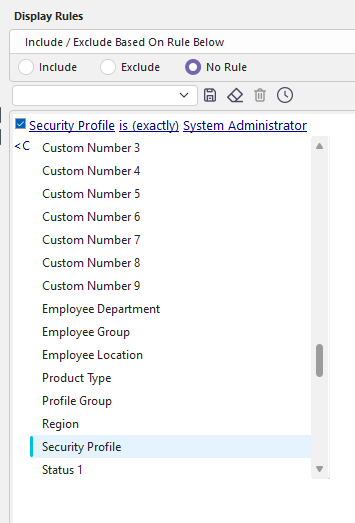
Display Rules Filter with Extended Company Fields |